

Lets have an overview of API integration and MS Flows (online version).
WHAT IS API INTEGRATION?
An application programming interface (API) is a messenger that processes requests and ensures seamless functioning of enterprise systems. API enables interaction between data, applications, and devices. It delivers data and facilitates connectivity between devices and programs.
API can also be defined as an online programming interface of the organization. It allows applications to communicate with backend systems.
An application programming interface creates a channel for the company to sell its products and services online. API enables access of services by adding codes to applications. It further enhances connectivity and bolsters functionality.
APIs ensure a seamless communication between various applications. But, it is so done by exposing limited amount of a program’s internal functions. For example, an app like Zomato is enabled by API to show the restaurant locations on Google Maps. So, in other words, API integration eases businesses and benefits consumers.
What is Microsoft Flows ?
Microsoft Flow is an online workflow service that automates actions across the most common apps and services. For example, you can create a flow that adds a lead to Microsoft Dynamics 365 and a record in MailChimp whenever someone with more than 100 followers tweets about your company.
What can you do with Microsoft Flow?
You can use Microsoft Flow to automate workflows between your favorite applications and services, sync files, get notifications, collect data, and much more.
For example, you can automate these tasks:
- Instantly respond to high-priority notifications or emails.
- Capture, track, and follow up with new sales leads.
- Copy all email attachments to your OneDrive for Business account.
- Collect data about your business, and share that information with your team.
- Automate approval workflows.
In this blog i will demonstrate how we can generate a GET request and update crm record with API response.
I will be demonstrating the same on trial instance with a trial API below are the API details.
URL- https://jsonplaceholder.typicode.com/todos/1
Response on GET for this API
{ "userId": 1, "id": 1, "title": "delectus aut autem", "completed": false}In the above response we get 4 parameter in response in which we will stamp “title” on job title field in contact on creation of contact.
Lets start with flow creation on http://flow.microsoft.com/ log in with your Dynamics user credentials.You will land on homepage as below.

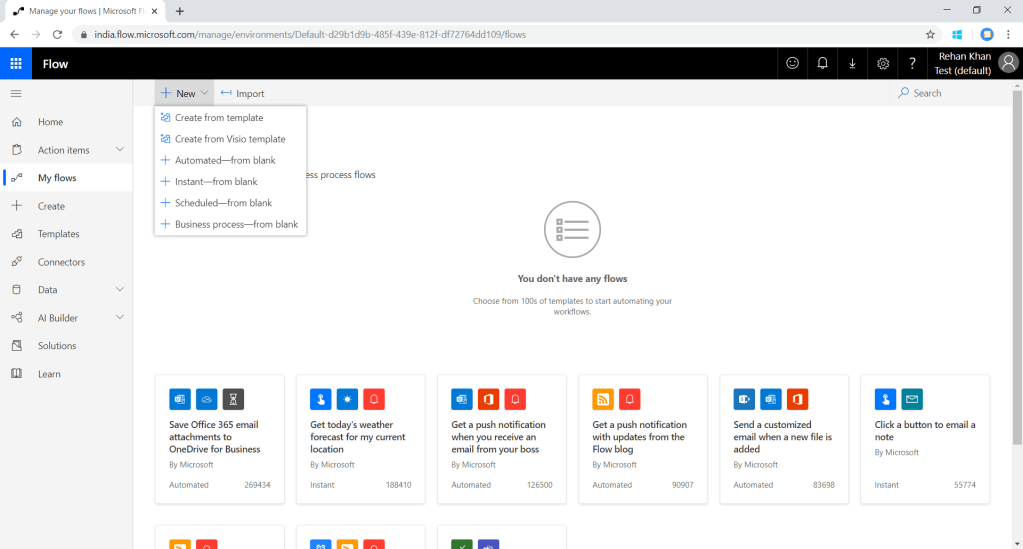
Click On My Flows on left navigation bar and select new automated flow as shown below.
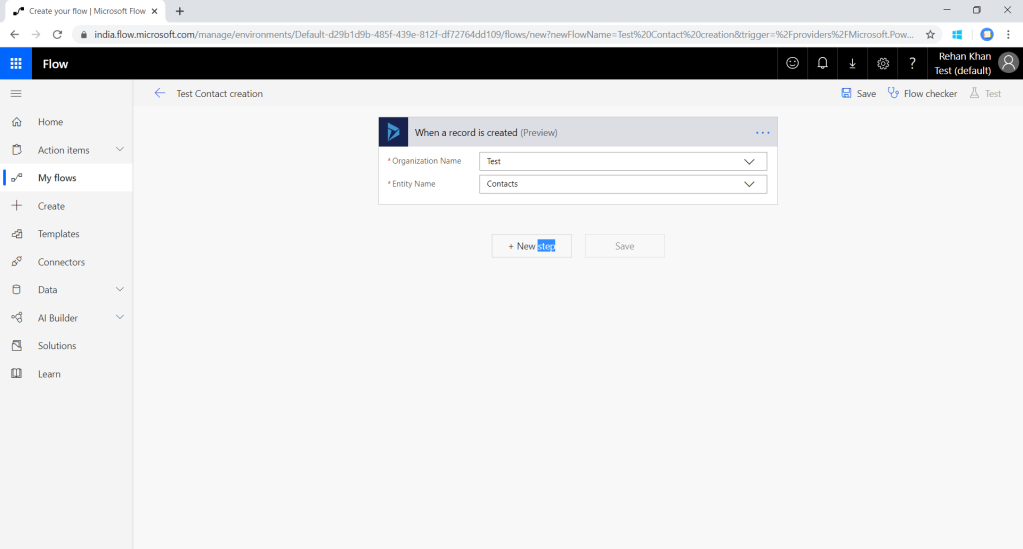
Now you can type-in the name of your flow and choose the trigger point for the flow, here i am triggering the flow on create of record (Dynamics 365 connector). There are 2 trigger available in which one is in preview mode you can select any one of them.Once you click on create button you can see flow designer.

On trigger component you can select Instance (in case you have sandbox and production instance ) & Entity (on which you want to trigger the flow).Here I have selected my test instance and contact entity .
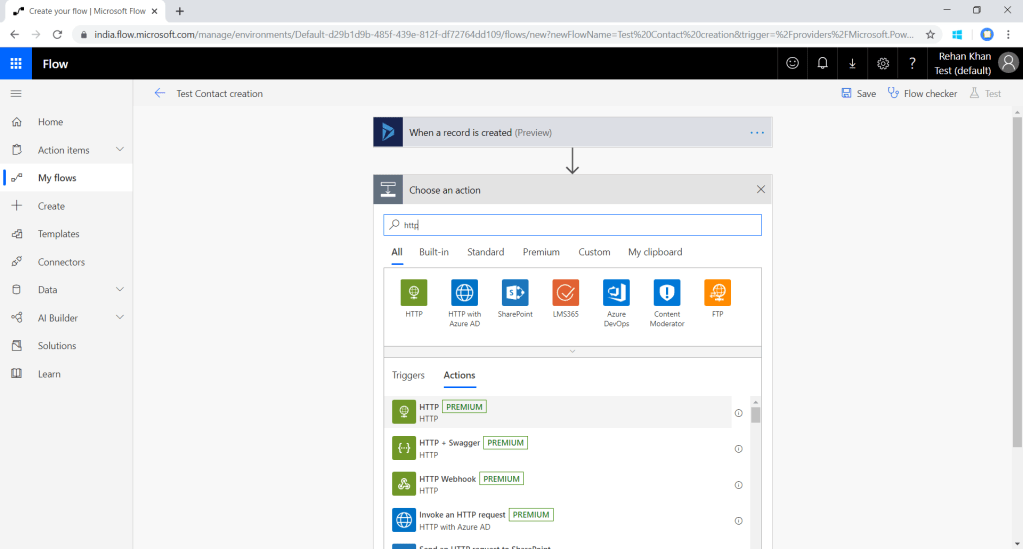
Add HTTP step which will trigger an API request to the URL. Click on new step and type HTTP. Now select HTTP [premium] which is a premium flow plan you will get the plan details here .HTTP actions are designed to manage HTTP requests in flow.

In the above screenshot you can see HTTP action to be filled with API details
Method- GET,POST, PUT (or as per your request)
URL-API URL
Headers-(if any )
Queries-If any
Body-Request json .
In my test API i am passing method as GET and a blank request.
After performing the above steps FLOW will execute this API request,but to capture the response from API we will parse the response structure.Add new step and select parse json action.

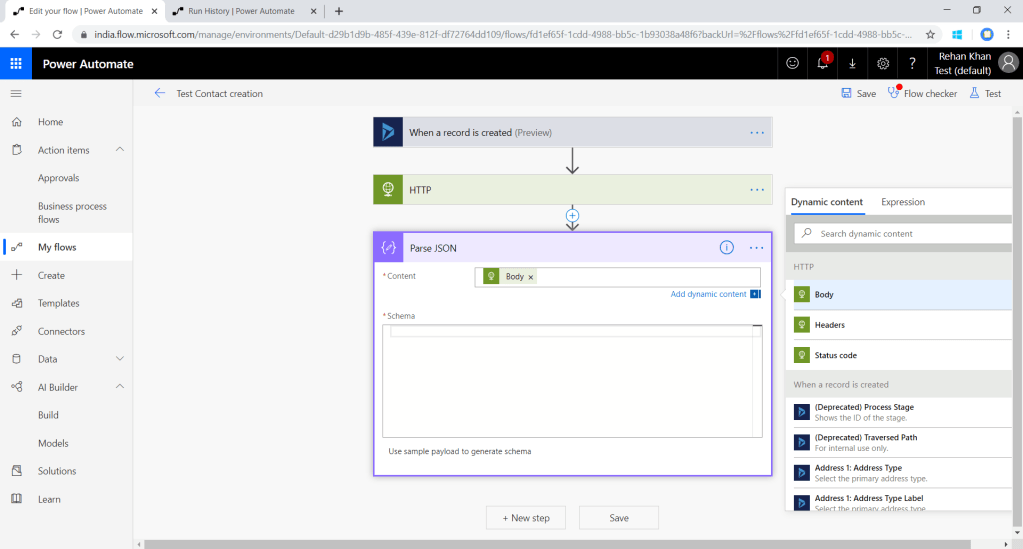
Select body from HTTP for the content to parse and add the sample response of API to create Schema.Click on Use sample payload to generate schema in the left corner .

It will automatically generate shcema based on the sample payload values passed.
As shown in the screenshot below.

Now I will update job title of the contact with the tittle received from API response.
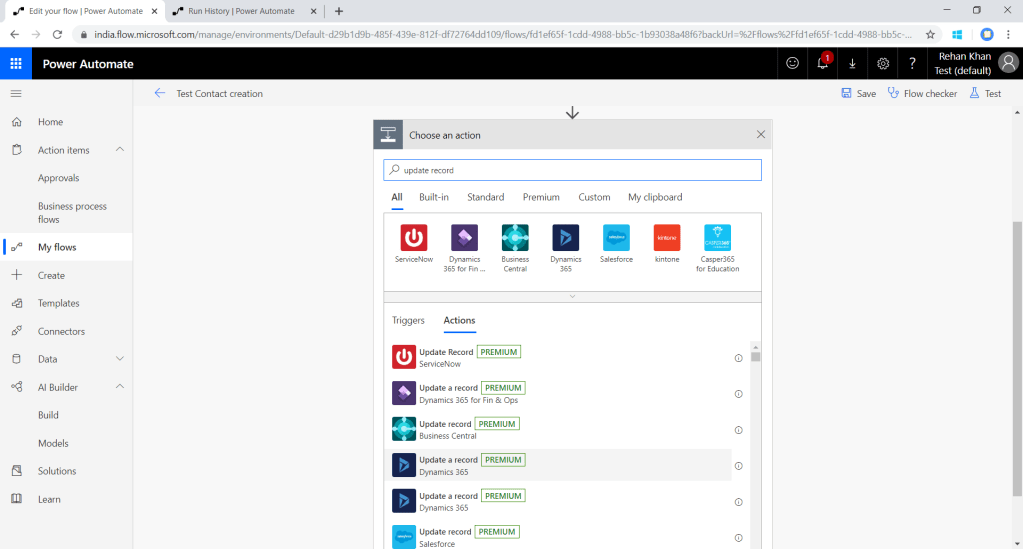
Add new step , update record action from dynamics365 assembly.
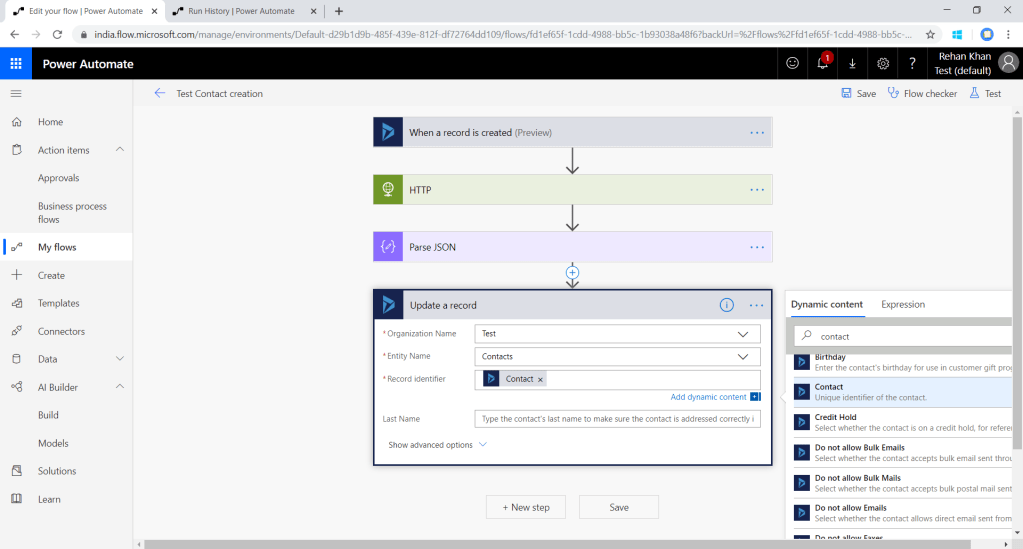
Select your environment following that select the entity which you want to update that is contact in this example.There is a mandatory field record identifier which requires the GUID of the record you want to update .Here we will pass unique identifier record of contact which will be originated from create step as shown in the above screenshot.
Now you can see all the fields of contact (click on show advance option on the bottom left corner) .

You will get the parsed attributes from the parse json component.As shown in the above screenshot i am updating the job title field on contact record with tittle received from API .You can map the fields as per your requirement to the record field.
Now i will create a test record and check.
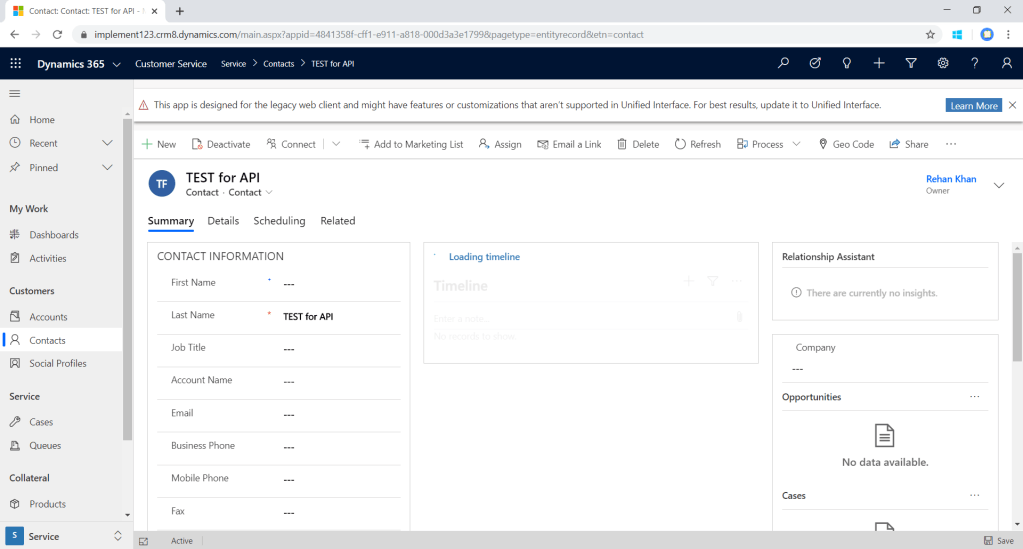

We can check the logs for all the execution in flow.Navigate to My Flows>Select your flow(I am selecting Test contact creation)
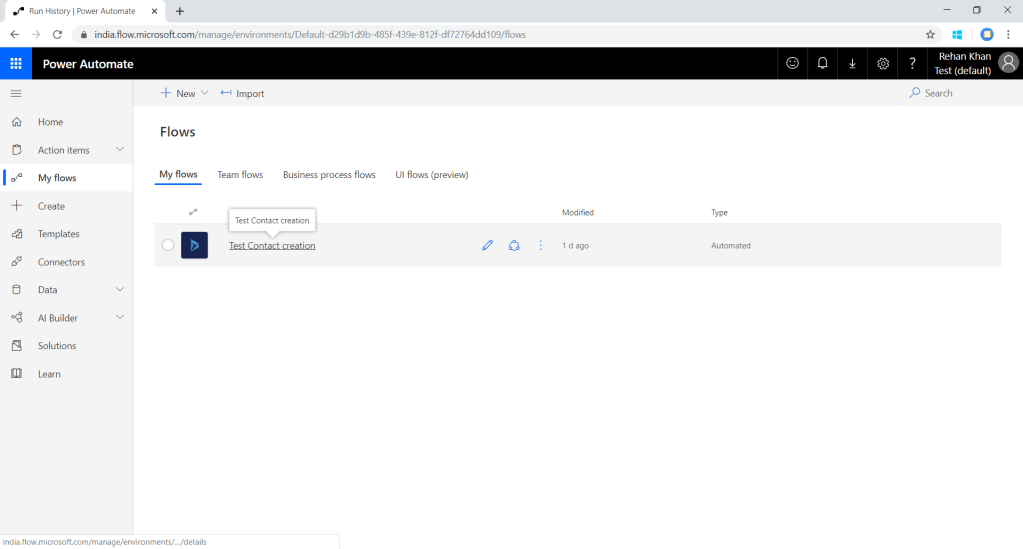

It might take some time for the flow to be visible in the logs. As shown in the above screenshot click on the logs as per the records created on time to check the the log of that particular record.

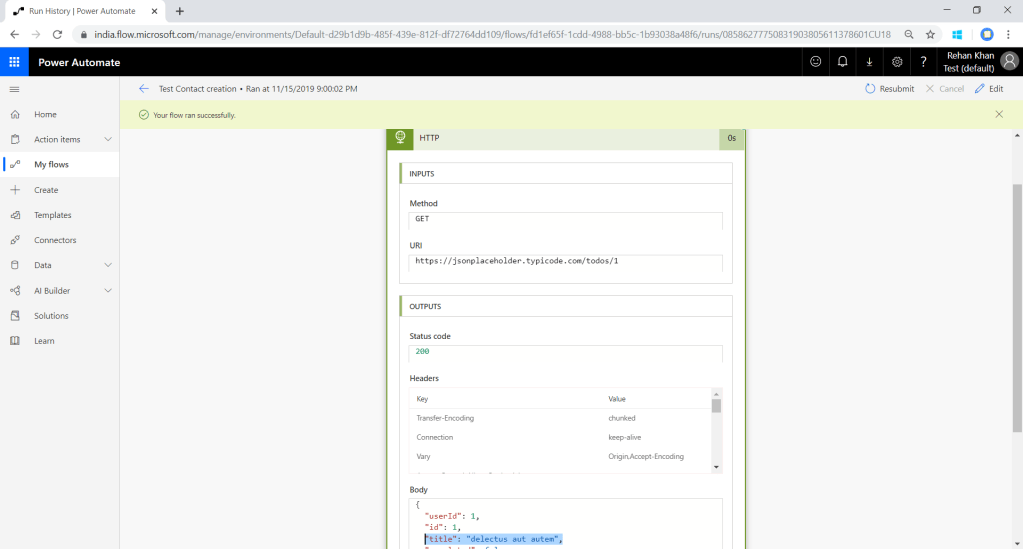
As shown in the above screenshot in HTTP component title is stamped.This is how we can integrate API on CRM steps. Thank you for reading my blog, feel free to contact me at rehanreyk@gmail.com for any query. All the best………. 🙂
 Rey Dynamics CRM Blog