
In this blog i will demonstrate how we can design a solution to filter Lookup records based on security role.This was one of my clients requirement, where the logged in user can view products on Lead based on their security role.Lets get an overview of the solution to be implemented.
- Create a mapping entity – We will create a new entity called security role wise products , and add 2 lookup fields on this entity that will be product lookup and security role lookup.
- Filter lookup – On load of the lead form we will generate a custom filter based on the records available in our custom entity.
Lets start with creation of entity.
I will create a new solution Lookup filter . Navigate to Settings > Solutions>New.


Create an entity for mapping of product and leads
Create a lookup field for product (lookup of the entity master you want to filter in this example product).

Create a lookup field for security role to tag the corresponding security role .
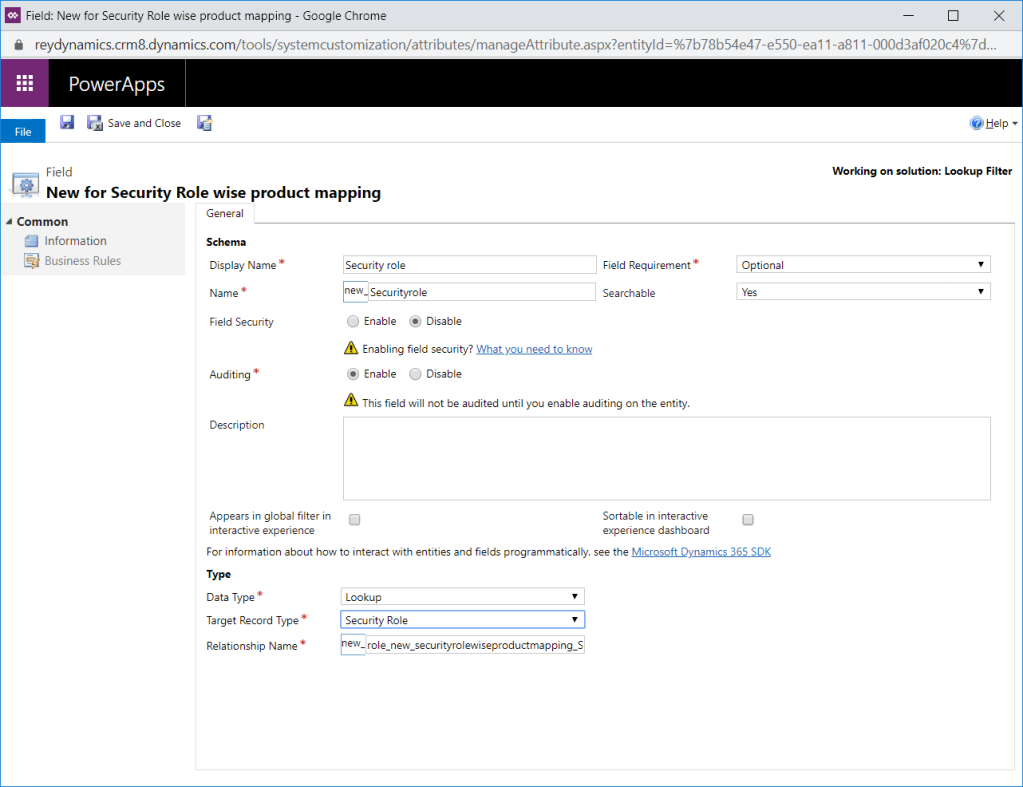
Add these 2 fields on the main form.Save and publish the form.

Lets move to our script component.Add a javascript component with the below function in it.Create a new web resource Filter lookup.
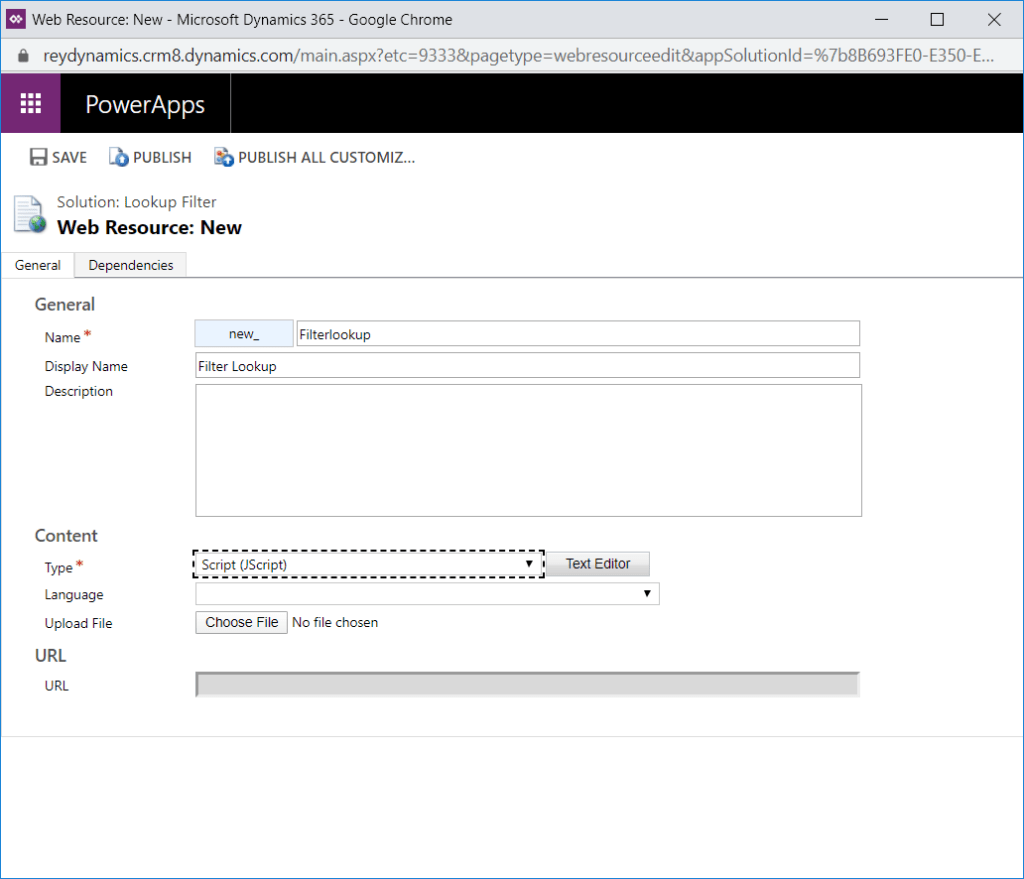
Add below java script code in the filter lookup js file.
// JavaScript source code

//******** On Load Function ****************
function Onload(executionContext) {
    debugger;
    var formContext = executionContext.getFormContext(); // Passing execution Context as var

    // Below function adds a presearch function to the attribute defined.
    formContext.getControl("new_product").addPreSearch(
        function (executionContext) {
            filterproduct(executionContext);
        });
}


function filterproduct(executionContext) {
    var formContext = executionContext.getFormContext(); // Passing execution Context as var

    var query = "<filter type='and'>" +
        "<condition attribute='productid' operator='in'>";

    var customquery = "";
    var selectquery = "";
    var userrole = formContext.context.getUserRoles();
    //debugger;
    for (var i = 0; i <= userrole.length; i++) {
        if (userrole.length - 1 === i) {
            selectquery = selectquery + "_new_securityrole_value eq " + userrole[i];
        }

        else if (i < userrole.length - 1) {
            selectquery = selectquery + "_new_securityrole_value eq " + userrole[i] + " or ";
        }
    }
    var filterquery = "new_securityrolewiseproductmappings?$select=_new_product_value,_new_securityrole_value&$filter= " +
        selectquery;
    debugger;
    var results = getdata(formContext, filterquery, false);
    for (var i = 0; i < results.value.length; i++) {
        if (results.value[i]["_new_product_value"] != null) {
            var _new_product_value = results.value[i]["_new_product_value"];
            customquery = customquery + "<value uitype='productid'>{" + _new_product_value + "}</value>";
            customquery = customquery;
        }
    }
    customquery = query + customquery + " </condition> </filter>";
    if (results.value.length > 0) {
        formContext.getControl("new_product").addCustomFilter(customquery);

    }
}


// General function for Get query
function getdata(formContext, query, SyncMode) {

    try {

        var result = null;
        $.ajax({
            type: "GET",
            contentType: "application/json; charset=utf-8",
            datatype: "json",
            url: formContext.context.getClientUrl() + "/api/data/v9.1/" + query,
            beforeSend: function (XMLHttpRequest) {
                XMLHttpRequest.setRequestHeader("OData-MaxVersion", "4.0");
                XMLHttpRequest.setRequestHeader("OData-Version", "4.0");
                XMLHttpRequest.setRequestHeader("Accept", "application/json");
                XMLHttpRequest.setRequestHeader("Prefer", "odata.include-annotations=\"*\"");
            },
            async: SyncMode,
            success: function (data, textStatus, xhr) {
                result = data;
            },
            error: function (xhr, textStatus, errorThrown) {
                Xrm.Utility.alertDialog(textStatus + " " + errorThrown);
            }
        });

        return result;
    } catch (e) {
       Xrm.Utility.alertDialog(" Error: " + (e.description || e.message));
    }
}
The above Javascript contains 3 functions .
1.Onload – This function add a presearch filter on the lookup field defined.
formContext.getControl("Your Lookup Attribute").addPreSearch(
        function (executionContext) {
            filterproduct(executionContext); //Function to add custom filter
        });
The above function is registered on load as seen in below screenshot.
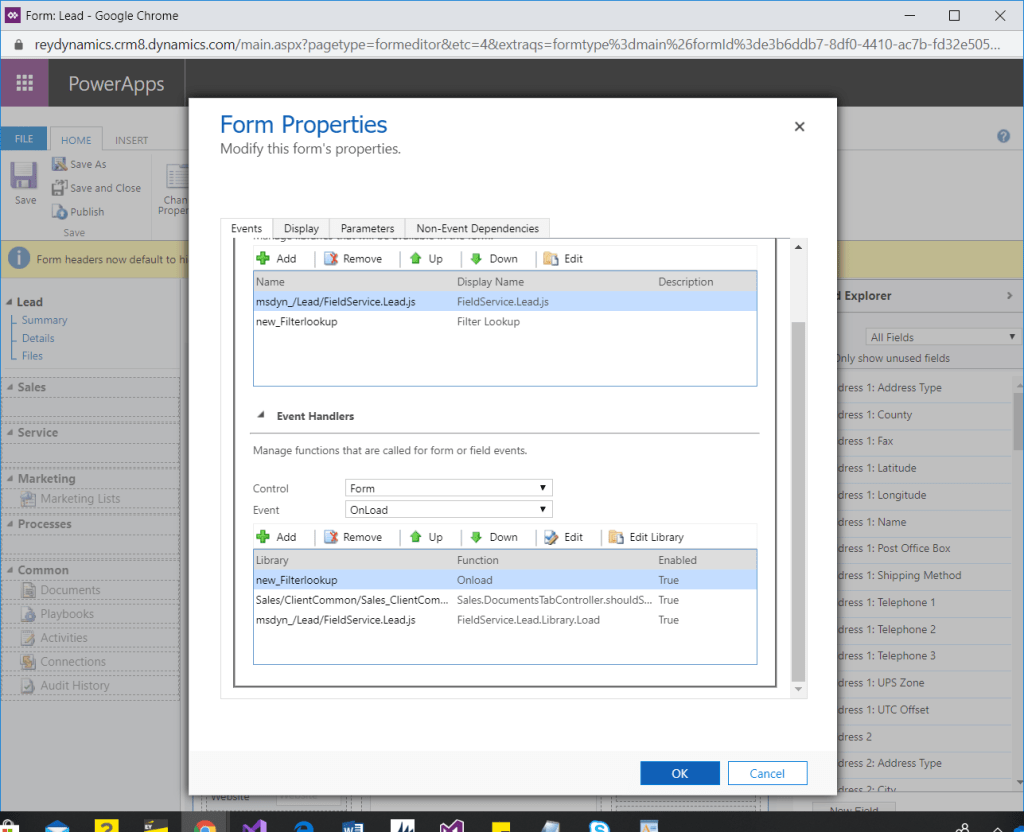
The above onload function adds filterproduct function as the presearch function for the attribute defined.Lets discuss filterproduct function below.
function filterproduct(executionContext) {
    var formContext = executionContext.getFormContext(); // Passing execution Context as var

    var query = "<filter type='and'>" +
        "<condition attribute='productid' operator='in'>"; //uniqueid of the lookup master table

    var customquery = "";
    var selectquery = "";
    var userrole = formContext.context.getUserRoles(); //fetching all the user roles for logged in user
    //debugger;
    for (var i = 0; i <= userrole.length; i++) {
    if (userrole.length - 1 === i) {
//replace the attribute as per the attribute name of the field security role created in mapping entity

    selectquery = selectquery + "_new_securityrole_value eq " + userrole[i];
        }

        else if (i < userrole.length - 1) {
//replace the attribute as per the attribute name of the field security role created in mapping entity
     selectquery = selectquery + "_new_securityrole_value eq " + userrole[i] + " or ";
        }
    }
    var filterquery = "new_securityrolewiseproductmappings?$select=_new_product_value,_new_securityrole_value&$filter= " +
        selectquery;
    debugger;
    var results = getdata(formContext, filterquery, false);
    for (var i = 0; i < results.value.length; i++) {
//Replace the attribute name as per the mapping entity created here i am using product field
        if (results.value[i]["_new_product_value"] != null) {
            var _new_product_value = results.value[i]["_new_product_value"];
//replace the attribute name
            customquery = customquery + "<value uitype='productid'>{" + _new_product_value + "}</value>";
            customquery = customquery;
        }
    }
    customquery = query + customquery + " </condition> </filter>";
    if (results.value.length > 0) {
        formContext.getControl("new_product").addCustomFilter(customquery);

    }
}
Please add jquery file on the form on which you are adding these javascript.
You can download the jquery file from here.
In the above given javascript replace the attribute name as per your attributes as required in the dynamic fetchxml query.So i have added the above javascript file in my test environment.Lets add a record in mapping entity and check the same.
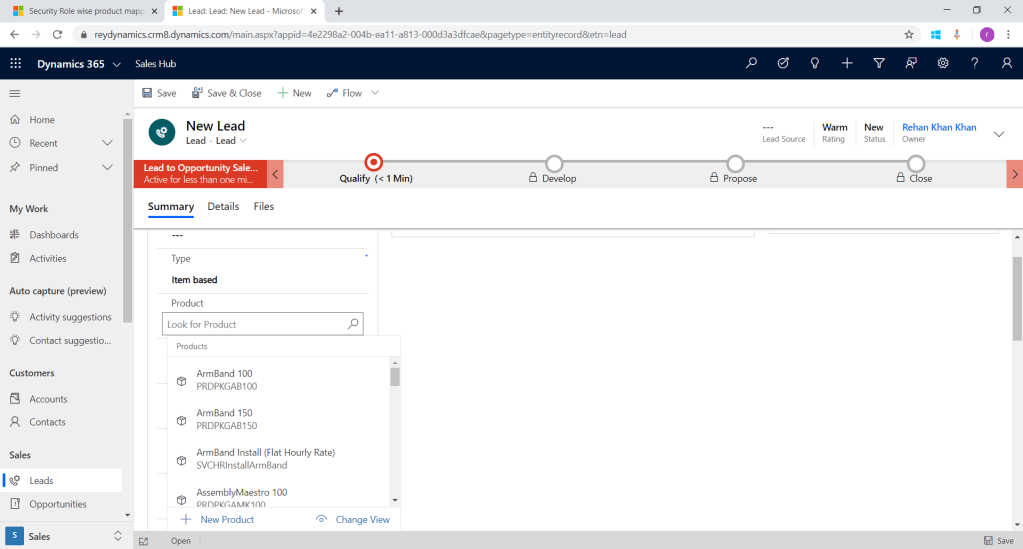
As seen in above example all the products are visible in lookup , Lets add a record in source to role mapping i order to filter lookup.

I have added System adminitrator role corresponding to Armband product and created a record in our mapping entity security role wise product mapping.This will enable user with systemadmin role to acess only Armband product on Lead.

As seen in above screen shot the lookup is getting filtered based on configuration mapping added in the entity.
Note– In order for the filter to work please add atleast one record for each security role .
This is how we can achieve dynamic lookup filter which is configurable by admin without any technical knowledge.Hope this will work for you and help.
Thanks for reading Good Luck…………. 🙂
You can connect me on LinkedIn.
 Rey Dynamics CRM Blog