Featured

Azure Integration With Dynamics 365 using Web hook

This is the first post on my new blog. I’m just getting this new blog going, so stay tuned for more. Subscribe below to get notified when I post new updates.

Before starting with Azure integrations with Microsoft Dynamics 365 lets have an overview on Azure functions.
 Azure Functions are part of the Azure Web and Mobile suite of App Services and are designed to enable the creation of small pieces of meaningful, reusable methods, easily shared across services. You can build the Azure Function in various languages like Node.js, C#, F#, Python, PHP, and even Java . You can refer this link for further information on Azure Functions.I am going to demonstrate on C# with trial instance.

Software RequirementVisual Studio 2019

  1. Open Visual Studio > Create a New Project >Search Azure Function

2. Provide valid project name as per your requirement

3. Select HTTP Trigger & select .NET Framework in the above drop down.

4. A default project will open with example Code for html trigger.Please Log into your microsoft account in Visual studio to directly connect to the Azure Portal.
5. Replace the default code with the below code , this code will basically read the html request from CRM and log it in Azure logs.

using System.Net;
using System.Net.Http;
using System.Threading.Tasks;
using Microsoft.Azure.WebJobs;
using Microsoft.Azure.WebJobs.Extensions.Http;
using Microsoft.Azure.WebJobs.Host;

namespace reycrmtest
{
    public static class Function1
    {
        [FunctionName("Function1")]
        public static async Task<HttpResponseMessage> Run([HttpTrigger(AuthorizationLevel.Function, "get", "post", Route = null)]HttpRequestMessage req, TraceWriter log)
        {
            log.Info("C# HTTP trigger function processed a request.");
              // Get request body
                string data = await req.Content.ReadAsStringAsync();
            //log request body 
            log.Info(data);


            return req.CreateResponse(HttpStatusCode.OK);
           
        }
    }
}

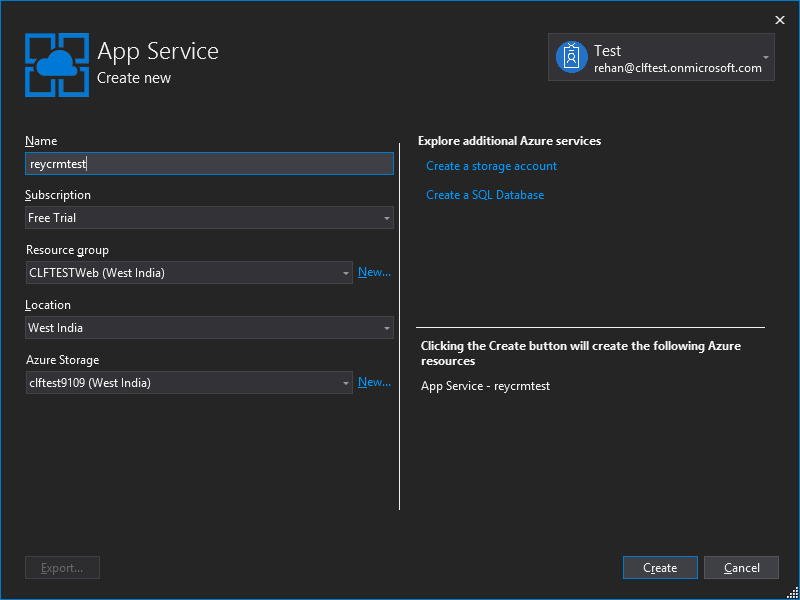
6. Now rebuild the code > Right click on the project and click on publish >Click on start in Publish section.A dialog will pop up with azure license plan I am using consumption plan for my trial instance . Mark the create new check box and run from package as shown below.

You can select the plan as per your license , here i am using consumption plan for my trial instance.

7.Fill in the details as per your preferred choice.Click on create.This will take few minutes to deploy your function App on azure portal. (As this is the first time we are creating a Azure function we need to create a function App to deploy this function in the app the above steps were to create a function App).Once the process is completed it will start publish automatically.Now you can open Azure portal with same login credentials used in visual studio.
8. You can navigate to functions in azure portal from the left navigation drawer.As you can see in the below screenshot our reycrmtest App is created on Azure portal.
Click On your function App where you can see your test function is deployed.Refer below Screen shots.

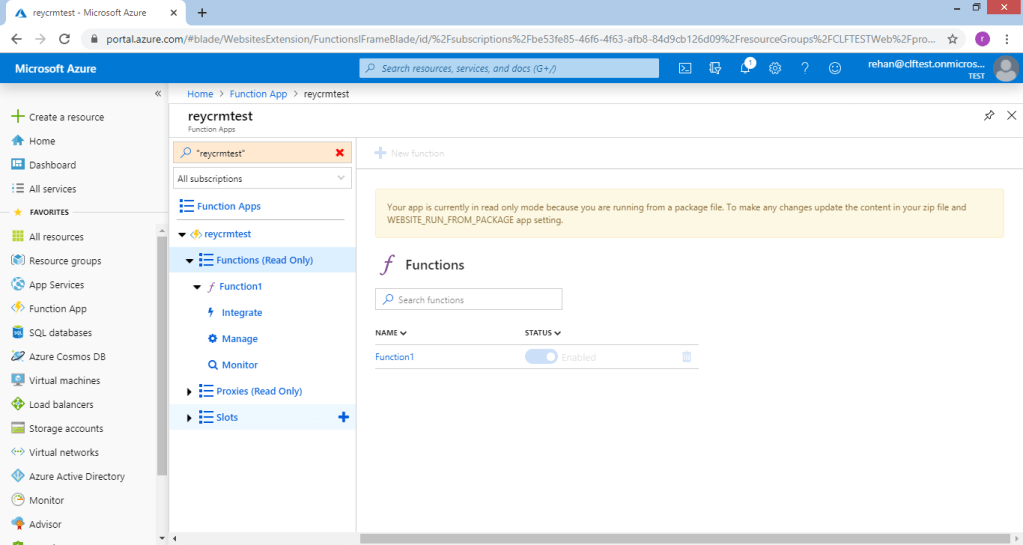
Inside Function app function1 is enabled

9. Click On function1 to see function.json. It will be in readonly mode as we have deployed the function from Visual studio Cloud service .Get the function URL besides Run button and paste it on notepad.We will use this URL while registering Webhook.
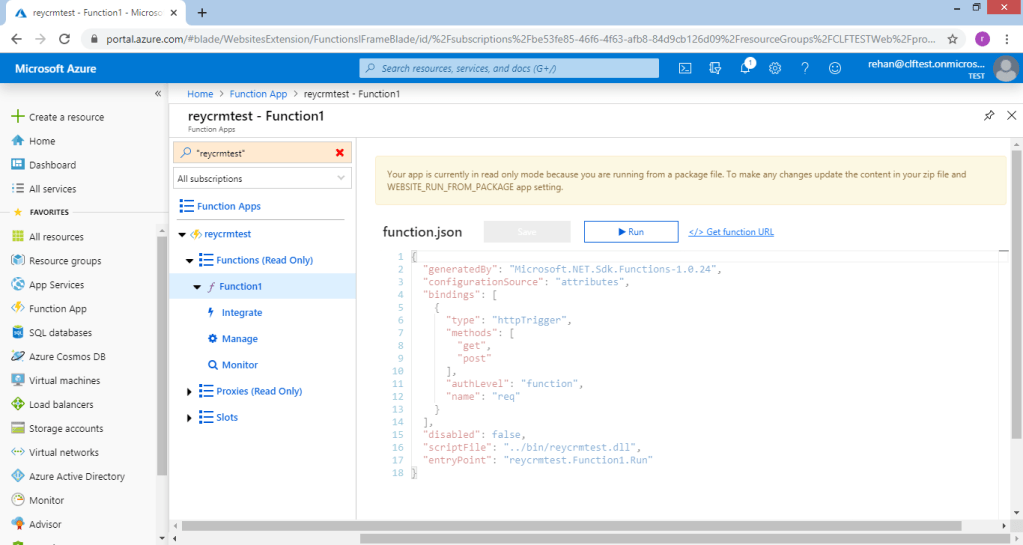
Copy the URL and paste it in notepad

10. Now open PRT (plugin registration tool) and login to the instance where you want to register the webhook.

11. A new dialog will open with webhook details. Open Notepad file where you have pasted the URL of the function copied in STEP 9 .

Authentication options

The correct webhook registration authentication option and values to use depend on what the endpoint expects. The owner of the endpoint must tell you what to use. To use webhooks with Dynamics 365, the endpoint must allow one of the three authentication options described below:

TypeDescription
HttpHeaderIncludes one or more key values pairs in the header of the http request.
Example:
Key1: Value1
Key2: Value2
WebhookKeyIncludes a query string using code as the key and a value required by the endpoint. When registering the web hook using the Plug-in Registration tool, only enter the value.
Example:
?code=00000000-0000-0000-0000-000000000001
HttpQueryStringIncludes one or more key value pairs as query string parameters.
Example:
?Key1=Value1&Key2=Value2

https://reycrmtest.azurewebsites.net/api/Function1?code=Y4a0tWmc39ZLyPhPZFMmAPcfa3CNyHKOZi4mHvjeHYzMJIM5u5OYfg==

The part in code (marked in bold, remove ‘code=’) will be your webhook key and Endpoint url will be upto ‘?’ .Please refer below screen shot.
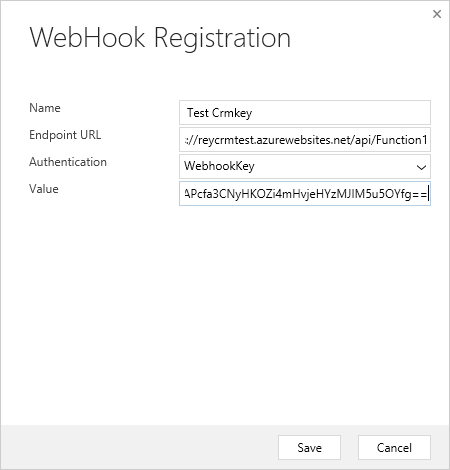
FIll in the details

Register a step for a webhook

Registering a step for a webhook is like registering a step for a plugin. The main difference is that you cannot specify any configuration information.

Just like a plugin, you specify the message, and information about entities when appropriate. You can also specify where in the event pipeline to execute the web hook, the execution mode and whether to delete any AsyncOperation when the operation succeeds.Refer below screent shot.

Right Click on webhook and click on register new step
Registering the step in Asynchronous mode

Create Record in CRM instance

Now navigate to the CRM instance and create (or perform the step as per your registration) a record. I have created a contact record in my instance as shown below.
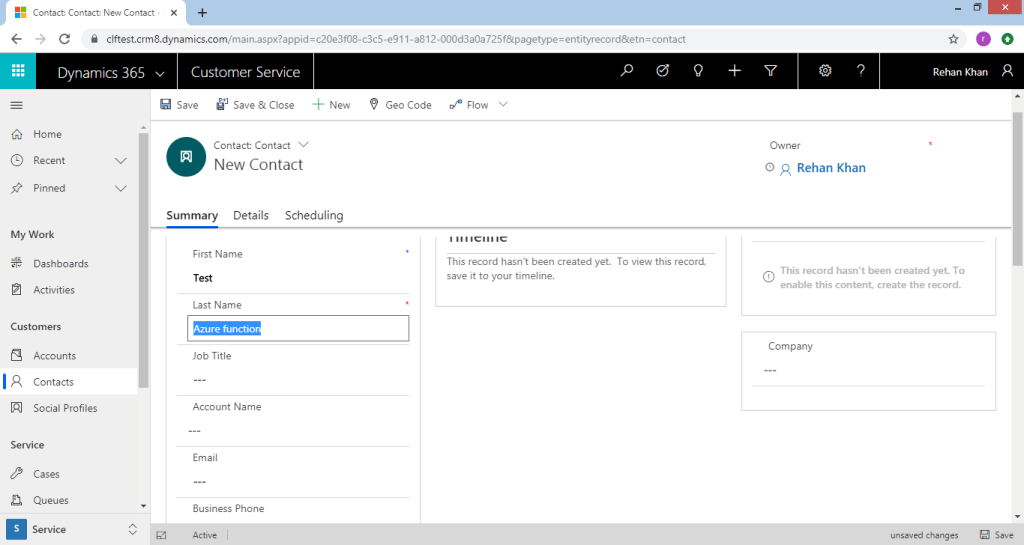
Create a record as per the triggerof your step.

Once I create a contact record the webhook gets triggered and CRM httprequest is passed in the azure function.You can check the trigger in System Events if the step is registered in async mode same as for plugins.

Azure Function Logs

Azure functions provides us with logging feature. To check these logs you can navigate to the Azure portal where we have registered the function App as in Step 8.
Refer below screenshot
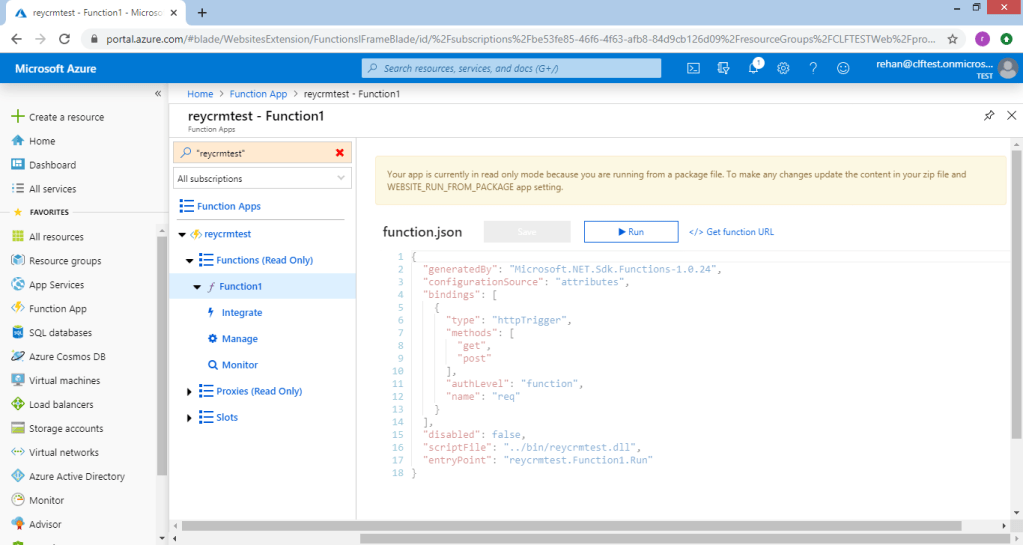
Click on monitor in your function to track the triggered events of your function. We can see all the logs as below.

  log.Info("C# HTTP trigger function processed a request.");
  string data = await req.Content.ReadAsStringAsync();
  log.Info(data);

As per the above code in our azure function we are logging “C# HTTP trigger function processed a request.” and the request body which contains all the parameters of the Created record in crm & logs are available in the logs section in the bottom right corner as shown in the above screenshot. This shows the connection of azure function with ms crm using webhooks. I will be demonstrating how to use the json object in our code for CRUDE operation using executioncontext in my next blog.
Hope it helps …………………………… 🙂 Do share it !!!!

Maximizing Efficiency with Global Variables in Postman API testing

Introduction

Postman is a powerful tool for testing APIs, enabling developers to streamline their testing workflows and improve productivity. In my recent implementation, where I have dealt with multiple OAUTH secured API URLs .
OAUTH bearer token API is an endpoint provided by OAUTH 2.0-compliant authorization servers that allows clients to obtain access tokens required to access protected resources on behalf of the resource owner.

One of the key features in postman that contribute to this efficiency is the use of global variables. In this quick tip blog post, we’ll explore how leveraging global variables in Postman can enhance your testing experience and save valuable time.

Why Use Global Variables?

Using global variables offers several benefits:

  • Efficiency: Eliminate the need to manually update values in multiple requests by centralizing them in global variables.
  • Consistency: Ensure consistency in data across requests, reducing the risk of errors or inconsistencies.
  • Flexibility: Quickly switch between different environments or configurations by updating variables at the global level.
  • Reusability: Reuse variables across collections or projects, saving time and effort in defining and maintaining configurations.

Power apps developer working with dataverse WEB API might also feel the pain to generate a bearer token and passing it in the subsequent API call for authorization .

In Today’s blog we will see how we can use bearer token across all the API request in postman through a global variable and few lines of script.

I will be using dataverse WEB API so I have the client id and client secret for the WEB API setup in a postman. To register Dataverse WEBAPI please refer this blog.

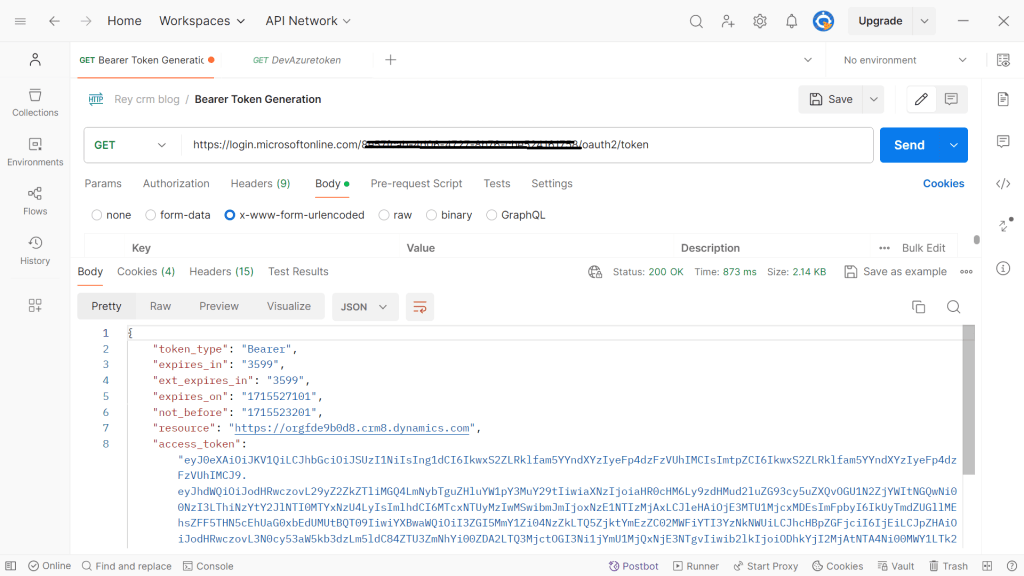
  1. Suppose we are having a token generation request in postman where we have to manually copy the token and pass it in the header of another call .

2. Now create a variable where we will save the access_token generated in above request .We will be creating a Global Variable , A value in global variable is accessible across multiple request in multiple collection.

3. Navigate to Environment on the left Menu Environments > Globals . Add new variable.
I have created a new variable reycrmblogtoken , and set the type as secret.

That’s it our our Global variable is created , lets Add value of access_token in this dynamically using script.
4. Navigate to the request for bearer token generation. Open the tests tab under that postman request and write below script for execution .

let responseData=pm.response.json(); // Parse Json 
console.log(responseData); // Log response 
pm.globals.set("reycrmblogtoken", responseData.access_token); // Set access token from response in to the global variable we created

We are done now every time we generate token from this request bearer token will be saved in our Global variable .

Lets try to initiate a Dataverse WEBAPI call , We will try to get accounts from dataverse GET call . First I will send without authentication as seen below we are getting 401 unauthorized error .

Now lets set our token in authentication of this WEB API request . you can use ‘{{
to get your global variable. Below you can see I am setting reycrmblogtoken .

Now lets execute the bearer token request first so that our script executes and set the value in global variable.

Now lets hit the GET API request again .That’s it Now we don’t need to copy-paste the
bearer token and paste . We will just hit the bearer token request and variable will be updated with new bearer token .

This is how we can reuse the token generated in one request across multiple API calls with minimal efforts.

Hope this helps .. Thank you for reading.

Unlocking Efficiency with Copilot Control in Canvas Apps

In the dynamic world of app development, finding ways to streamline processes, enhance user experiences, and boost productivity is a constant pursuit. As businesses evolve and user expectations continue to rise, developers need innovative tools and features to stay ahead of the curve. One such groundbreaking addition to the Power Apps arsenal is the Copilot control.

In todays blog, we’re diving deep into the transformative power of Copilot, a feature that promises to redefine the way you create, design, and optimize canvas apps.
We will explore 2 features

  • Create an App using Copilot control – We will see how we can create an attendance management app using Copilot.
  • Using Copilot control in Canvas apps – Once the attendance management app is created we will add a copilot control to query the data in attendance management app.


Introducing Copilot Control: Your App Development Companion

Copilot Control represents the next evolutionary step in the Power Apps journey. It’s your virtual companion, your coding co-pilot, and your creative collaborator, all rolled into one intelligent tool.

Please note you will need Developer environment in USA region as Co pilot feature is available in preview feature in US region .

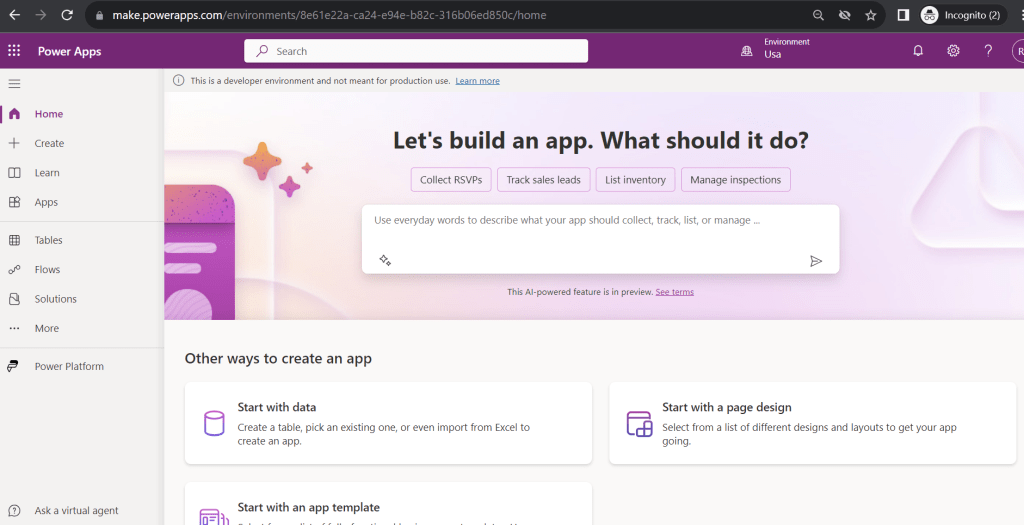
First lets create an app using Copilot .Open make.powerapps.com .
Select the environment you created in USA region.

As seen in Above screenshot you will see a textbox input to provide description of app you want to create.
I will type in “Create an app for attendance management” and click on enter.

A table is created with required columns for an attendance management app . We can change data type , add column etc in the right hand side Copilot window before creating the app.
Click on create app.

An app is created with basic attendance details required .We can use copilot features to add components as you can see in above screenshot suggestions in copilot window.
As you can see creating an an using copilot is so easy .

Now using the copilot we will add a new screen .We will type in Add a new screen in Copilot window.

A new screen is added in the App as seen in above screen shot .We will add Copilot control on this screen .

Select the attendance management table as the data source . Expand the copilot control across the screen.

Now Lets test the app .I will try to fetch some data using basic query.
What is the percentage of Present ?
What is the ratio of the status ?

As seen in below screenshot you can see how Copilot reads the data from the attendance management table and provides accurate answers to the question.


Copilot control integrated with Dataverse can accelerate user experience in a more interactive and simple way .
This is how Copilot can be used to create and design canvas app and copilot control can be used to query data in a modern way .
Thanks for reading this Hope you like it !

Microsoft Power Apps with AI builder text sentiment analysis

Introduction

In today’s data-driven world, understanding and interpreting customer sentiments is crucial for businesses looking to thrive in highly competitive markets. Leveraging the power of artificial intelligence (AI) within Microsoft Power Apps, companies can now unlock valuable insights from vast amounts of text data through sentiment analysis. This blog explores how Power Apps’ AI Text Sentiment Analysis can revolutionize your business by enabling you to better understand your customers’ emotions and opinions.

Microsoft Power Apps is a low-code development platform that empowers organizations to create custom apps and solutions without extensive coding knowledge. The integration of AI capabilities, including Text Sentiment Analysis, opens up new opportunities for businesses to gather valuable insights directly from their apps.
In today’s blog, we will see how we can use text sentiment analysis in Power automate.

Scenario : A customer sends an email to a company where he is complaining on the poor service received recently . Our power automate will analyze the sentiments from the email and send an email notification to manager if email received has negative feedback for the services.

Navigate to https://make.powerautomate.com.
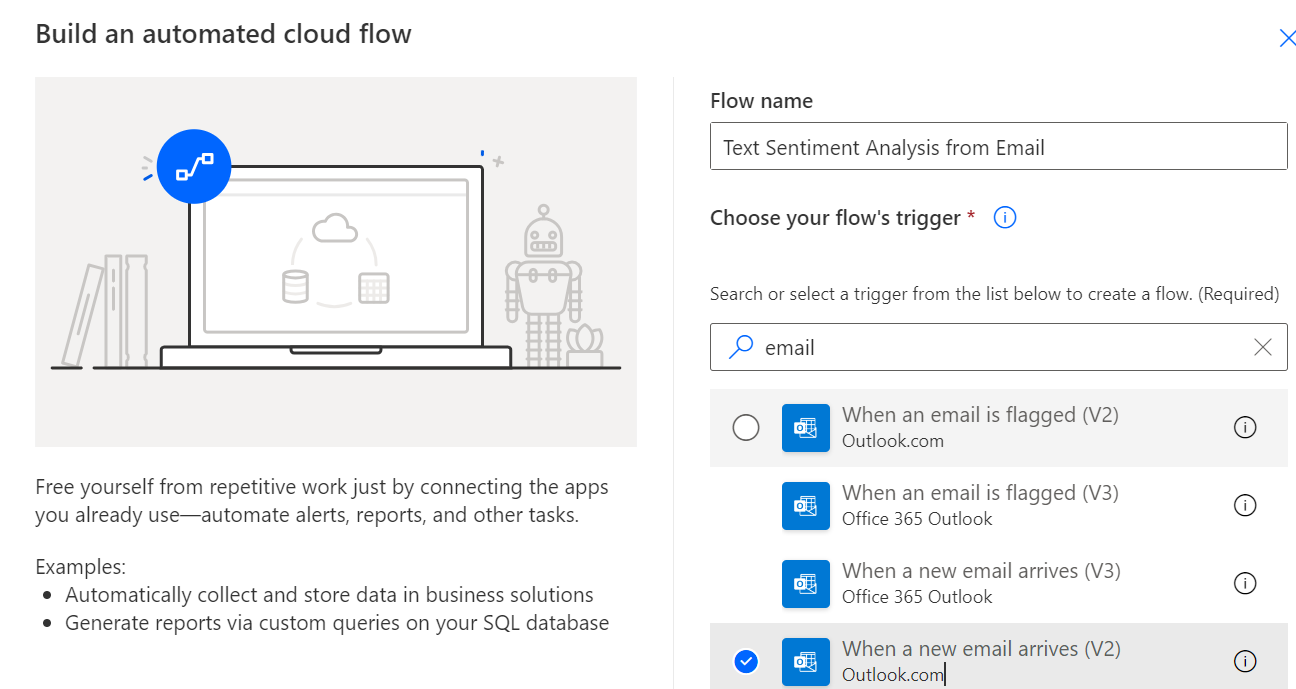
Create a new automated flow .I will demonstrate using Outlook connector when a new email arrives.

Create an outlook connection for the email box where emails are received .In Corporate scenarios we have customer care mailboxes here I am signing in with my trial account.

Next step is to Add New action Html to text and select Body from the email trigger.
This will parse the HTML of email body to text.
Now Select AI builder Analyze positive or negative sentiment in text.

Search for Analyze Positive or Negative Sentiment in Text.

Select the language as per your business and geography requirement here I am selecting English . Pass the output of HTML to Text in Text section.

Next step is to add a If condition to check the overall sentiment of the customer email .
Check if probability overall text is greater then equal to 0.5.

As per our business scenario we will send a customized email notification to responsible manager in case email received is having a negative sentiment.
Add an Send Email action in Yes condition . That’s it we are done with the setup.

Lets test it by sending a negative email on the mail box Configured. I am sending a sample email as seen below .

Flow will be triggered and check if the probability of the negative sentiments is greater then equal to 0.5.

We can see for the email we sent has a overall probability of 0.5 which will be considered as a negative sentiment.

And finally we received an email notification with the email id of the customer .

This is how we can use AI to accelerate customer service experience .
Thanks for reading hope this helps.

Debug a Plugin without plugin profiler using Dataverse Browser

Debugging a plugin always required multiple steps like installing profiler , add profiler to the step , attaching the visual studio etc . This takes additional time and effort .
Recently I have came across a tool called Dev Browser .

This is an amazing tool Developed by Nicolas Prats making debugging plugins easier then before .Much thanks for this Savior!

Lets go through a step by step guide on How to use Dataverse browser to debug plugin .
First lets register a plugin using plugin registration tool . I am deploying a plugin on create of contact.

Plugin is registered on create of Account now lets download the Dataverse browser tool form this link.

Download the zip file and extract it to a folder .Once extracted you will see a file Dataverse.Browser.exe .

Once you click on the exe a system pop up of Microsoft like below will appear.
Click on More Info and select run anyway.

Next you will see a pop up with below inputs
Name of this Environment – You can provide preferred name based on your environment details . In real life example we can have DEV , SIT ,UAT .
Here I am providing the name as Reydynamics.
Organization URL – Provide the organization URL that is the instance URL.
Assembly Path – Select the local path where the plugin DLL are compiled in Debug mode.

After entering the details click on Go. Now we have to sign in with the user credentials.

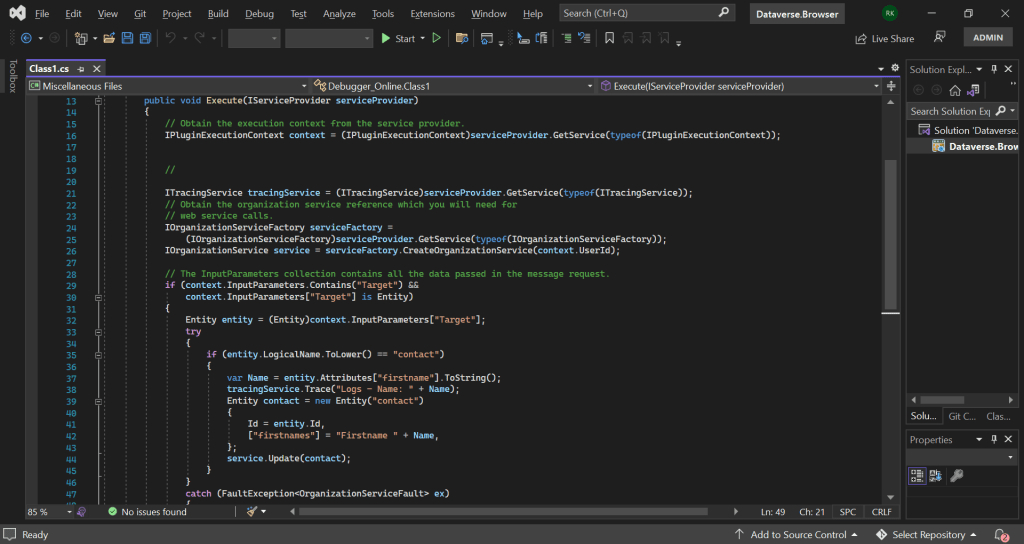
There you go now you can browse the CRM inside dataverse browser.
On the right hand side you will see all the WEB API calls.
You also have an attach debugger button and clear logs button using which we can clear the right side WEBAPI calls console.

Now lets try to create a contact record . Before that lets clear the logs using the clear button in the right corner. As you can see in below screenshot I have cleared the logs and now will save the contact record.


The plugin call with error will be visible in Red color on the right side as you can see in the above screen shot. Now select the class file and click on attach to debugger button.

Select the Plugin solution in the Debugger option. My plugin solution name is Debugger_Online so I am selecting the same option .

After clicking on OK your Visual studio with debugger screen will open as shown in below screenshot. Click on continue or press F5.

Switch back to Dataverse browser screen . You will see a pop up “Debugger is attached”.

Switch back to VS solution and add the debugger on the line from where you want to start the debugging.

There you go .. Debugger is ready now lets try to create a contact again .

As you can see in the above screenshots the code is ready to debug . You can recheck the logic / errors in the code, do the changes retest and once assured you can build and register the code through plugin registration tool.

This is how you can easily debug plugin without Plugin profiling or collecting traces using Dev Browser.
Thanks for reading hope it helps!

Use Power Automate as a Web hook in Microsoft Dynamics CRM

Power Automate is a powerful tool that allows you to automate various tasks, workflows, and processes. One of the key features of Power Automate is the ability to integrate with other applications and services, using connectors and APIs. One way to integrate with other services is by registering a Power Automate as a web hook. In this blog, we will discuss how to register a Power Automate as a web hook in Microsoft Dynamics CRM.

Why Use Webhooks in Power Automate?

Webhooks can be a powerful tool when used in combination with Power Automate. By registering a Power Automate flow as a webhook, you can trigger the flow from an external application or service. This can be useful in many scenarios, such as:

  • Sending notifications to external services when a specific event occurs in Power Automate.
  • Integrating Power Automate with other third-party services.
  • Automating workflows across multiple applications or services.
    By using webhooks, you can build more powerful and integrated workflows that span across multiple applications or services.

In today’s blog we will look how we can trigger power automate from Microsoft dynamics CRM using Web hook on create of Lead record.

Step 1: Create a Power Automate
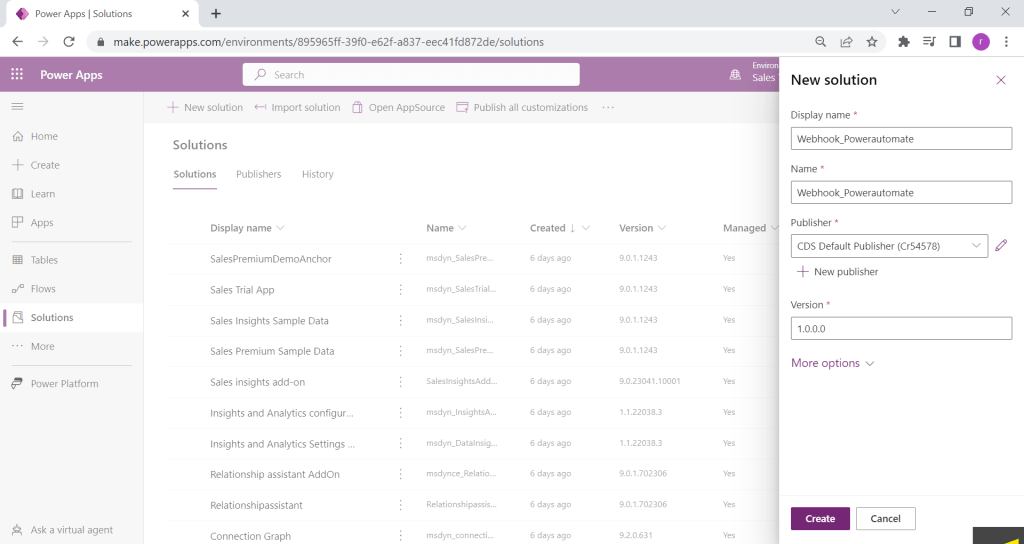
The first step is to create a Power Automate that will act as a webhook. You can create a new flow or modify an existing one to add webhook functionality. In this example, we will create a new flow. I will create a new solution and add new flow in it.

To create a new flow, log in to Power Automate and click on the “Create” button in the top right corner. Select “Instant – from blank” as the flow type.

Step 2: Add a trigger
The next step is to add a trigger to your flow. A trigger is an event that will start your flow. We will use HTTP request trigger .

Step 3: Add an action
Once you have added a trigger, you need to add an action to your flow. An action is a task that your flow will perform in response to the trigger. For example, you can send an email using outlook connector , here to demonstrate i am using outlook send email connector.

To add an action, click on the “New Step” button and select “Add an action”. Select the outlook send email option from the list of available actions.

Note – To execute the power automate in a synchronous manner you have to add a response to http trigger . In case we are not adding response action as plugin pipeline execution will not wait for any response from the power automate and proceed .

After saving the power automate an HTTP URL will be generated .Copy the URL and paste it in a notepad.

We will split the based on each parameter available in query string , as shown in above screenshot.

Step 4: Add a webhook in Plugin registration tool
The next step is to add a webhook action to your plugin. We will register a webhook in plugin when a lead is created in dynamics CRM. Click on Register > Register a web hook and fill in the details from the URL as shown below.
You can replace %2f by forward slash ‘/’ , or simple decode the value online .

Step 5: Configure the webhook action
Once you have added the webhook action, you need to configure it. You need to provide the URL of the external service that you want to notify, along with any required headers and parameters.

To configure the webhook action, click on the “HTTP – HTTP” action and enter the URL of the external service in the “Uri” field. Enter any required headers and parameters in the appropriate fields.
Next step is to register a step for the web hook . For demonstration I am registering on create of lead .

Step 6: Save and test your flow
Once you have configured the web hook action, you need to save your flow and test it.
Lets create a lead and test .

Flow got successfully triggered .

This is one of the way to trigger power automate from CRM .
Thanks for reading hope this helps !

Send and receive messages to an azure service bus Queue from an Azure function.

to send messages to an Azure service bus from an Azure function and receive the message from another Azure function. I will create two Azure functions, one to send(sender function) messages and another one to receive(receiver function) messages. For messaging we will use Azure service bus Queue. To learn more about Azure service bus Queue click here.

Prerequisites
Please note below azure components are required to achieve this requirement.

  • Azure trial / Pay as you go plan .
  • Make sure to select the Azure development workload during visual studio installation.
  • Azure service bus Queue .
  • Azure functions .

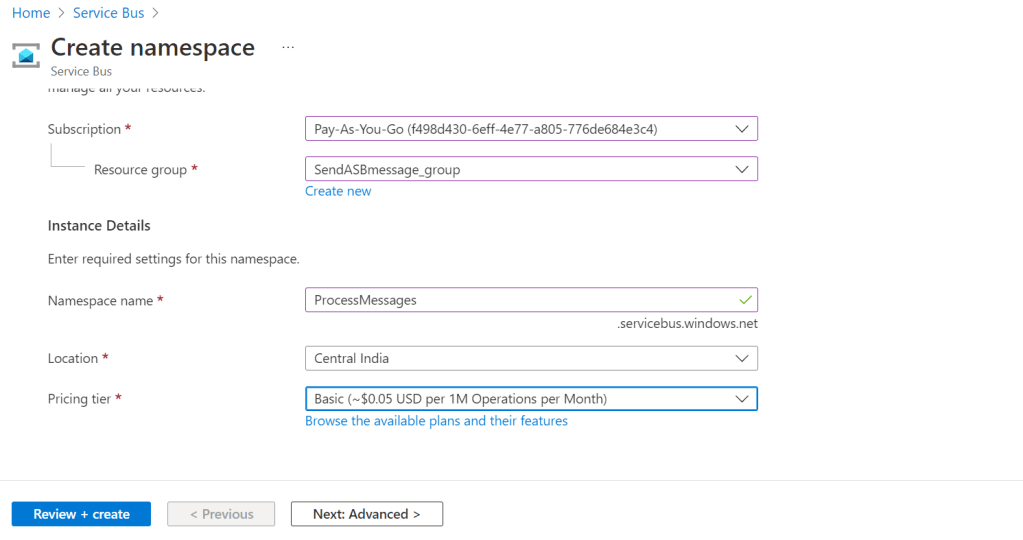
Create an Azure service bus.
Subscription -Select the subscription you have opted for.
Resource Group -Create a new resource group if you don’t have existing.
Namespace Name -Add your preferred namespace for the Azure service bus.
Location -Select the location based on your preference.
Pricing tier -Select the pricing tier .

Click on Review & Create Azure service Bus .

Create a Queue

Keep all the default settings while creating the queue then click on Create.

Create Azure function project in Visual studio


Azure Functions has Triggers and Bindings. Triggers are the ones due to which function code start executing forex. In the case of HTTP trigger whenever you make HTTP request by hitting the function URL the specific function will start its execution. The Azure function must have only one trigger. Bindings are the direction of data coming in or going out from the function. We have In, out, and both types of bindings.

So for our application, we are creating HTTP Trigger function which takes data and sends it into the Queue. To connect with the queue we need a connection string . We will use Azure service bus client to send message . So let’s navigate to Service bus resource in portal > Shared Access Policy > Copy the Primary Connection String under RootManagedSharedAccessKey

Add below Namespace from the Nuget packet. The above function will post the message to the Queue .
SenderFunction.cs

using Microsoft.Azure.WebJobs;
using Microsoft.Azure.WebJobs.Extensions.Http;
using Microsoft.AspNetCore.Http;
using Microsoft.Extensions.Logging;
using Newtonsoft.Json;
using Azure.Messaging.ServiceBus;
namespace AzureFunctionPOC
{
    public static class SenderFunction
    {
        [FunctionName("SenderFunction")]
        public static async Task<IActionResult> Run(
            [HttpTrigger(AuthorizationLevel.Function, "post", Route = null)] HttpRequest req,
            ILogger log)
        {
            log.LogInformation("C# HTTP trigger function processed a request.");

            string name = req.Query["name"];
            string requestBody = await new StreamReader(req.Body).ReadToEndAsync();
            dynamic data = JsonConvert.DeserializeObject(requestBody);
            name = name ?? data?.name;
             // Read the connection string from configurations
            string connectionstring= Environment.GetEnvironmentVariable("asbconnectionstring");

             // Initialize Service bus connection 
            ServiceBusClient serviceBusClient = new ServiceBusClient(connectionstring);

             // Initialize a sender object with queue name
            var sender = serviceBusClient.CreateSender("queueforazurefunction");

             // Create message for service bus 
            ServiceBusMessage message = new ServiceBusMessage(requestBody);

             // Send the Message 
            await sender.SendMessageAsync(message);

            string responseMessage = string.IsNullOrEmpty(name)
                ? "This HTTP triggered function executed successfully. Pass a name in the query string or in the request body for a personalized response."
                : $"Hello, {name}. This HTTP triggered function executed successfully.";

            return new OkObjectResult(responseMessage);
        }
    }

Local.settings.json

{
    "IsEncrypted": false,
  "Values": {
    "AzureWebJobsStorage": "UseDevelopmentStorage=true",
    "FUNCTIONS_WORKER_RUNTIME": "dotnet",
    "asbconnectionstring":"Endpoint=sb://processmessage.servicebus.windows.net/;SharedAccessKeyName=RootManageSharedAccessKey;SharedAccessKey=25DPsoiw***********************************"
  }
}

Sender function is ready to test . Lets run the function app on Local and post a request to the queue. Press F5 or start debugging the function app project.

Paste the URL in postman with a request body to post in service bus queue as seen in below screenshot. Click on send button.

This will push the data in to the queue. Lets navigate to service bus explorer .
Open the service bus > Queue > service bus explorer .

Click on peek from start .

We can see the message we posted from Postman as seen in above screenshot.
Sender azure function is ready , Lets move on to the receiver function .
Add a new azure function in the existing VS solution .

ListenerFunction.cs

using System;
using Microsoft.Azure.WebJobs;
using Microsoft.Azure.WebJobs.Host;
using Microsoft.Extensions.Logging;

namespace ServiceBusQueue
{
    public class ListenerFunction
    {
        [FunctionName("ListenerFunction")]
        public void Run([ServiceBusTrigger("queueforazurefunction", Connection = "asbconnectionstring")]string myQueueItem, ILogger log)
        {
            log.LogInformation($"C# ServiceBus queue trigger function processed message: {myQueueItem}");
        }
    }
}

There are 2 parameters for Service bus trigger queue name and connection string.
Lets build and run the function app project .

The listener function will trigger as there was a message already pending in the queue we sent using the sender function.
As seen in above screenshot the request posted to queue is now processed and logged in console.
Lets navigate to azure service bus queue and click on peek from start. Queue will be cleared as there wont be any active message.

This is how we can use azure functions to send and receive message to a queue.
Thank you for reading ……… Hope it helps!

Send in-App Notification in model driven app from power automate.

Microsoft has introduced a new in-app notification feature which is now generally available as part of the 2022 Release Wave 1 for Dynamics 365.
This app notification feature allows the model driven app to pop notifications for specific users .
In-app notifications uses polling to retrieve notifications periodically when the app is running. New notification are retreived at start of the model-driven app and when a page navigation occurs as long as the last retreival is more than one minute ago. If a user stays on a page for a long duration, new notifications will be retrieved.
Notification can be triggered within the dynamics CRM or from external system using java script , plugin ,WEB API , Power automate .All the notifications for a specific user are visible under model driven apps in app notification center.
To know more about the In app Notifications refer to this link In app Notification.
Below I will demonstrate how to send in app notification using power automate to a user when a case is assigned to him

First we have to enable the app notification in model driven app. Add your model driven app in a solution and open the editor.

Click on settings > Features > turn on in app Notification

Now we have enabled in app notifications for the model driven app.
Next step is to create a power automate . Open https://make.powerapps.com/ and create a new automated cloud flow.

Select the dataverse trigger when a row is added , modified or deleted .

I have configured the trigger on change of ownerid that is whenever a case is assigned to a user.
Next step is to initialize a variable to be passed as json.

{
      "actions": [
       {
        "title": "View Case",
        "data": {
          "url": "?pagetype=entityrecord&etn=incident&id=@{triggerOutputs()?['body/incidentid']}",
          "navigationTarget": "dialog"
             }      
       
       }
    ]
   }

The above json defined the behavior of the notification.

Title – Value used for tittle will be displayed as a hyper link to be clicked on in notification.
URL – Url to which the notification button will navigate to . I am using the case entity record id with parameters to navigate to case form.
navigationTarget – You can control where a navigation link opens by setting the navigationTarget parameter.

Navigation targetBehaviorExample
dialogOpens in the center dialog."navigationTarget": "dialog"
inlineDefault. Opens in the current page."navigationTarget": "inline"
newWindowOpens in a new browser tab."navigationTarget": "newWindow"

Next step is to parse this json string using compose .

We will use the dynamic content to parse the string in to json .
Next step is to create a record in app notification table .
The following are the columns for the Notification (appnotification) table.

Column displayColumn nameDescription
TitletitleThe title of the notification.
OwnerowneridThe user who receives the notification.
BodybodyDetails about the notification.
IconTypeicontypeThe list of predefined icons. The default value is Info. For more information, go to Changing the notification icon later in this topic.
Toast TypetoasttypeThe list of notification behaviors. The default value is Timed. For more information, go to Changing the notification behavior later in this topic.
Expiry (seconds)ttlinsecondsThe number of seconds from when the notification should be deleted if not already dismissed.
DatadataJSON that’s used for extensibility and parsing richer data into the notification. The maximum length is 5,000 characters.

I have assigned values to required entity fields as shown in above screenshot .
I have assigned the owner as the user to whom the case is assigned.
Our notification setup is ready to be tested , Lets assign a case to my user and check .

When we click on the View case button a dialog pop up with the case form will open.

Hope this Helps !!

Connect to Dynamics CRM from Azure Function using new Dataverse service client

In this blog We will implement Dataverse service client which was earlier in public preview and now available generally. Connecting to Dataverse is now easier with just few lines of code .
For .NET Core applications there is finally an official SDK available providing the same feature set known from Xrm Tooling. This package is intended to work with .NET full framework 4.6.2, 4.7.2 and 4.8, .NET core 3.0, 3.1 and 5.0. Library’s source code is available at Github.

In todays blog we will connect to Dataverse from Azure function which is running on .Net core 3.1.
Below are the pre requisite

  • Register a new App in Azure for dynamics 365. You can refer this blog .
  • Create a new Azure Function, and ensure it compiles correctly.
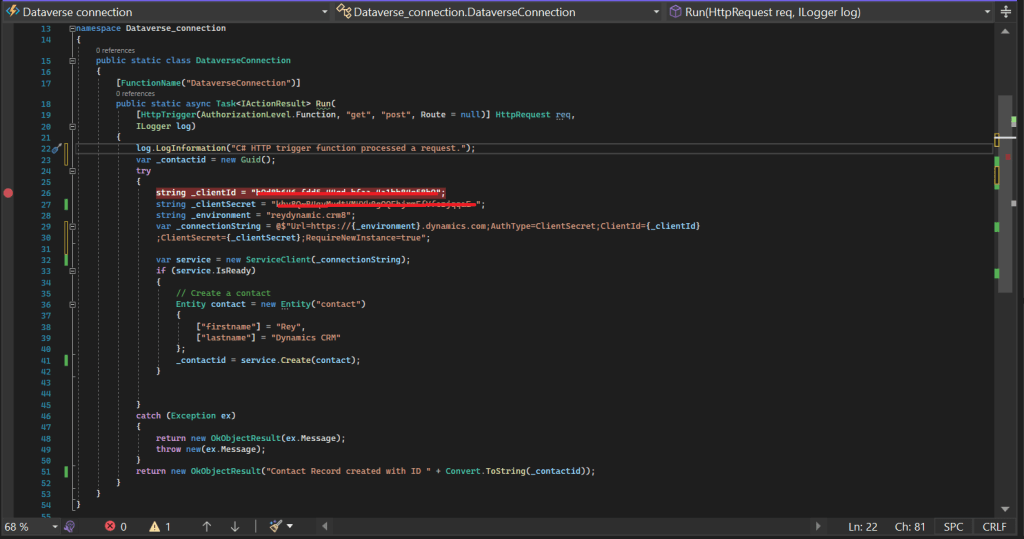
  • Use the following code snippet to connect to the Dataverse.
using System;
using System.IO;
using System.Threading.Tasks;
using Microsoft.AspNetCore.Mvc;
using Microsoft.Azure.WebJobs;
using Microsoft.Azure.WebJobs.Extensions.Http;
using Microsoft.AspNetCore.Http;
using Microsoft.Extensions.Logging;
using Newtonsoft.Json;
using Microsoft.PowerPlatform.Dataverse.Client;
using Microsoft.Xrm.Sdk;

namespace Dataverse_connection
{
    public static class DataverseConnection
    {
        [FunctionName("DataverseConnection")]
        public static async Task<IActionResult> Run(
            [HttpTrigger(AuthorizationLevel.Function, "get", "post", Route = null)] HttpRequest req,
            ILogger log)
        {
            log.LogInformation("C# HTTP trigger function processed a request.");

            var _contactid = new Guid();

            try
            {
 string _clientId = "b9d8b646-fdd5-44cd-*****-***********";
 string _clientSecret = "khv8Q~B4qvMudtKMKYk0gOQ*****************";    
 string _environment = "reydynamic.crm8";
  var _connectionString = @$"Url=https://{_environment}.dynamics.com;AuthType=ClientSecret;ClientId={_clientId}
                ;ClientSecret={_clientSecret};RequireNewInstance=true";


                var service = new ServiceClient(_connectionString);
                if (service.IsReady)
                {
                    // Create a contact 
                    Entity contact = new Entity("contact")
                    {
                        ["firstname"] = "Rey",
                        ["lastname"] = "Dynamics CRM"
                    };
                    _contactid = service.Create(contact);
                }


            }
            catch (Exception ex)
            {
                return new OkObjectResult(ex.Message);
                throw new(ex.Message);
            }
            return new OkObjectResult("Contact Record created with ID " + Convert.ToString(_contactid));
        }
    }
}

In the above azure function I am simply creating a contact record using Service client.
Next step is to publish the azure function and test it in postman or browser.

Testing the Azure function on Postman .

In the above screenshot you can see contact record is created successfully.

A record is created successfully in Dataverse CRM.
This is how we can connect to Dataverse with few lines of code.
Thanks for reading …. Hope this helps !
You can follow me on my Linked in Rehan khan!

Power Platform coding with Intellisense & Insights using Kupp code analytics

In today’s blog, I am going to discuss a very powerful and productive visual studio extension called Kupp code analytics. 

Kupp Code Analytics (KCA) is a Visual Studio extension that empowers Microsoft Power Platform and Dynamics 365 developers with code assistants and workflow insights. KCA speeds up the development process by providing IntelliSense for specific components such as Entities, Fields, Relationships or Plugin Images.To understand more about the licensing of the Kupp extension click here.

Let’s set up the Kupp extension and explore some key features of Kupp code analytics.

Configuring Kupp code extension for Visual studio. This extension is supported in VS versions 2019 and 2022. You can download the extension file here.

How to Configure an environment in Kupp ?

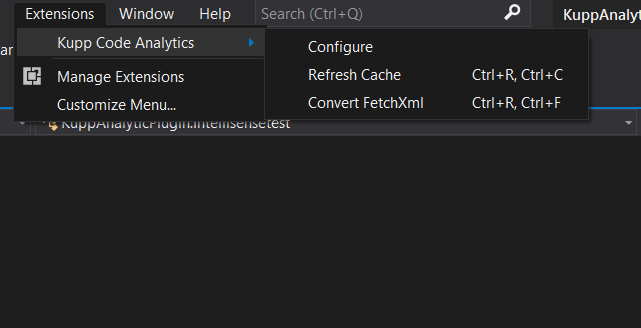
Once you install the .vsix file on your system, you can see the kupp extension visible under the extensions option in visual studio.
Open your plugin project and navigate to configure as per the below screenshot.

A pop-up will appear for connection details.

Fill in the details of your environment and select the method of deployment. I am using the OAuth method for the D365 connection. In case you want to know more about how to generate client ID and client secrets refer to my blog How to register CRM web API in Azure?

Now click on Test D365 to test the connection. You will get a popup once connected successfully.

Now based on the connected Environment it will take a few seconds to load the metadata of that environment.
Let us discuss some key features of this extension.

Intellisense for Entity, Attributes & Relationships
KCA enables smart suggestions of entity, plugin image, common attributes, entity attributes and related entity attributes with a description.

Below is the example of Intellisense for entity– When I am initialising an object of type entity the IntelliSense is suggesting all the entity names available in the environment.

Intellisense for attributes with entity context– Similarly, In the below screenshot you can see all the attributes are listed for the entity account as I have created an entity object for an account.

Intellisense for related attributes – As shown in the below screenshot when I am referring to type entity reference IntelliSense is providing me with all the lookup fields available in the accounts entity.

IntelliSense Attribute Values -Similarly the extension provides us with a convenient way to work with option set values by providing the label and value of the options set in the suggestion.

IntelliSense Plugin Images

Auto-completion for entity images such as Basic Assignments or Method parameters. No need to look for image names in the PluginRegistration tool.

Additional to IntelliSense it also has some cool analytics listed below.

Data Model Verification

Ensure your solution is aligned with our Dynamics365 solution, including integrity checks against your data model and real time notifications in your ErrorList.
This saves time by instantly inform in case of any integrity issues.

Real-time Type Mismatch Notification

Condition Expression are verified for all projects in your solution. 

Fetch XML to Query expression conversion – This is one of the most needed features which converts fetchxml into query expression. Under the Kupp analytics extension tab, there is an option to convert fetchxml. Copy & paste the fecthxml and click on convert, you will get the query expression for the fetchxml provided.

Code Deployment: One-Click Update of Custom Assemblies

Deploy Assemblies directly from Visual Studio without any other tools. This includes Support for custom build processes like merged assemblies. 

These were some of the key features of the Kupp code analytics, which ensure accuracy and minimise the effort of the developer.

Hope this helps .. Thanks for reading !!!!

Create Custom connectors in Power Apps

While Azure Logic AppsMicrosoft Power Automate, and Microsoft Power Apps offer over 325+ connectors to connect to Microsoft and verified services, you may want to communicate with services that aren’t available as prebuilt connectors. Custom connectors address this scenario by allowing you to create (and even share) a connector with its own triggers and actions.

In today’s blog, we will create a custom connector and consume it in a Canvas app.

Let’s take a business case scenario where we have an API to connect to a source system to fetch records from the system and display it in the canvas app. We will create a Custom Connector which will fetch the records and display them in the canvas app gallery control.

Let’s create a Custom connector with GET method API. I am using an open API here to demonstrate.

Sample API URL -  jsonplaceholder.typicode.com/users
Method - GET

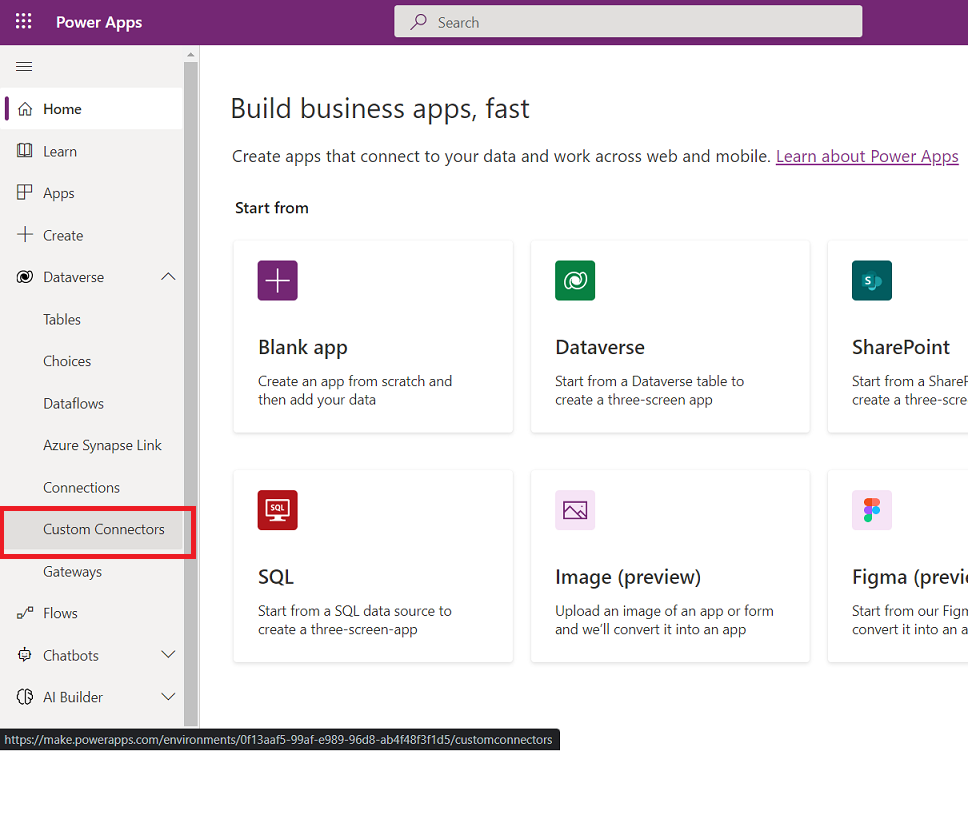
Log in to make.powerapps.com . Please select the appropriate environment in the top right corner. Select a custom connector from the left navigation pane.

Select New connector > Create from Blank.

Give an appropriate name to your connector.

We can upload an icon, choose a background color and provide URL host details here.
I have selected the scheme as HTTP as my sample API URL is secured. Click on the Next tab security.

The security tab allows you to add authentication details for the API. You can use the authentication types based on your API. Here I have an open sample API, so I am selecting no Authentication. Now click on the next tab Definition.

  1. On the Definition tab, the left area displays any actions, triggers (for Logic Apps and Power Automate), and references that are defined for the connector. Choose New action.
  2. The General area displays information about the action currently selected. Add a summary, description, and operation ID for this action.

Now let’s add the Request details.

Select the method of API from the Verb. I have selected the GET method and added URL details for the API. You can pass the default header as well as the request body in case any. Once done click on Import.

The next step is to add the Response details for the API. Pass the response JSON in the body as shown below.

The validation section will indicate whether the action implemented is validated successfully or not. This helps you identify potential issues with this action.

The next step is to move to the Code section.

  • This step is optional. You can complete the codeless experience of creating your connector by ignoring this step.
  • Custom code support is available in public preview.

Custom code transforms request and response payloads beyond the scope of existing policy templates. Transformations include sending external requests to fetch additional data. When code is used, it will take precedence over the codeless definition. This means the code will execute, and we will not send the request to the backend.

You can either paste in your code or upload a file with your code. Your code must meet the following requirements:

  • Be written in C#.
  • Have a maximum execution time of 5 seconds.
  • Can’t be more than 1 MB (size of the code file).

For instructions and samples of writing code, go to Write code in custom connectors.

The next step is to move to the TEST operation.

Add a new connection.

A connection will be added to the environment. Navigate to Test and select the connection created.

Test the operation. Click on the Test operation button.

The connector has been successfully created and tested. Now we will use this custom connector in our canvas app.
Create a blank canvas app and Add data inside data section and select the connector we created.

Add a gallery component where the data from API will be populated.

Select the data source to the gallery component.

Once you select the connector source select the power fx query editor and type in the custom connector name with the operationId we created inside the custom connector.

ReydynamicsCustomConnector.Getusers()

From this command, the data source of the gallery is set to the response of the API.
Now edit the formula for the labels on the gallery component as shown in the below picture. Select the label and click select edit in the formula bar.

Use Thisitem keyword to access the API attributes and map them to the label of the gallery component. I am adding the Name and email address.

After Adding theme to the Canvas app

This is how we can consume an external API in a canvas app using a custom connector.

Hope this helps … Thanks for reading!