
In Today’ blog I will try to demonstrate how to register dynamics 365 webapi on azure and consume it with an application user . So those who are working on custom API’s in CRM or haven’t worked on CRM WEB API , lets go through what is WEB API?
The Customer Engagement dynamics CRM Web API provides a development experience that can be used across a wide variety of programming languages, platforms, and devices. The Web API implements the OData (Open Data Protocol), version 4.0, an OASIS standard for building and consuming RESTful APIs over rich data sources. You can learn more about this protocol at https://www.odata.org/.Click here for more details on WEB API.
The concept of WEBAPI for online CRM is hosting dynamics 365 app on Azure portal . For this you may require below components .
- Azure portal access
- Application user
- CRM Admin user.
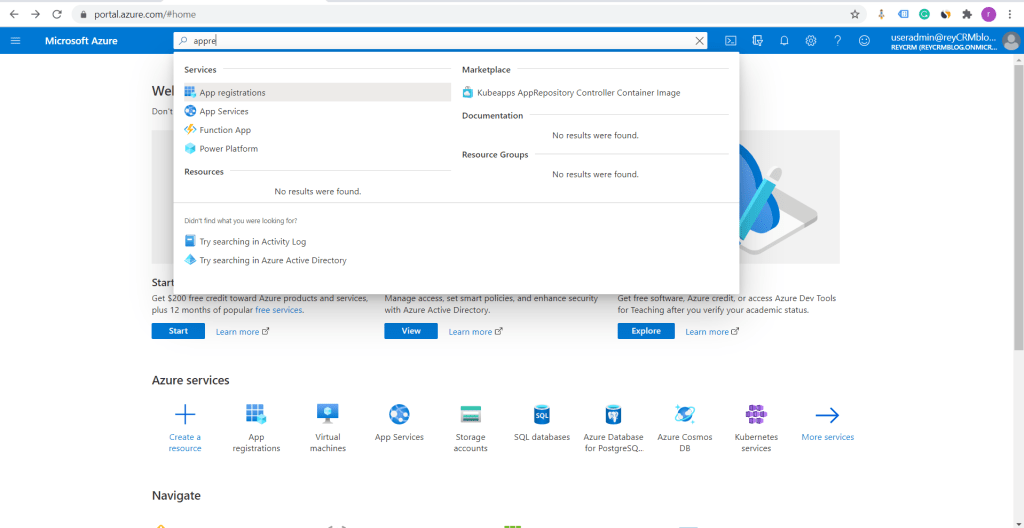
Log in to Azure portal. Search for App registration and click on it.
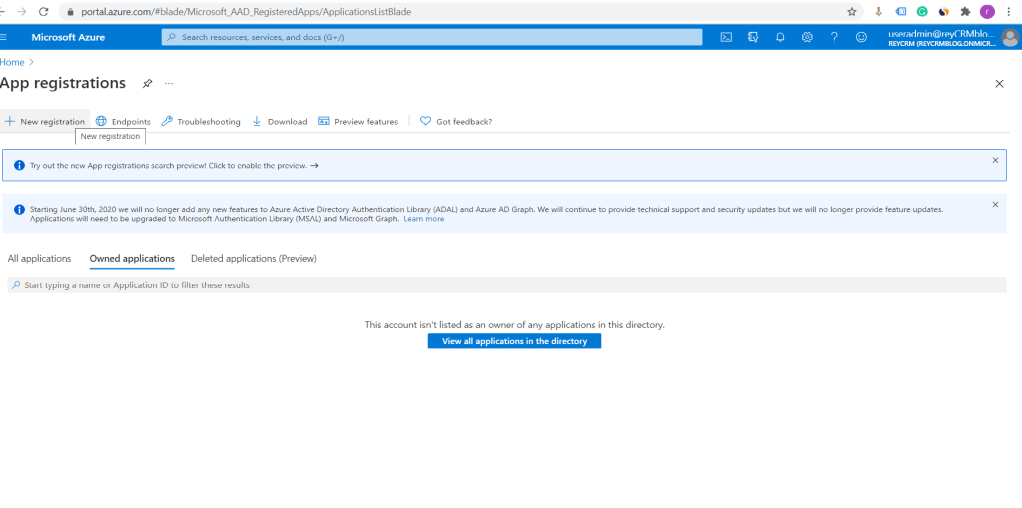
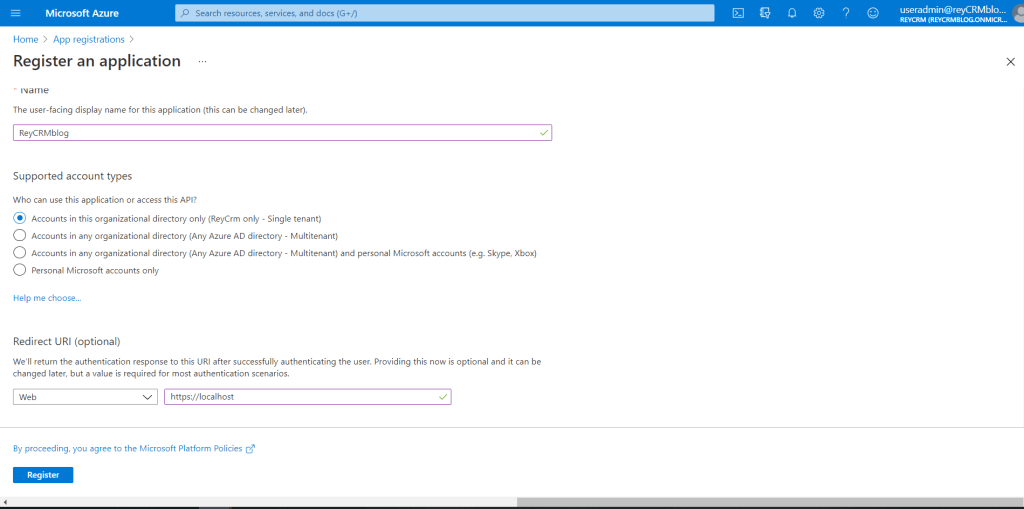
Fill in the above details and select the options preferred . I have selected the first option which is of single tenant users only. Once done click on register . An application will be registered (ReyCRMBlog) and details of that application will be available in overview tab.
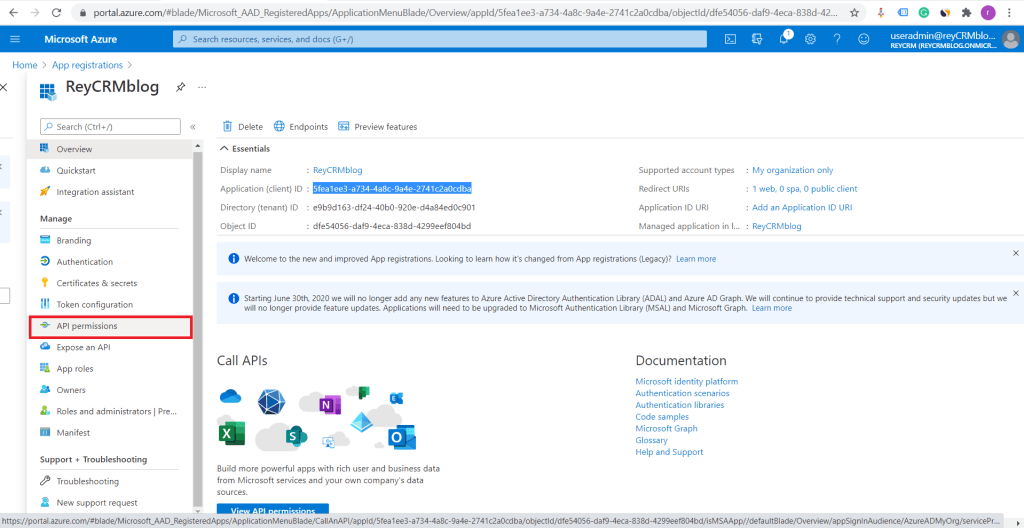
Application Id – The Application ID is a unique, unchangeable identifier for this application.
Directory (Tenant) ID – Tenant ID is the ID of the AAD directory in which you created the application.
Now the next step is to provide permissions to the API . Refer the screen shot below .

Once you navigate to API permissions , click on Add a permission and select Dynamics CRM .
Select delegated permission and check user impersonation option . Then click on add permissions.
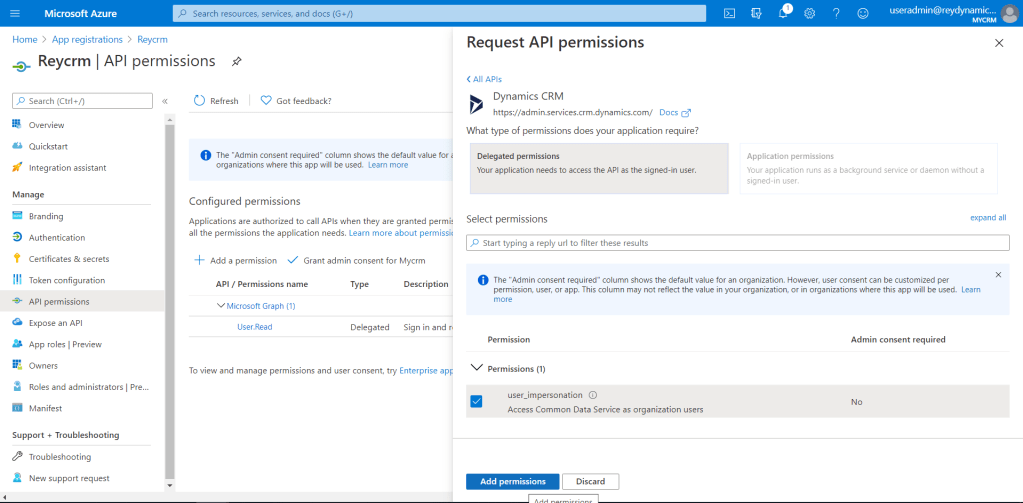
Below are the reason we are enabling user impersonation in application
- User calls the API with another AAD ID in the header
- User is authenticated as a valid AAD user
- Permissions are checked and if user can impersonate then
- AAD ID is read from the header
- Every call is now made as if by the user in the AAD ID header (including Graph API, Dynamics CRM, etc.)
Once permissions are provided , next step is to create client secret id.
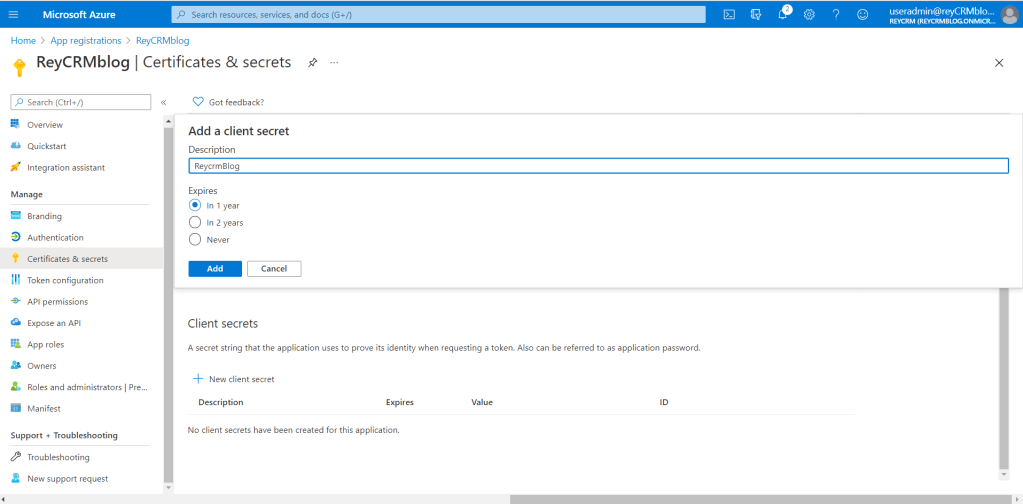
Add a new client secret select the expiry of this client secret . Here in demo account I am selecting 1 year . Click on Add , a client secret will be generated .Please save the client secret in a notepad file .Refer screenshot below.
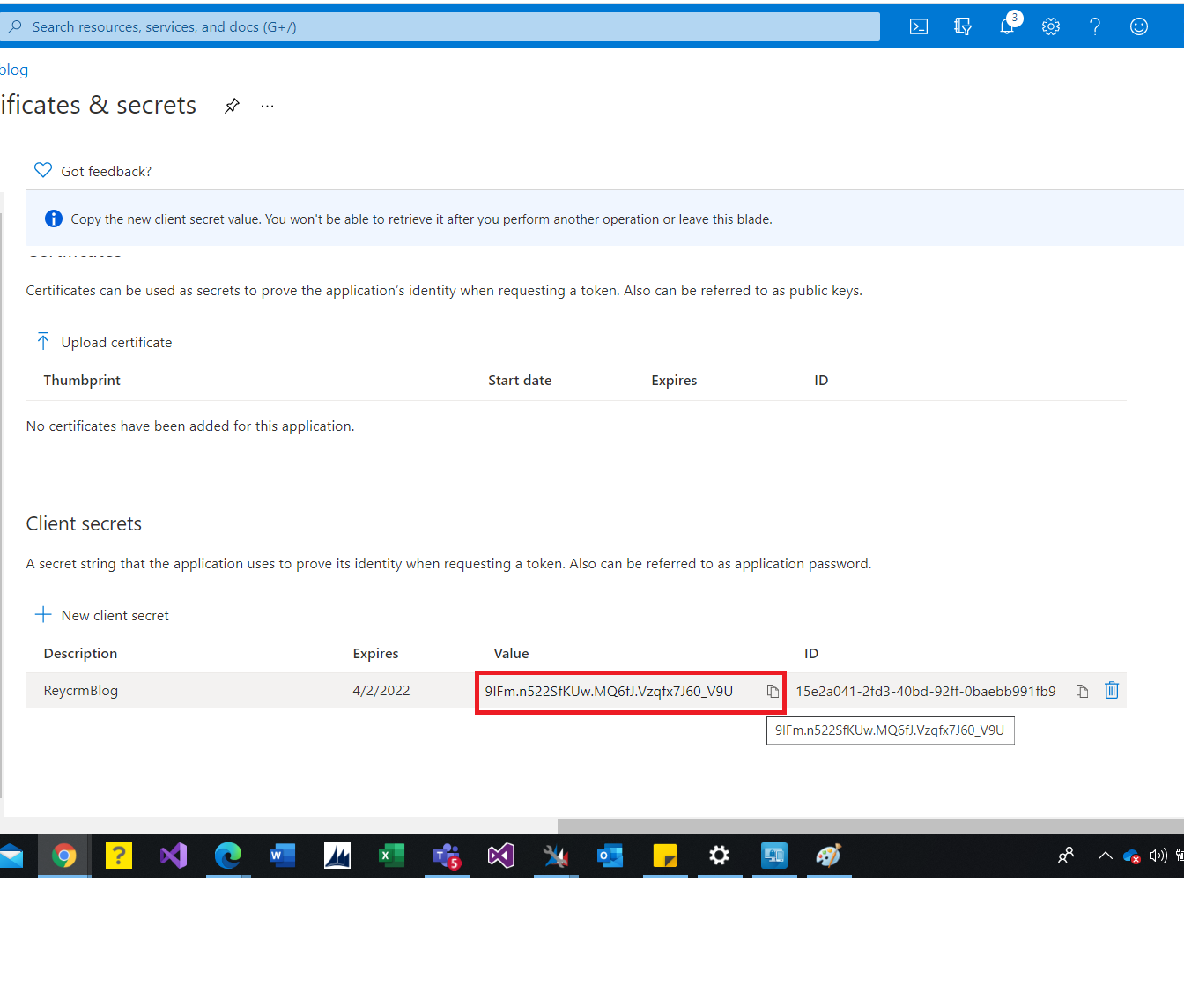
We have successfully hosted the dynamics online WEBAPI . Now lets create an application user in CRM .
Navigate to Settings > Security > Users . Select application users from the view . Refer below screen shot .
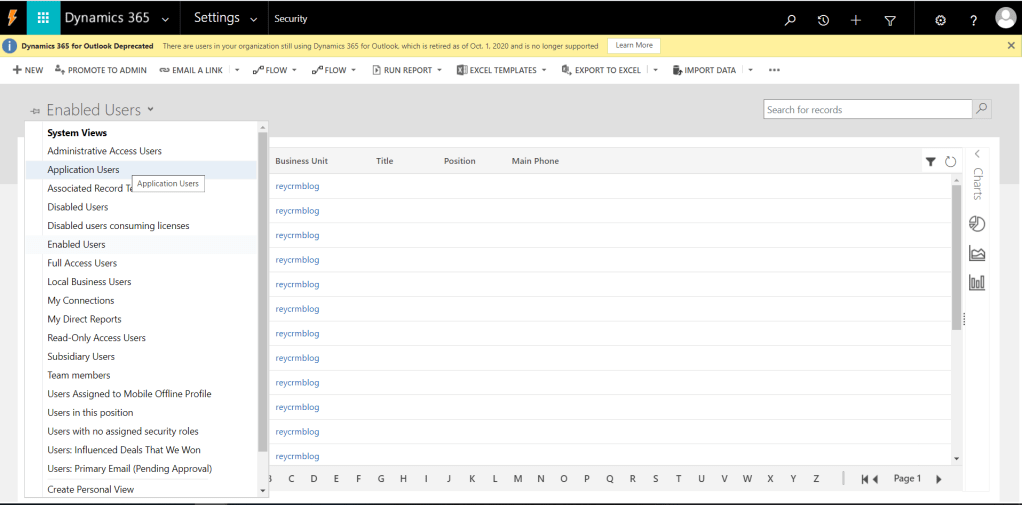
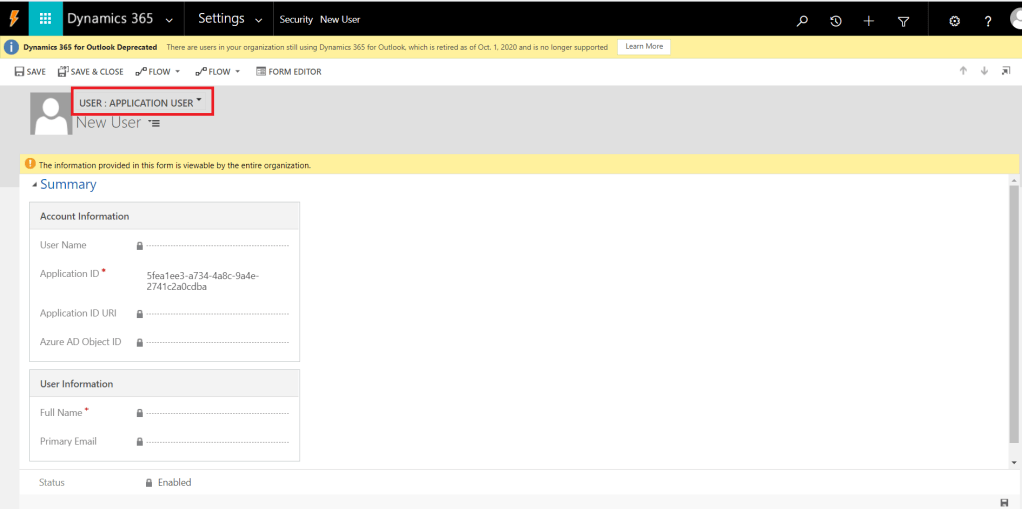
NOTE Select the application user from dropdown form view . Paste the Application ID. Once you save the application id all the details will be filled automatically.
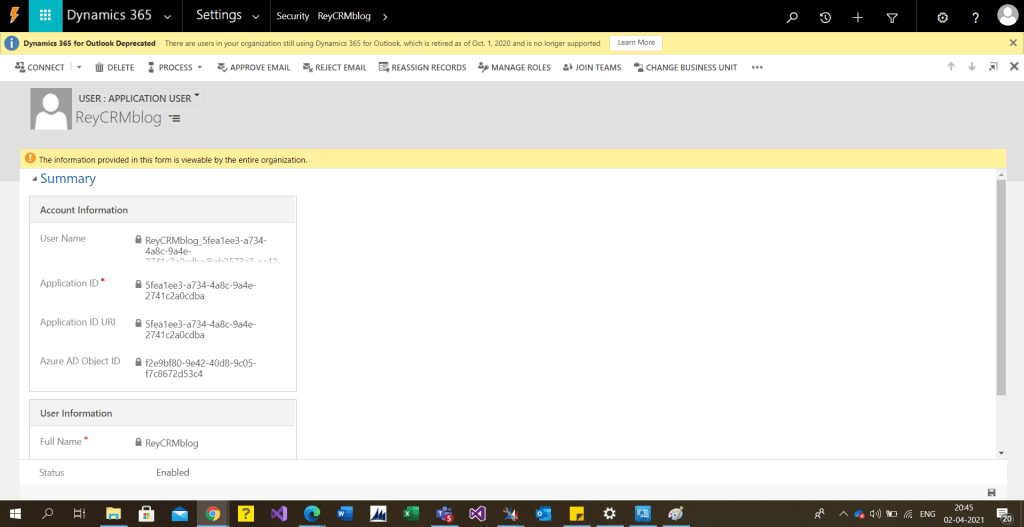
Application user does not require CRM liscense.
Lets test the API on Postman .
To consume the WEBAPI , first we need to generate authorization token . We can generate the same a GET API call on the following
URL :https://login.microsoftonline.com/<TENANT ID>/oauth2/token
Method : Get .
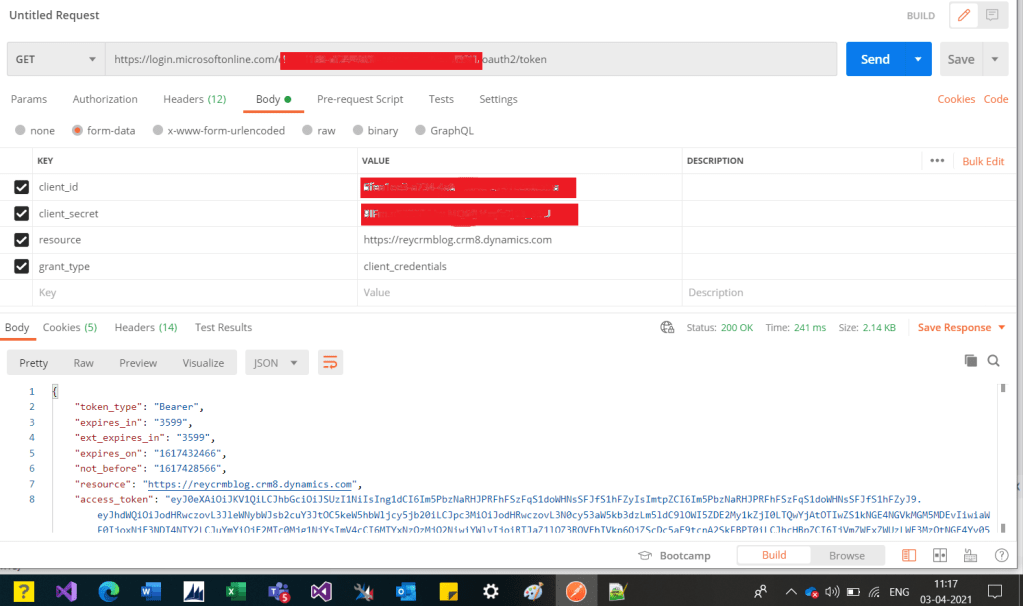
Pass the following parameters in API body .
client_id: This will be the client id of the azure application registered.
client_secret: This will be the value of client secret we generated in certificates and secrets.
resource: This parameter value will contain the CRM instance URL.
grant_type: This parameter will have client_credentials as value .The Client Credentials grant type is used by clients to obtain an access token outside of the context of a user.
As you can see in above request we are getting the access_token in return with a status code of 200.
Now this token will be used to do CRUD operations through WEBAPI .
I will demonstrate a GET request which is to fetch data from CRM .
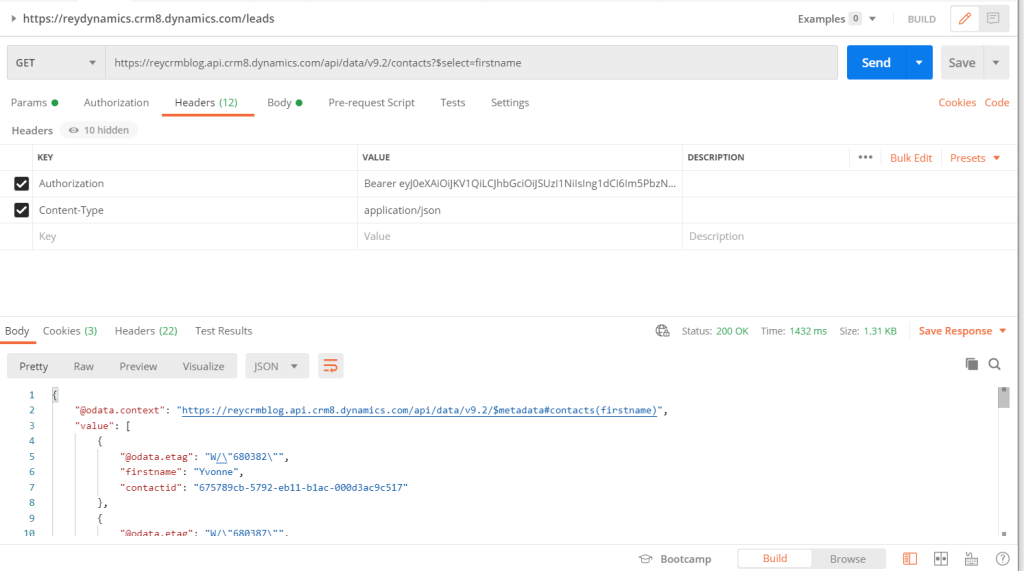
In the above request , I am fetching CRM contacts using odata query . Below are the Request details .
Method :Get
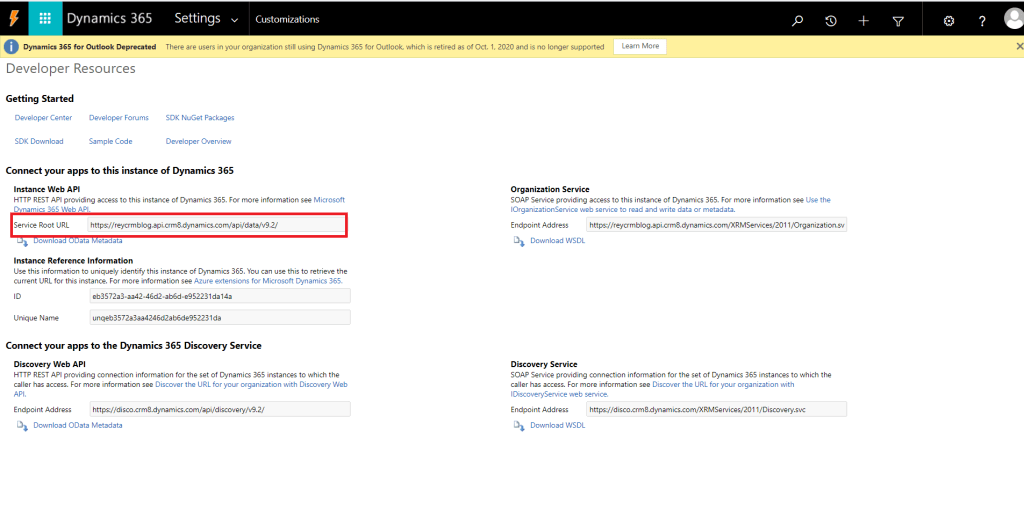
URL :https://reycrmblog.api.crm8.dynamics.com/api/data/v9.2/contacts?$select=firstname.
You can get the above URL from Settings>Customization>Developer resources > Service root URL.
Header
Authorization: Bearer <Token> .
This is how we registered a dynamics CRM WEB API and fetched CRM contacts . Next time will post on different http methods (post,patch). Hope this helps .
Thanks for reading my blog ………..Good luck !!.
You can follow me on Linked In .
 Rey Dynamics CRM Blog
4 thoughts on “Registering Dynamics 365 Online Web API with Azure Application”