

Introduction
Microsoft is working at its best to automate not only the process for the end-users but also for developers. Power automate has some remarkable features which enhance development with low use or no use of code.Microsoft Power automate is the next versatile thing for Microsoft. It helps the business to boost the automated process. Power automates integrates with many applications and services including Dynamics 365, Sharepoint, Twitter, etc. Microsoft power automate has many pre-built connectors to integrate with multiple applications or services.
Important Update
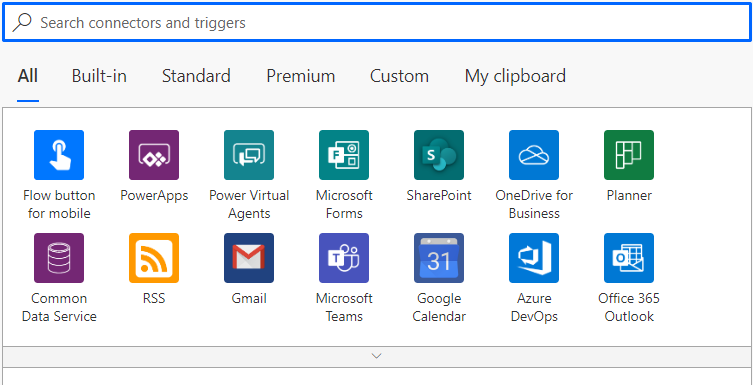
As seen in above pictures we can see list of all the connectors with which microsoft
As seen in the above pictures we can see a list of all the connectors with which Microsoft power automates integrates. In the recent release, Microsoft has mentioned Dynamics 365 connector as Deprecated. The Dynamics 365 connector provides duplicate functionality to the Common Data Service connector since all Dynamics 365 Customer Engagement data is now stored in Common Data Service(CDS).
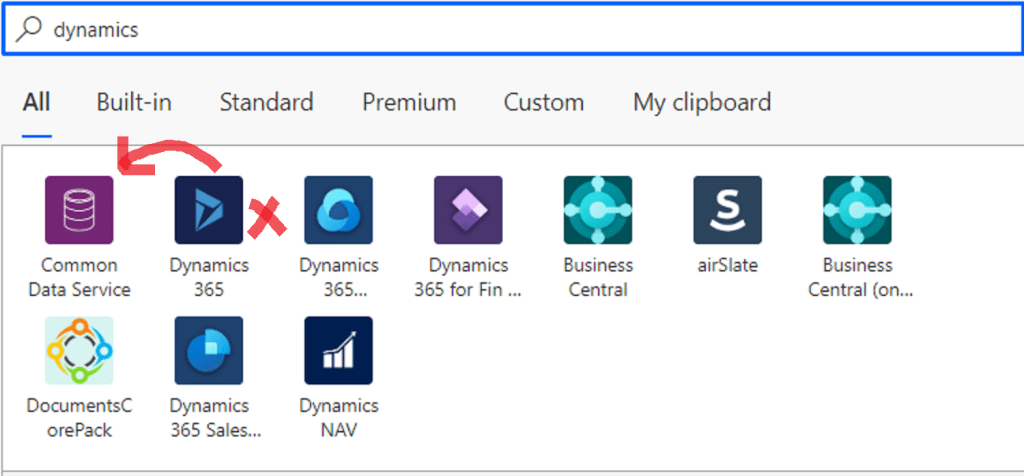
You can check the history of the connectors here.
Let’s start with conditions in Power automate.
- NESTED CONDITION CONTROL
This condition is familiar for all the developers, relatable to if-else condition. In this, we build nested conditions using basic condition control of Power automate. The below image shows the nested condition using condition control in power automate.
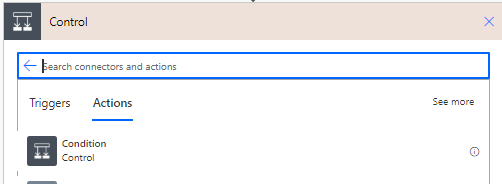
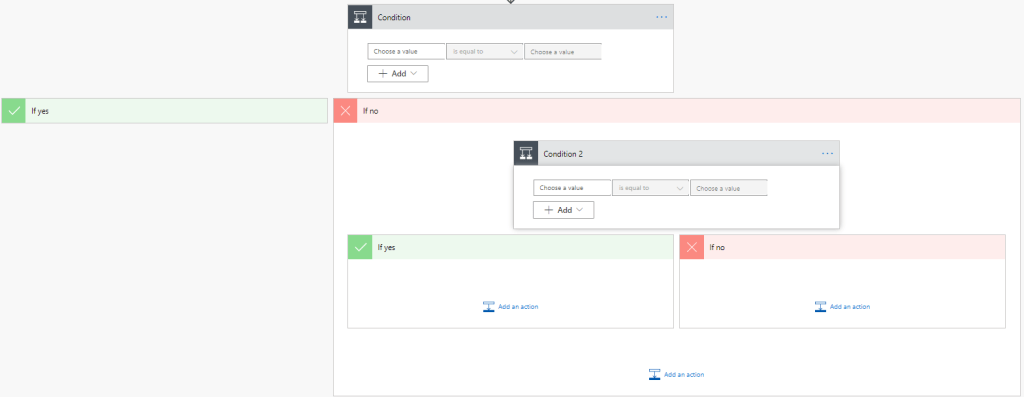
Condition control is easy to use and quite similar to if-else condition and hence easy to understand.
Nested conditions used simultaneously will make flow visually complex.
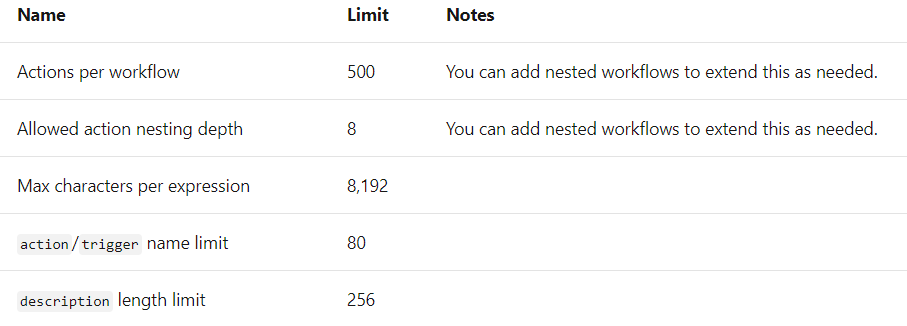
Although it is easy using nested conditions there is a limitation as of now we can only have 8 nested levels of conditions in a Flow.
2.SWITCH CASE CONTROL
To build multiple conditions more reliably and professionally power automate provides us with switch case condition control. It is similar to option 1 where we can set more conditions using a single power automate control. The below image shows switch case-control in power automate.

Switch case condition is easy to understand.
It does not have any limitation on the number of conditions.
It is easy to visualize on screen.
It accepts only strings and integer to compare values, to use date field or any other type you have to use variable and set it to be an integer or string.
3.MULTIPLE CONDITIONS WITHIN THE SAME CONDITION CONTROL.
This condition is used under option 1 that is the same condition control but in a different way. It is basically applicable when you have multiple conditions with the same outcome. For example, if condition A, B, C has the same outcome /action this condition can be used. Below pic depicts multiple condition rows.

Multiple conditions are easy to implement like Option 1.
This can eliminate nested conditions and used to build complex conditions.
It can only be implemented if group of conditions have same output.
Hope this helps .
Thanks for reading Good Luck…………. 🙂
You can connect me on LinkedIn.
 Rey Dynamics CRM Blog
Awesome post. What are you thoughts on adding trigger conditions as another type of condition for Power Automate.
Although it’s not the easiest to use, I always start with the trigger conditions (i.e. see what I can control using the trigger conditions first before moving onto the in flow condition steps) first as it also has the benefit of stopping flows that aren’t needed. Afterwards I then look at nested conditions, switches and multiple conditions within a condition.
LikeLike
Yes Michael trigger conditions will surely be helpful and avoid the unnecessary trigger of flows I agree with your point. I have tried to demonstrate conditions which can be used in business requirements where different actions are designed based on field input.
Thanks for your valuable comment and reading my blog 🙂
LikeLike
how to thank you
LikeLike
Simply desire to say your article is as amazing. The clarity for your put up is just great and i can suppose you are a professional on this subject. Fine with your permission let me to seize your RSS feed to stay up to date with drawing close post. Thanks a million and please keep up the gratifying work.
LikeLike