Working with Custom API in Microsoft Dataverse / Dynamics 365

In this blog post, we will try to understand custom APIs in dynamics 365 and how to configure a custom API in dynamics 365.

What is custom API?

Custom API is an advanced version of custom actions. Custom actions were mostly used or treated as an API due to their behavior of accepting request parameters and returning response parameters.

Custom API is a new code-first approach that extends the concept of Custom Actions to provide capabilities that will enhance development activity. Custom Actions depend on workflow to allow anyone to compose a set of logic using a designer without writing code. This is a great capability, but developers have been leveraging Custom Actions to create new APIs and ignore the designer. Rather than implement their logic with the designer with workflow, they have been using this capability to create APIs and then register plug-ins to apply their logic in a way that is most productive for them. This enables them to do things workflow can’t do.

Custom API provides the capability to write and deploy API in the database independently. Apart from this custom actions had certain drawbacks which are now overcome by custom API. One major difference is the method to consume custom actions was always POST, but in custom API we can use GET in order to fetch data and not perform any action. This allows us to test the URL in the browser itself.
In today’s blog, I will create a custom API to create a contact record in CRM.

Let’s configure a custom API in the maker portal. Open https://make.powerapps.com .

Create a new solution. Here I have created a solution named custom API.

Click on the New button and add Select custom API . We are going to add 3 components to the solution custom API, custom API request parameter, and custom API response property.

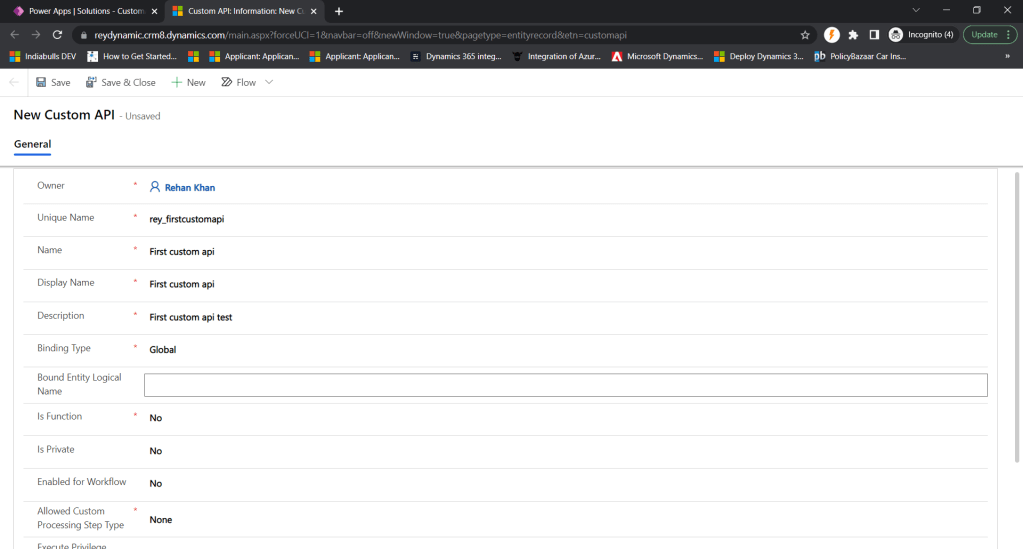
Fill in the name of the custom API relevant to the API operation. It is a good practice to use prefixes while naming a component.

Binding type– Binding is an OData concept that associates an operation to a specific table. The following table describes the Custom API Binding Type (BindingType) you should use.

OptionWhen to use
GlobalWhen the operation does not apply to a specific table.
EntityWhen the operation accepts a single record of a specific table as a parameter.
EntityCollectionWhen the operation applies changes to, or returns a collection of a specific table.
source Ms Docs

Selecting Entity or EntityCollection will require that you use the fully qualified name of the Function or Action when you use the Web API. The fully qualified name is Microsoft.Dynamics.CRM.<UniqueName of the Custom API>.

When you select Entity, a request parameter named Target with the type EntityReference is created automatically. You do not need to create it. This value will be passed to any plug-ins registered for this message.

When you select EntityCollection, no parameter or response property representing the entity collection is included. Setting this binding simply adds the requirement that the operation is invoked appended to the entity set when using the Web API.

Boundentitylogicalname – The logical name of the entity bound to the custom API.

Here in this example, I am selecting global, please note you can compose all your Custom API as Global and add whichever request parameters or response properties you need to achieve the same functionality as a bound Function or Action.

Isfunction – The Custom API Is Function property controls whether the Custom API will be a Function or Action. In OData a Function is an operation called using HTTP GET request which returns data without making any changes. With a GET request, all the parameters are passed as parameters in the URL when invoking the function.

IsPrivate – The Is Private property will block the Custom API from appearing within the $metadata service document and prevent Dataverse code generation tools from creating classes to use the messages for your Custom API. Please note if other developers are aware about the custom API name and parameters they can still consume the API.

Enabled for workflow – Set the Custom API Enabled for Workflow (WorkflowSdkStepEnabled) to true when you need to enable calling a Custom API as a workflow action.

Allowed custom processing -The following table describes which Custom API Custom Processing Step Type (AllowedCustomProcessingStepType) you should use.

OptionWhen to use
NoneWhen the plug-in typeset for this Custom API will be the only logic that occurs when this operation executes.
You will not allow another developer to register any additional steps that may trigger additional logic, modify the behavior of this operation, or cancel the operation.
Use this when the Custom API provides some capability that should not be customizable.
Async OnlyWhen you want to allow other developers to detect when this operation occurs, but you do not want them to be able to cancel the operation or customize the behavior of the operation.
Other developers can register asynchronous steps to detect that this operation occurred and respond to it after it has been completed.
This is the option recommended if you are using the business events pattern. A business event will create a trigger in Power Automate to you can use when this event occurs. More information: Microsoft Dataverse business events
Sync and AsyncWhen you want to allow other developers to have the ability to change the behavior of the operation and even cancel it if their business logic dictates.
If the operation succeeds, other developers can also detect this and add logic to run asynchronously.
Most Dataverse messages enable the extension in this manner. Use this when your message represents a business process that should be customizable.

Execute Privilege Name – Execute privilege name field can be used to leverage the privilege name which will be required while accessing the custom API. The application user registered will require the mentioned privilege in order to execute the custom API.

I have created a custom API with default values selected.
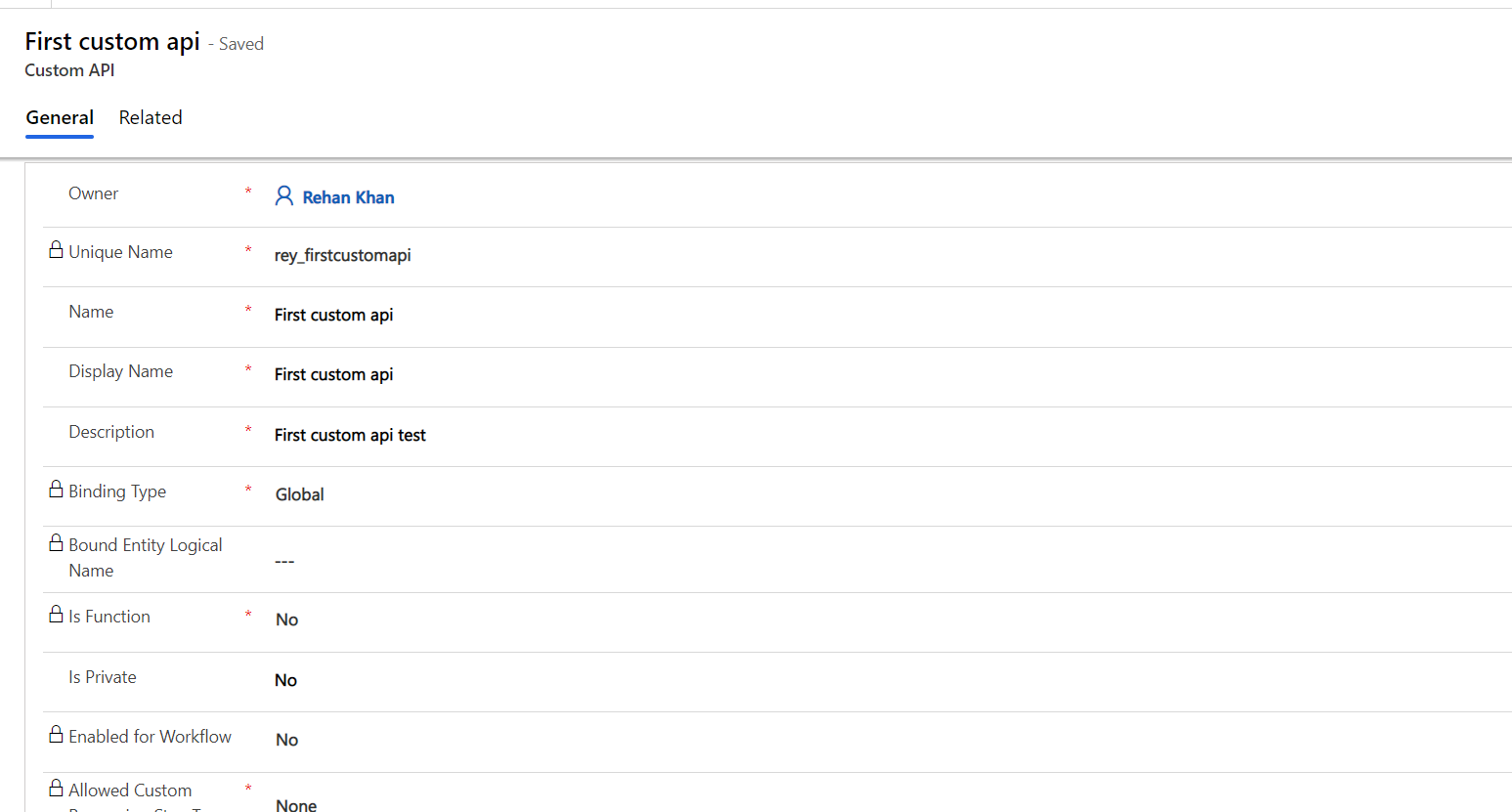
The next step is to add a custom API request parameter.
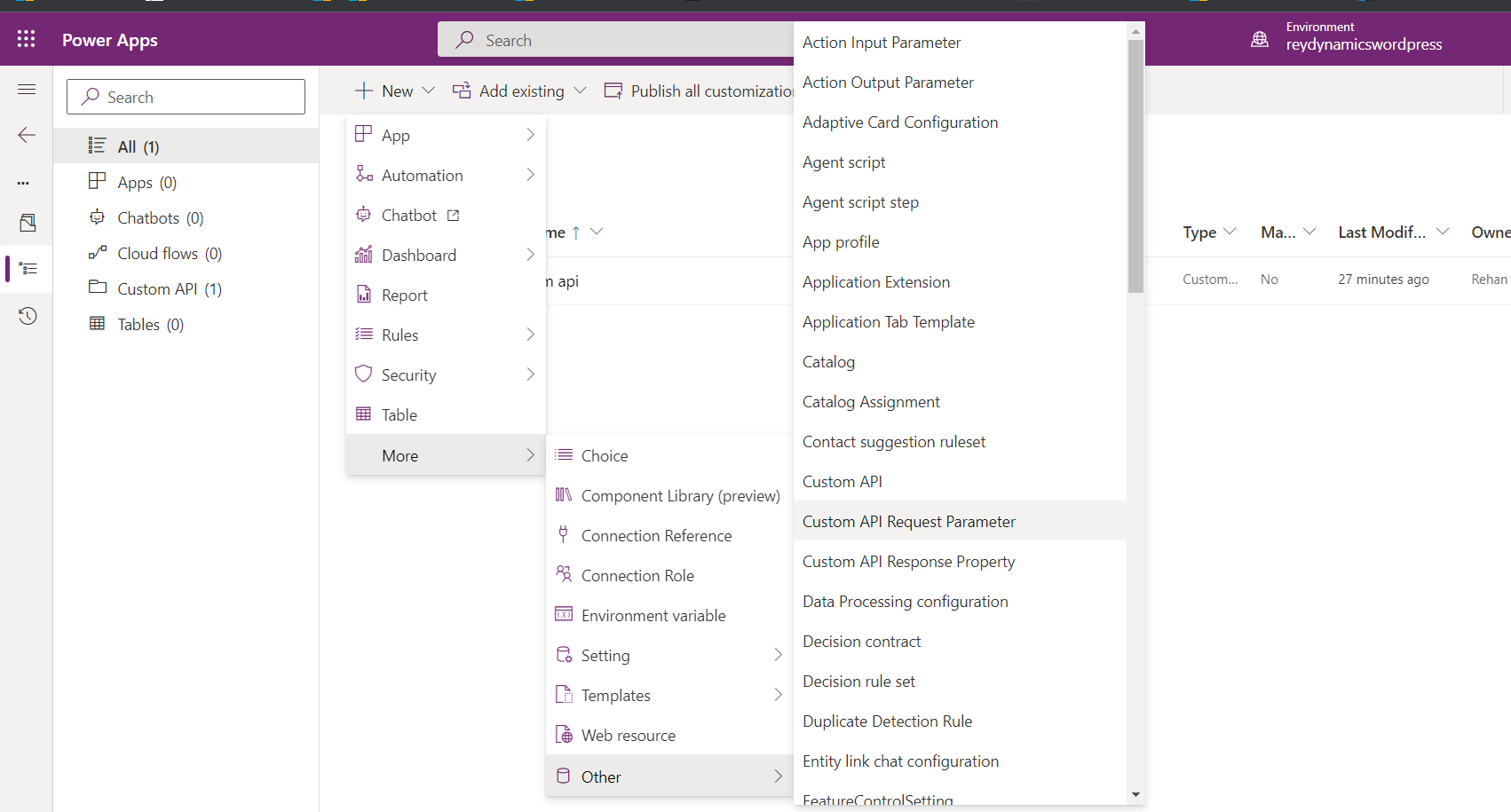
Adding one custom parameter

As seen in the above screenshot I have added a custom API lookup reference First custom API which we created earlier. I will pass the first name of the customer in this input. We can also pass JSON requests here to use this as an HTTP API.

The next step is to add the response parameter.

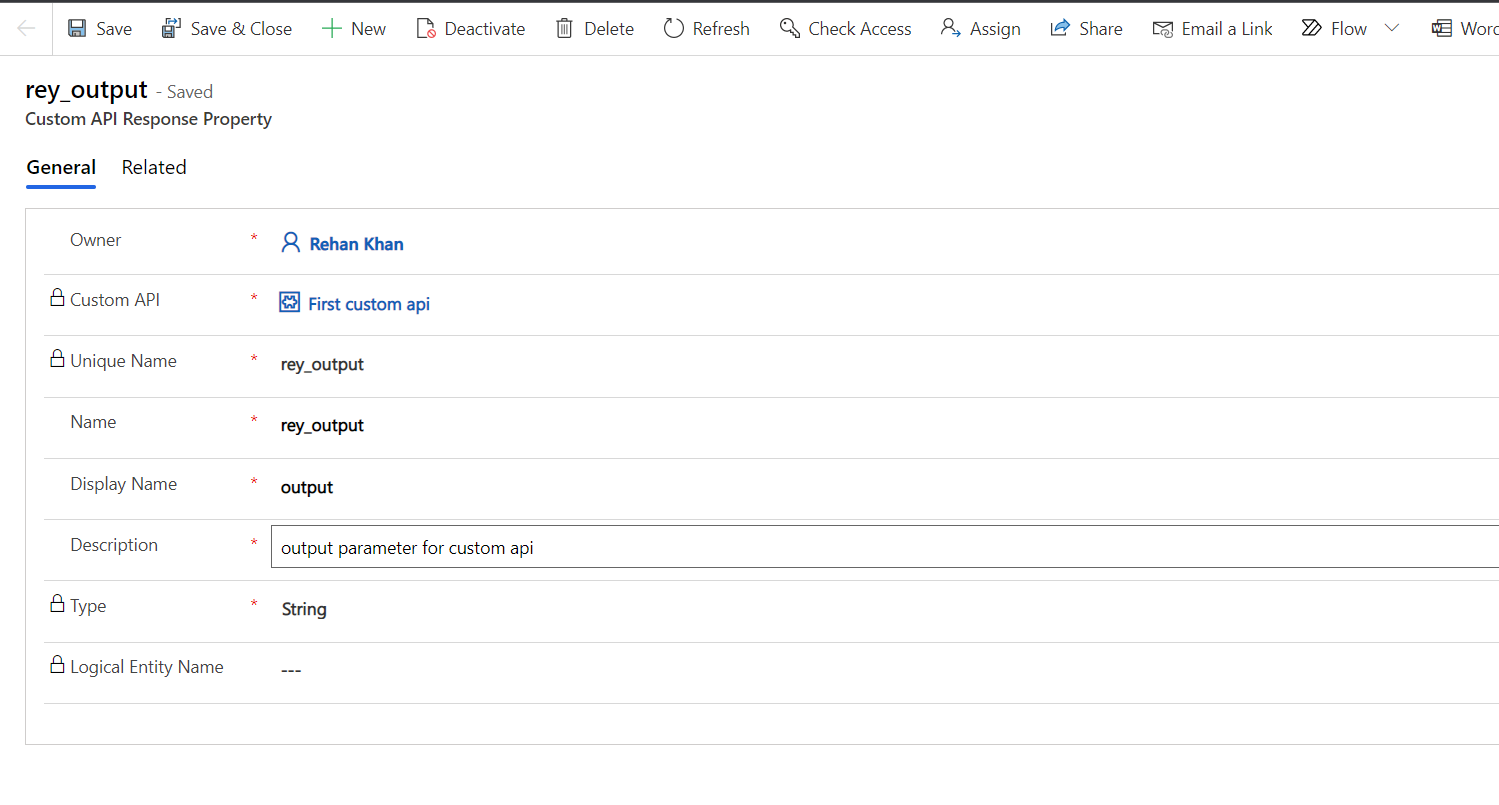
Create a response parameter

Here I have added a string field as a response parameter. The next step is to write and register a plugin.

Plugin code

using Microsoft.Xrm.Sdk;
using System;


namespace FirstCustomAPIplugin
{
    public class Createcontact : IPlugin
    {
        public void Execute(IServiceProvider serviceProvider)
        {
            // Initiate tracing service 
            ITracingService tracingService = (ITracingService)serviceProvider.GetService(typeof(ITracingService));
            // Initiate the execution context from the serviceprovider.  
            IPluginExecutionContext context = (IPluginExecutionContext)serviceProvider.GetService(typeof(IPluginExecutionContext));
            string firstname = string.Empty;
            if (context.InputParameters.Contains("rey_fname"))
            {
                firstname = (string)context.InputParameters["rey_fname"];
            }

            IOrganizationServiceFactory serviceFactory = (IOrganizationServiceFactory)serviceProvider.GetService(typeof(IOrganizationServiceFactory));
            IOrganizationService service = serviceFactory.CreateOrganizationService(context.UserId);

            try
            {
                Entity contact = new Entity("contact");

                contact.Attributes["firstname"] = firstname; // Assign firstname to contact entity
                var contactid = service.Create(contact); // Create a contact record 

                context.OutputParameters["rey_output"] ="New contact Created with ID : "+contactid;
                tracingService.Trace("New contact Created with ID : " + contactid);

            }

            catch (Exception ex)
            {
                tracingService.Trace("Create contact Exception: {0}", ex.ToString());
                throw;
            }
        }
    }
}


Sign and register the assembly under the plugin registration tool.

Assembly registered

Now we will link this plugin with our custom API record.
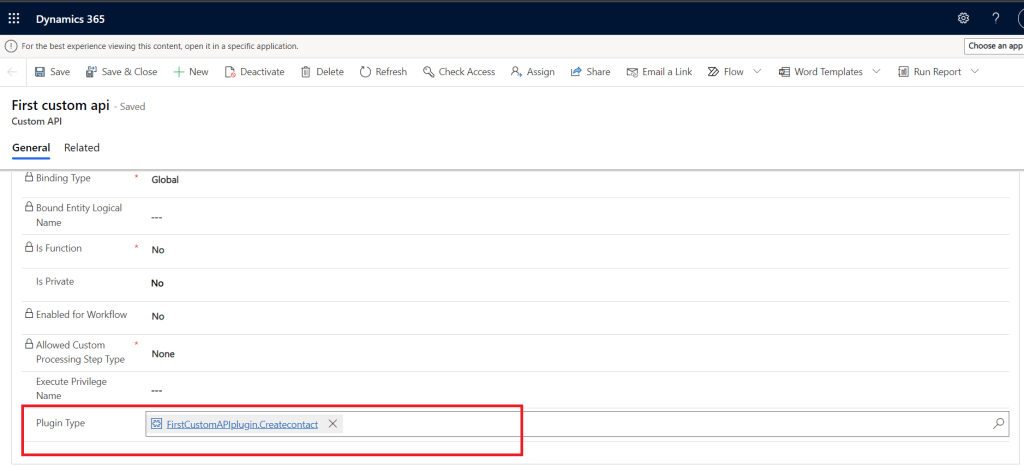
Custom API linked with Plugin

Now we can test the custom API in postman. Please note we are using OOB WEB API registered in AZURE. To know how to register dynamics 365 WEB API on azure you can refer to my blog How to register D365 WEB API.
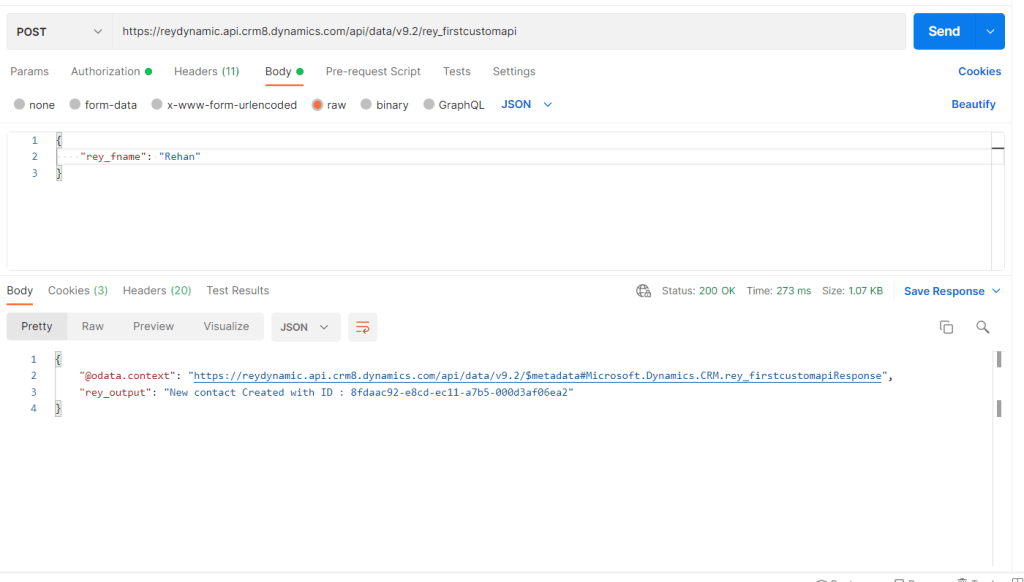
As we can see custom API responded successfully with the contact ID created in CRM.
Let’s check the record created in CRM.

Contact record created

Contact record with the first name is created in the system.

Thanks for reading …… Hope it Helps!!

Create Custom Http Requests using Power Automate

In today’s blog, we are going to see how we can create HTTP requests using the power automate trigger. We can use this trigger to create a custom API that accepts JSON requests as input.
API URL created from this trigger doesn’t require any kind of authentication, hence the URL needs to be private and shared only with a required audience.

Lets start creating a new Flow .

Create new automated flow
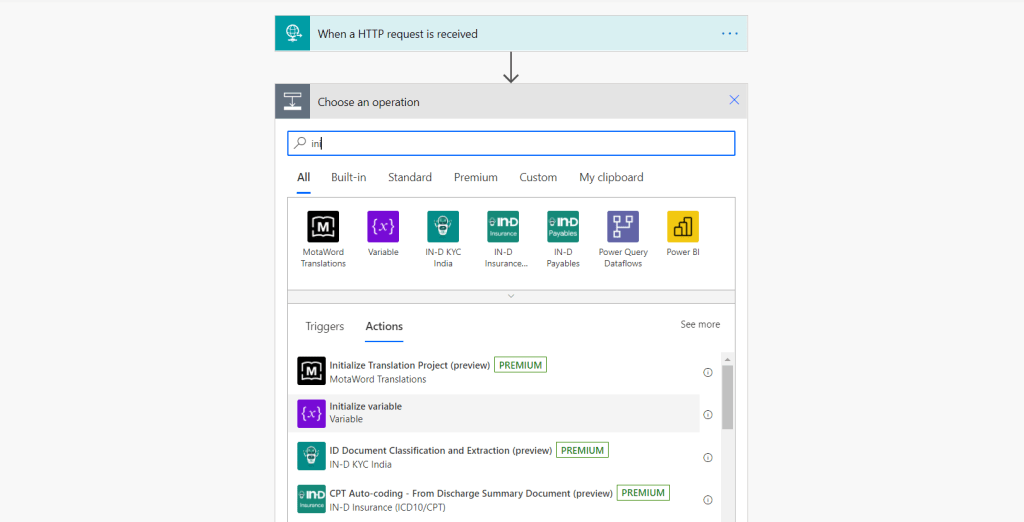
Select Http request triggers

HTTP request is received is a trigger that is responsive and can be found in the ‘built-in’ trigger category under the ‘Request’ section. This is a responsive trigger as it responds to an HTTP Request and thus does not trigger unless something requests it to do so.

Let’s consider a business requirement of lead creation API with a deduplication check.
So there are many business scenarios where lead is created through external channels consuming CRM WEB API. In this API we will create a lead in CRM with a dedupe check of mobile and email id. We are considering this scenario to show the benefit of a custom HTTP trigger over an out-of-the-box WEB API.

Breakdown of steps to demonstrate this-

  • Fetch product based on name and save it in a variable.
  • Check duplicate records in Lead with a combination of phone and email.
  • If the lead record is found, API will return a response with a duplicate record found.
  • If there is no lead record found, we will create a new lead record and return the response lead created.
Insert Sample Pay Load

In the above image, I have created a basic JSON schema required to create a lead. Please note these JSON attributes are custom, you can name them at your convenience. Click on Done when you have pasted the JSON.

Initialize a variable

The next step is to initialize a variable. We will use this variable to store the product ID as we are going to pass the product name in the JSON request.

Initialize product Id variable
List Product

The next step is to list the product on the basis of name. We will need this GUID to create a lead record.

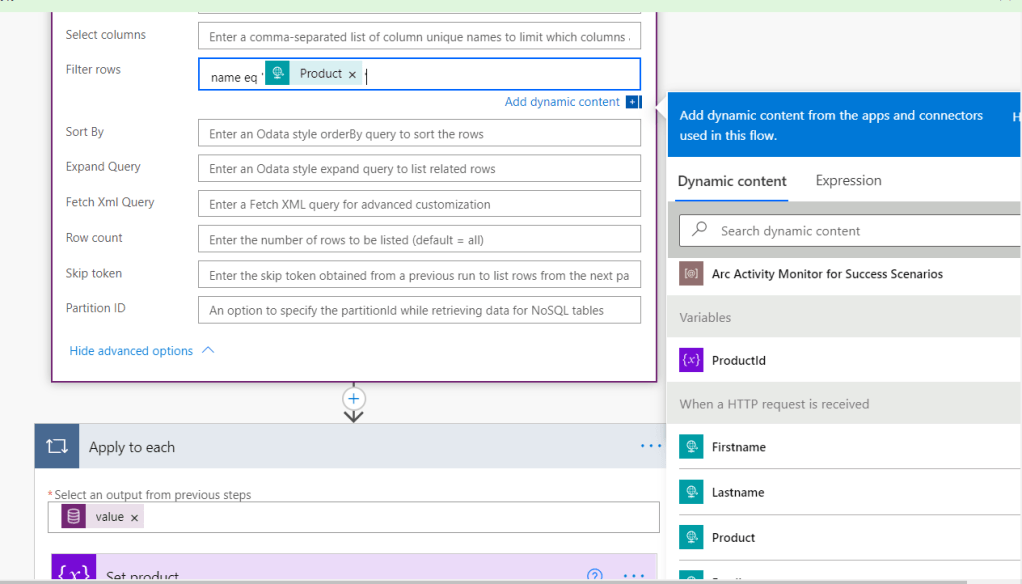
Filtering product based on name

In the above image, we are filtering on the basis of the products of the name of the product received in JSON. Please refer to the below screenshot for the same.

Select product from HTTP request trigger
Select the attributes of request
Apply to each

Apply To Each Control is used to loop through all the records fetched from List records. As we are expecting only one product record we will set the product id of that record in our variable. Refer to the screenshot below.

Add value from List rows step

Pass the value from the List records component.
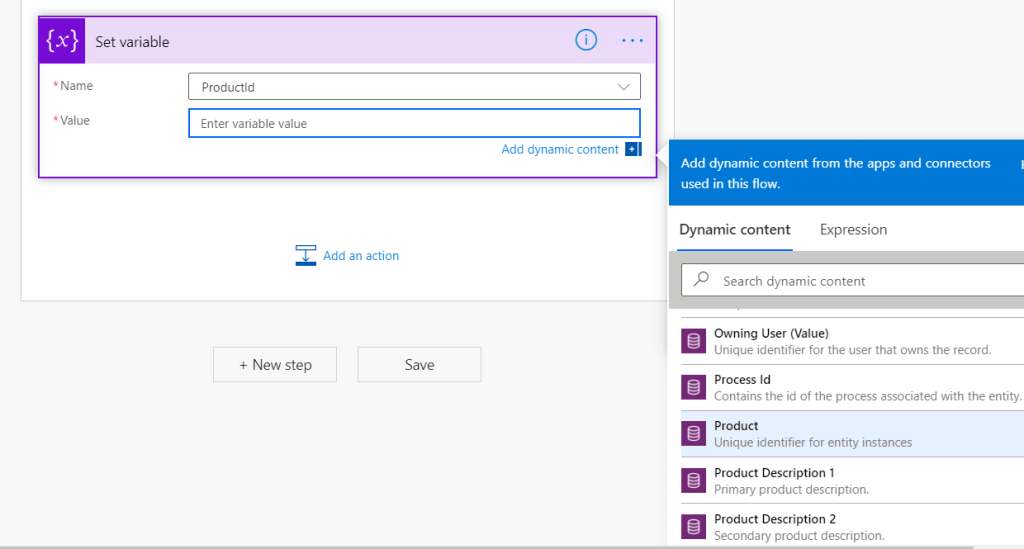
Now under apply to each condition, we will set the product ID variable. For that choose the Set variable component.

Select product unique identifier from List records. Our flow will look like as shown below.

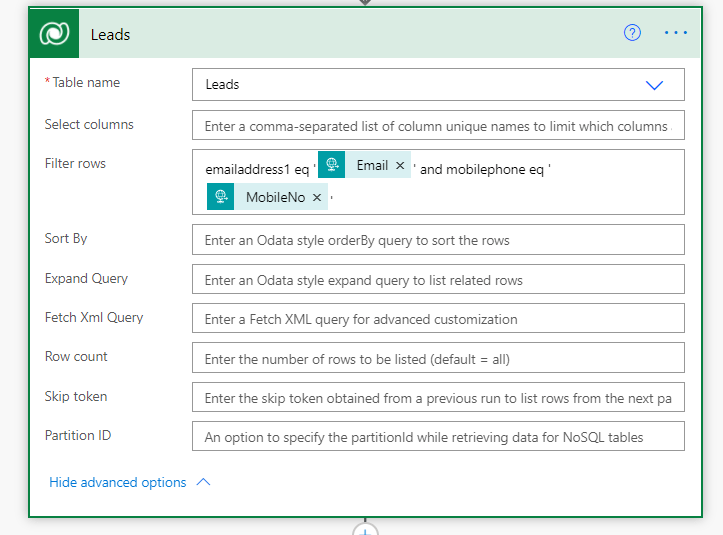
Now Add another List record component to check the lead deduplication logic. We will add the required filter for the dedupe which is a combination of email and mobile phone. This filter will check the duplicate records in leads.

Fetch leads

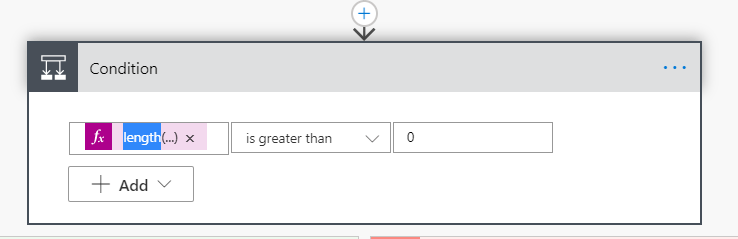
We have passed the parameters from the HTTP request trigger. The next step is to add a condition that will check if the list records of lead return any record.

This expression will return the length of object returned length(body(‘Leads’)?[‘value’]).
As seen in the fetch leads screenshot, the name for the component is Leads which is passed in the expression. So here I am checking if the length of an object is greater than 0.

If it is greater than zero, it indicates that a record already exists with the same phone no and email address. In this case, we will return the JSON response as “Lead is already created”.

Inside yes condition add select component as shown below .

Data Operation – Select action is used to transform the shape of objects in an array. For example, you can add, remove, or rename elements in each object in an array.

In the above select component, we are passing the value from the List row of lead. As you can see values are mapped with my custom key attributes Leadid , Duplicate and Message. The output from the select component will be used in response.

Output from Select
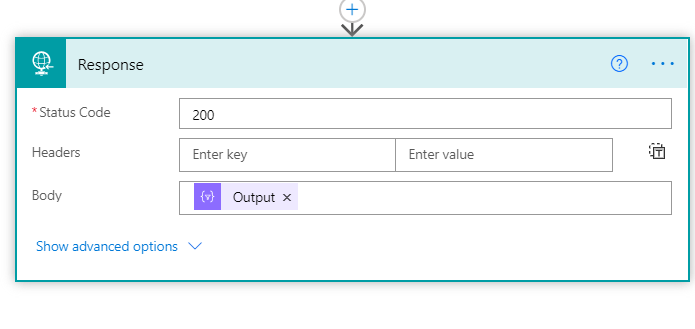
Response for records found

Select the output under select component in the response body as shown in the above screenshot.


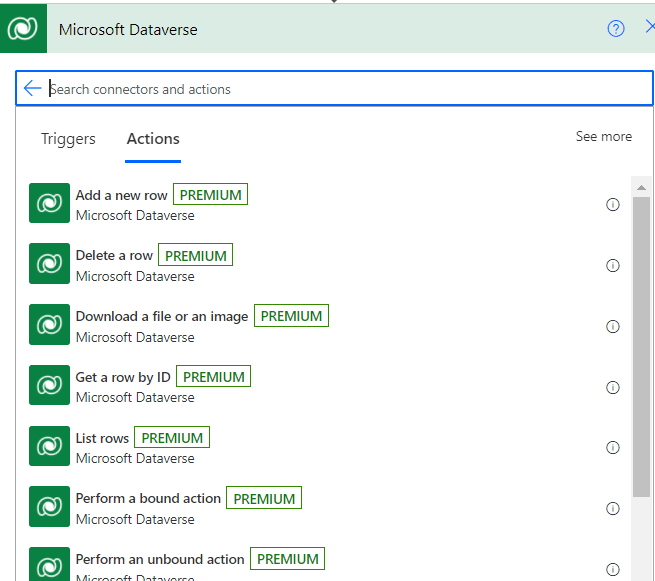
The next step is to add a condition when a duplicate record is not found. Here we will create a lead record and pass the same Keys with different values. Add new action Add a new Row dataverse under no condition.

Add new record

Now we are mapping the HTTP request parameters with CRM lead entity. Refer to the above screenshots for the same. We are passing the product ID variable defined earlier as this connector requires a GUID of lookup to bind. Once we map all the HTTP request parameters next step is to add a response.

Response Action will be added returning the following parameters Leadid, Duplicate, Message as shown in the above screenshot.

No condition

This is how our conditional part of flow will look like .

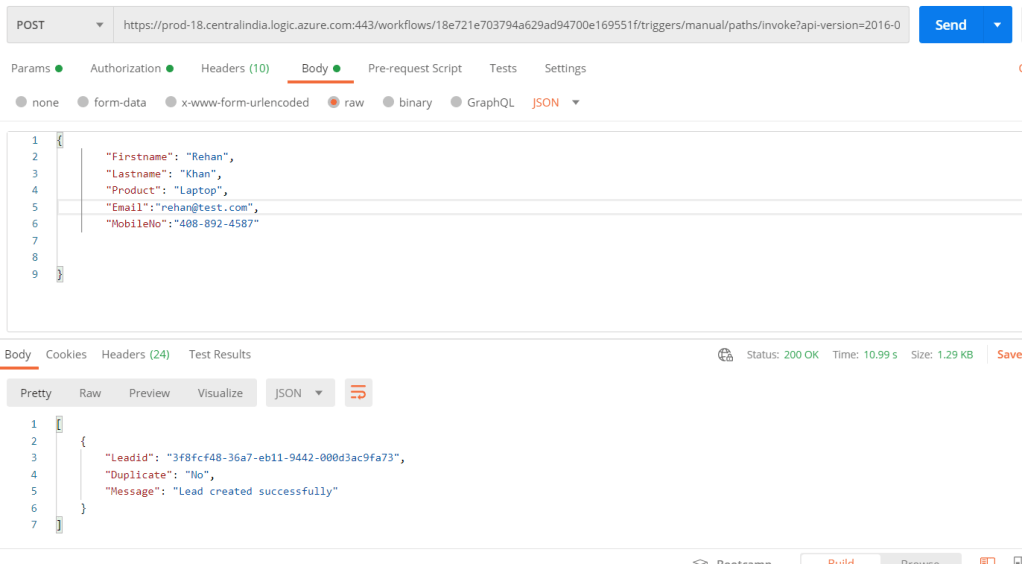
Let’s test this HTTP Request in postman. When we save this Flow a URL will be generated in the HTTP request trigger. We will use the same URL to consume this API.
Please refer to the screenshots below.

As you can see below screenshot all the parameters are passed as per our defined JSON and API responded with the parameters we configured for an HTTP response.

Postman request

Lead created in CRM with all the fields passed in the request. As you can see even the product lookup is filled.
Now I will try to create a lead with the same details to check if the request allows me to create the duplicate lead.

Duplicate Lead

As you can see HTTP request didn’t allow us to create a new lead and returned us the message “Lead is already created”.

This is how we can implement custom business logic in the HTTP requests to overcome different business requirements.

Thanks for reading. Hope this helps.

Follow me on Linkedin.


Registering Dynamics 365 Online Web API with Azure Application

In Today’ blog I will try to demonstrate how to register dynamics 365 webapi on azure and consume it with an application user . So those who are working on custom API’s in CRM or haven’t worked on CRM WEB API , lets go through what is WEB API?


The Customer Engagement dynamics CRM Web API provides a development experience that can be used across a wide variety of programming languages, platforms, and devices. The Web API implements the OData (Open Data Protocol), version 4.0, an OASIS standard for building and consuming RESTful APIs over rich data sources. You can learn more about this protocol at https://www.odata.org/.Click here for more details on WEB API.

The concept of WEBAPI for online CRM is hosting dynamics 365 app on Azure portal . For this you may require below components .

  • Azure portal access
  • Application user
  • CRM Admin user.

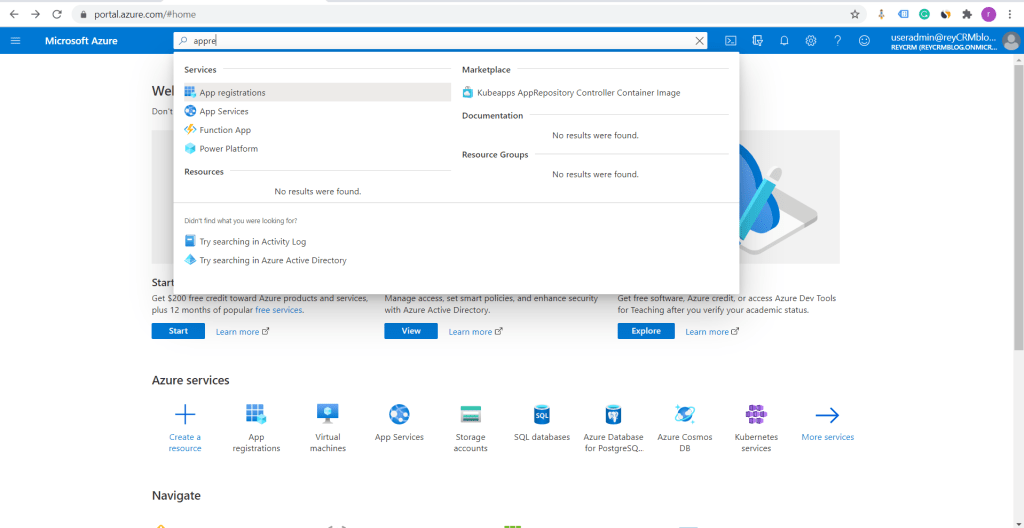
Log in to Azure portal. Search for App registration and click on it.

Search for app registration.


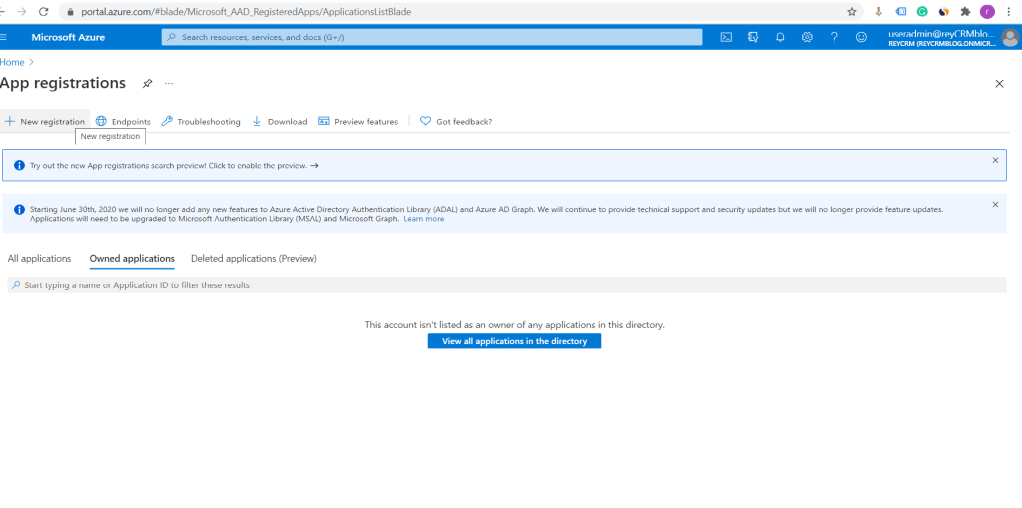
Click on New Registration

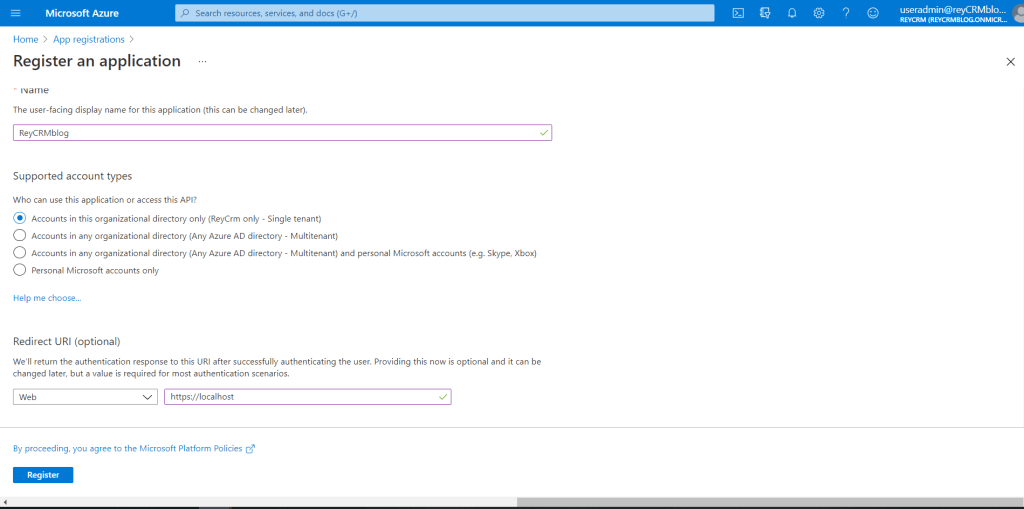
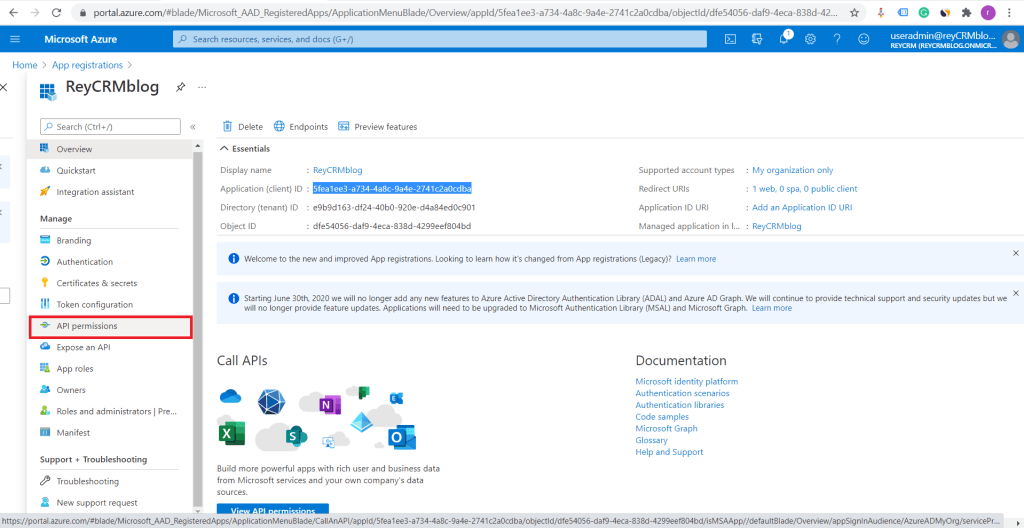
Fill in the above details and select the options preferred . I have selected the first option which is of single tenant users only. Once done click on register . An application will be registered (ReyCRMBlog) and details of that application will be available in overview tab.

Azure app management

Application Id – The Application ID is a unique, unchangeable identifier for this application.

Directory (Tenant) ID –  Tenant ID is the ID of the AAD directory in which you created the application.

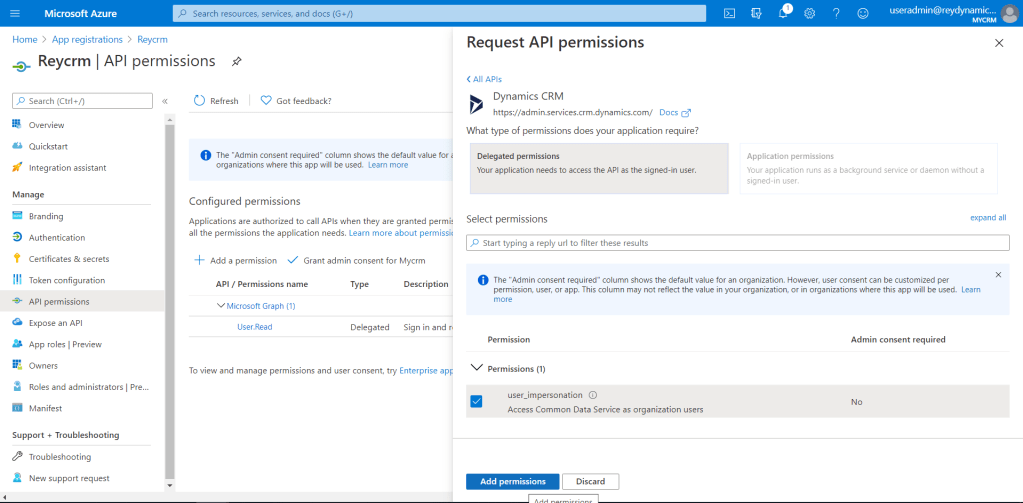
Now the next step is to provide permissions to the API . Refer the screen shot below .

Once you navigate to API permissions , click on Add a permission and select Dynamics CRM .
Select delegated permission and check user impersonation option . Then click on add permissions.

Adding permission to application for Dynamics.

Below are the reason we are enabling user impersonation in application

  1. User calls the API with another AAD ID in the header
  2. User is authenticated as a valid AAD user
  3. Permissions are checked and if user can impersonate then
  4. AAD ID is read from the header
  5. Every call is now made as if by the user in the AAD ID header (including Graph API, Dynamics CRM, etc.)

Once permissions are provided , next step is to create client secret id.

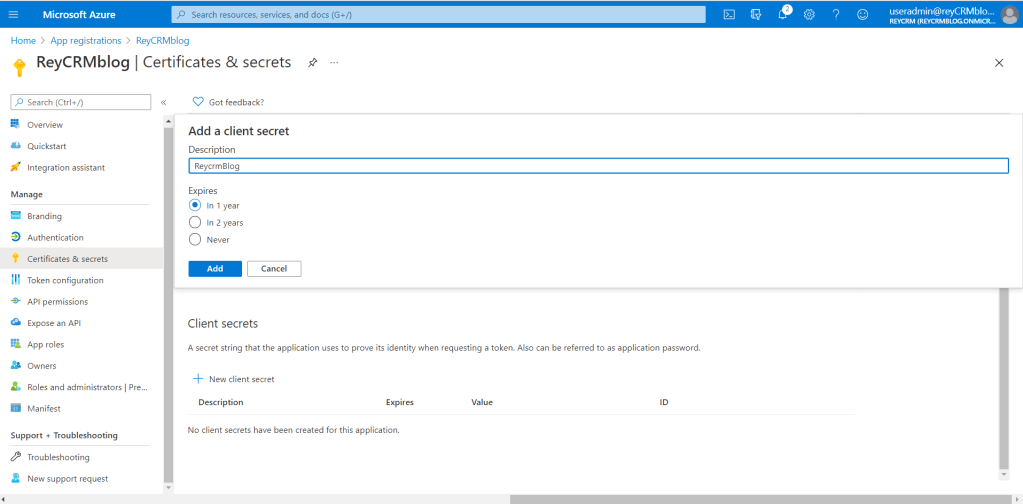
Navigate to Certificates & Secrets

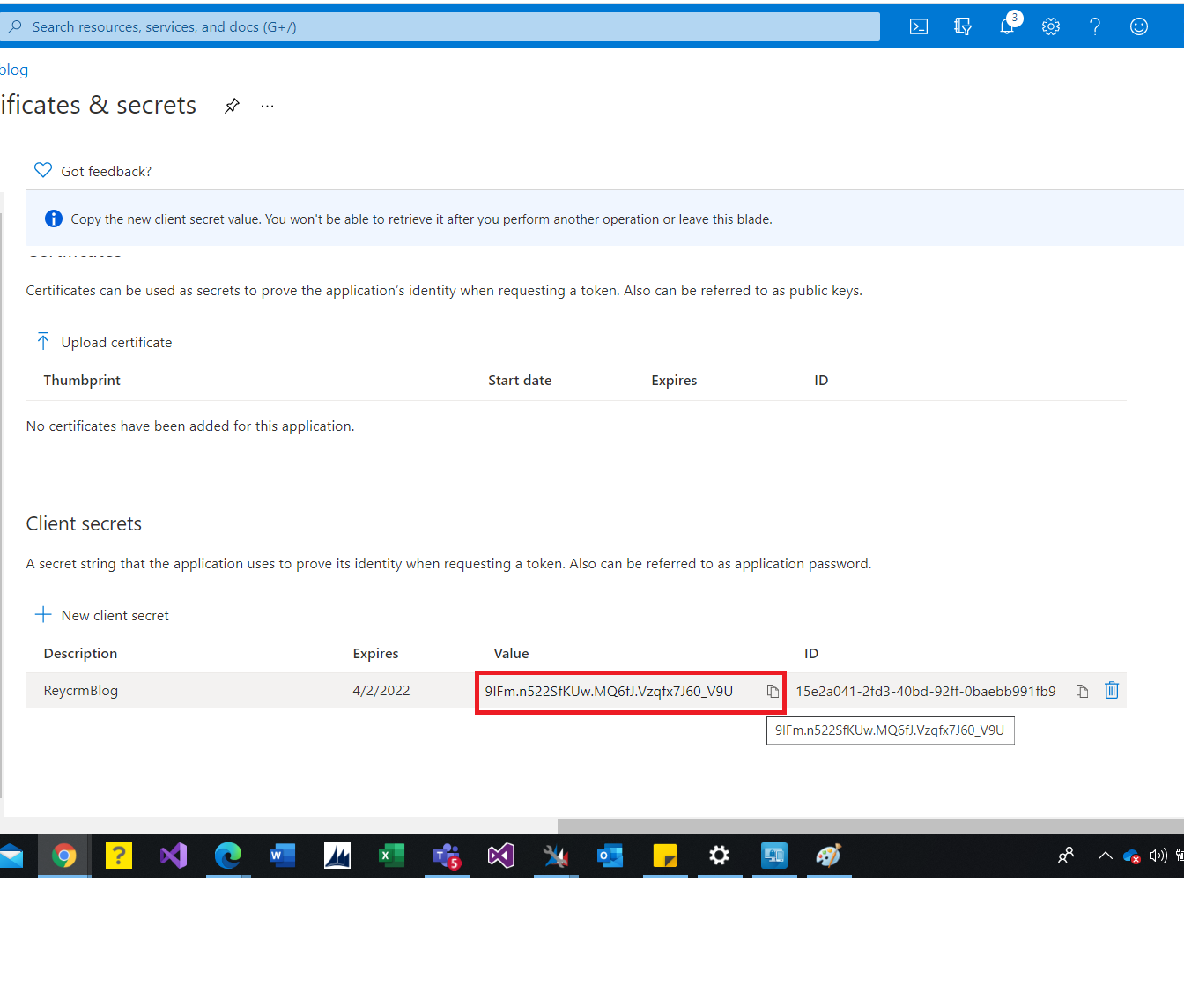
Add a new client secret select the expiry of this client secret . Here in demo account I am selecting 1 year . Click on Add , a client secret will be generated .Please save the client secret in a notepad file .Refer screenshot below.

Client Secret

We have successfully hosted the dynamics online WEBAPI . Now lets create an application user in CRM .

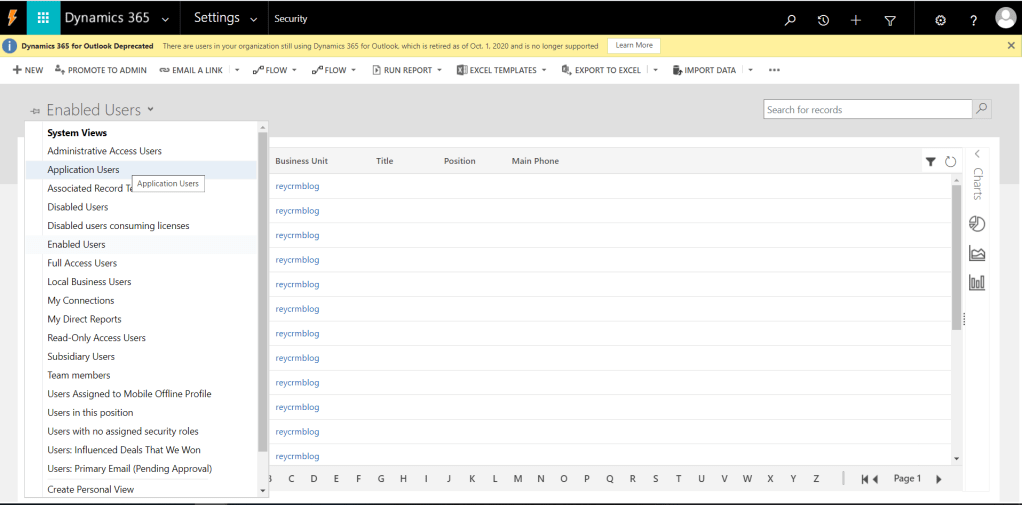
Navigate to Settings > Security > Users . Select application users from the view . Refer below screen shot .

Navigate to Users
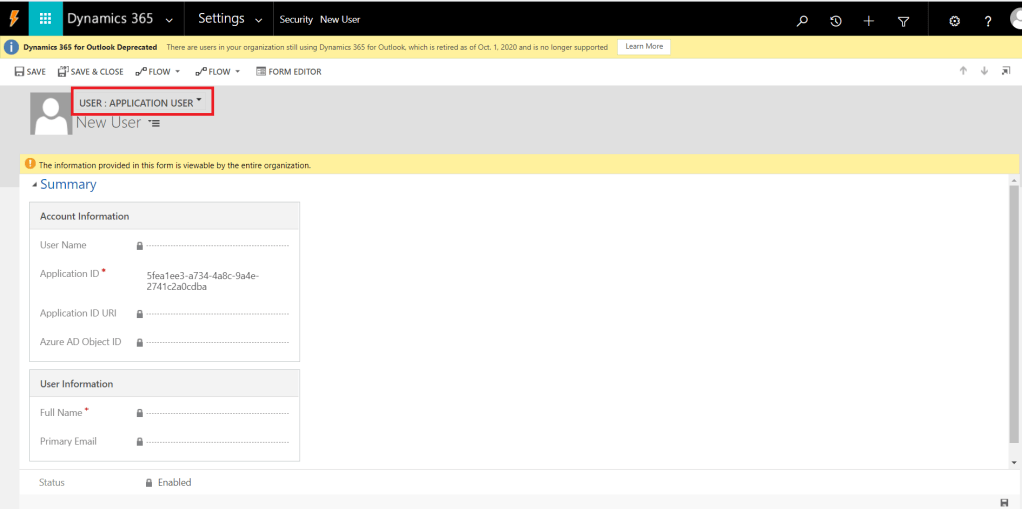
Create Application type user

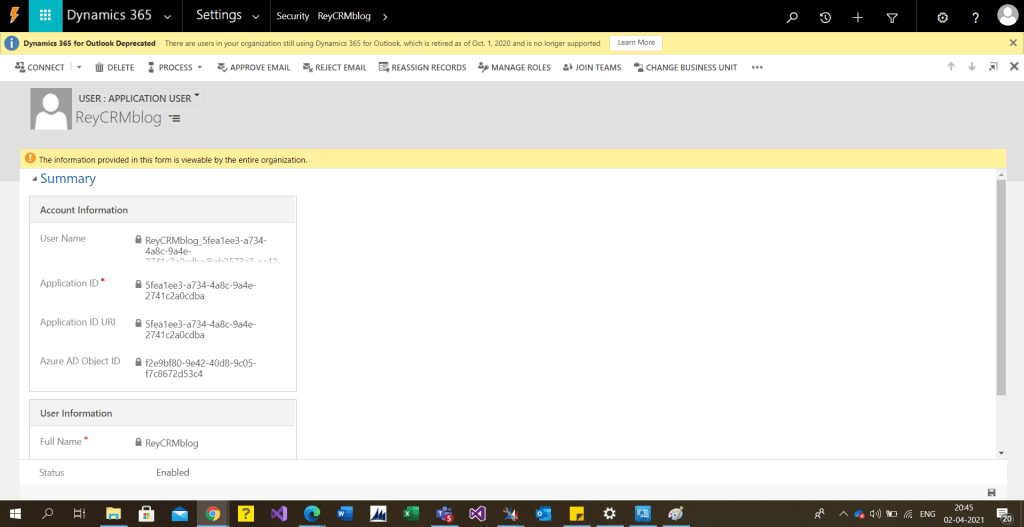
NOTE Select the application user from dropdown form view . Paste the Application ID. Once you save the application id all the details will be filled automatically.

Application user created

Application user does not require CRM liscense.

Lets test the API on Postman .

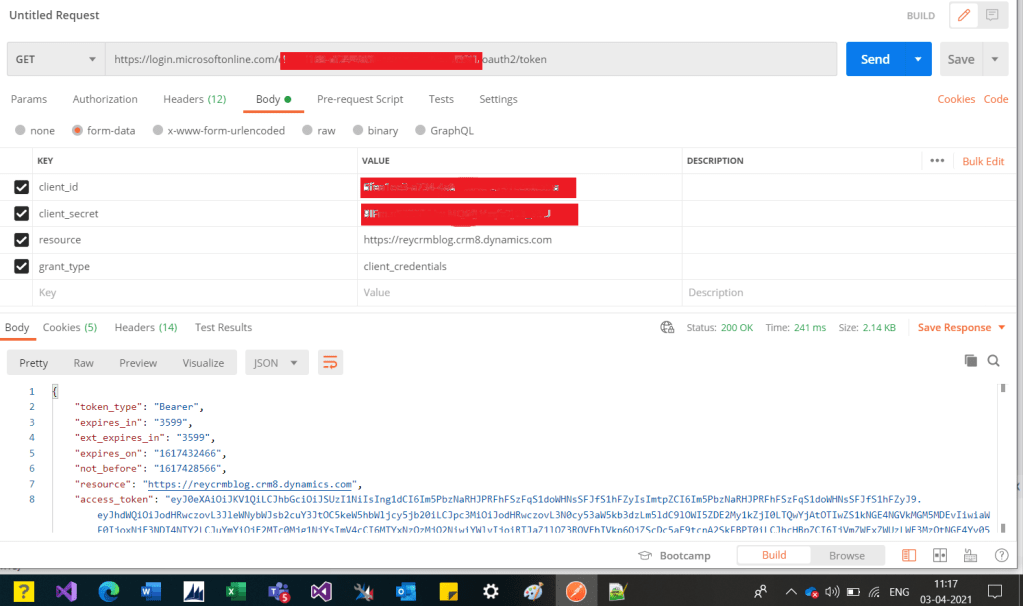
To consume the WEBAPI , first we need to generate authorization token . We can generate the same a GET API call on the following

URL :https://login.microsoftonline.com/<TENANT ID>/oauth2/token

Method : Get .

Bearer token generation

Pass the following parameters in API body .
client_id: This will be the client id of the azure application registered.
client_secret: This will be the value of client secret we generated in certificates and secrets.
resource: This parameter value will contain the CRM instance URL.
grant_type: This parameter will have client_credentials as value .The Client Credentials grant type is used by clients to obtain an access token outside of the context of a user.

As you can see in above request we are getting the access_token in return with a status code of 200.

Now this token will be used to do CRUD operations through WEBAPI .
I will demonstrate a GET request which is to fetch data from CRM .

Fetch CRM Contacts

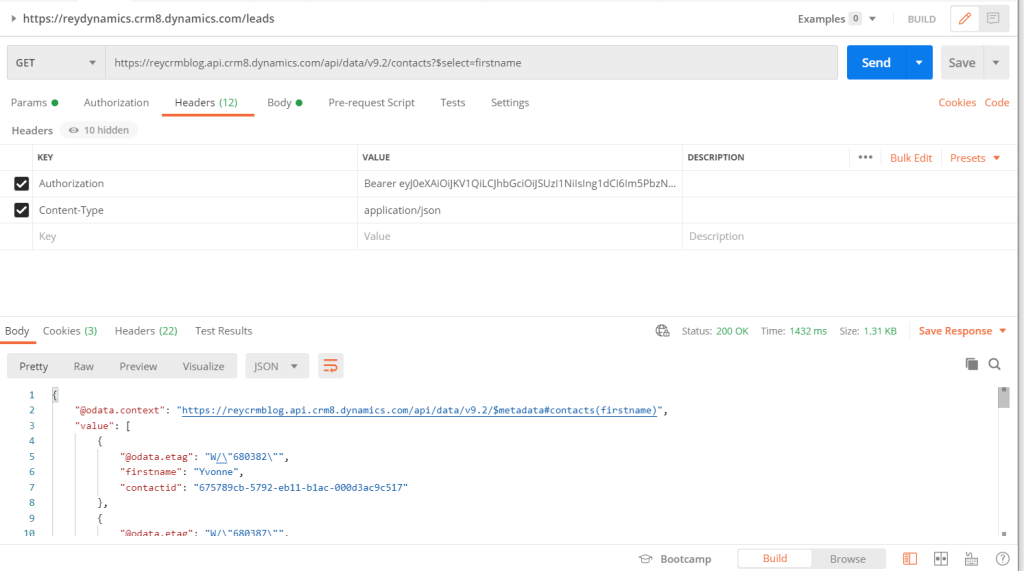
In the above request , I am fetching CRM contacts using odata query . Below are the Request details .
Method :Get

URL :https://reycrmblog.api.crm8.dynamics.com/api/data/v9.2/contacts?$select=firstname.
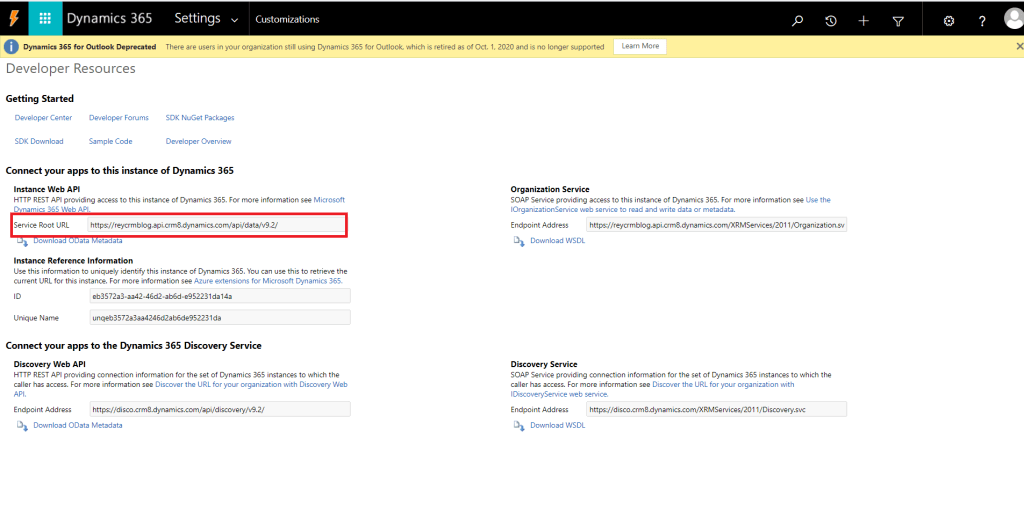
You can get the above URL from Settings>Customization>Developer resources > Service root URL.

Header
Authorization
: Bearer <Token> .

Web API URL

This is how we registered a dynamics CRM WEB API and fetched CRM contacts . Next time will post on different http methods (post,patch). Hope this helps .
Thanks for reading my blog ………..Good luck !!.
You can follow me on Linked In .

Azure DevOps CI/CD pipeline for unmanaged solution Dynamics CRM.

In this blog I will try to demonstrate how we can implement Continuous Integration (CI) and Continuous Deployment (CD) for Dynamics 365 Customer Engagement CRM (CE) using Azure DevOps. We will see how we can deploy a CRM Solution from one CRM instance to another CRM instance, let us say, we have to deploy a CRM solution from the development environment to the QA / UAT environment.

To demonstrate this we will require following component/ Subscriptions

  • Azure Devops.
  • 2 CRM instances.
  • Power DevOps Tools .

Lets start by navigating to azure portal https://dev.azure.com/.

Create a new project .

Create a new project
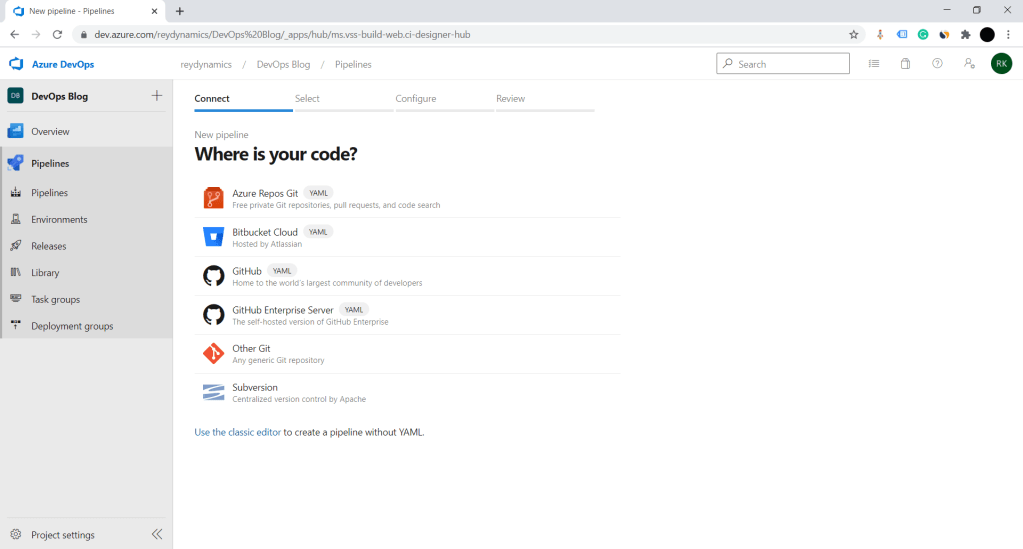
  1. Click on use classic editor . Select Azure repos Git as source .
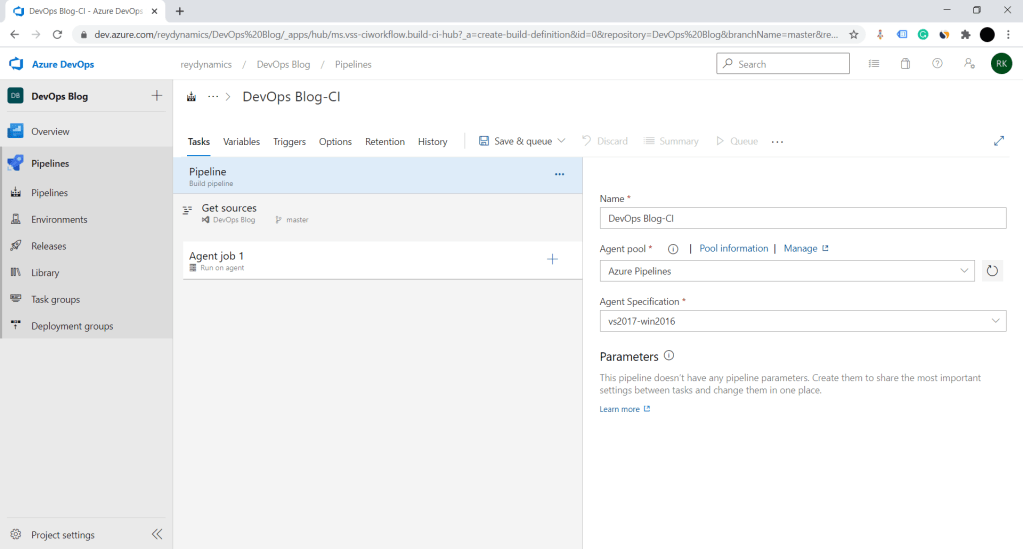
select Empty job

2. Select empty job as shown in above image.

Fill in the Job details

3. Fill in the agent job details as shown in above screenshot.

4. Click on Plus(+) button to add new task to a agent.

Add power platform tool installer

5. Add power platform tool installer . Please if power apps component aren’t visible install Power Devops tool from market place .

6. Next step for agent job is to export the solution . Select Power platform Export solution component .

configure powerapps Export solution component

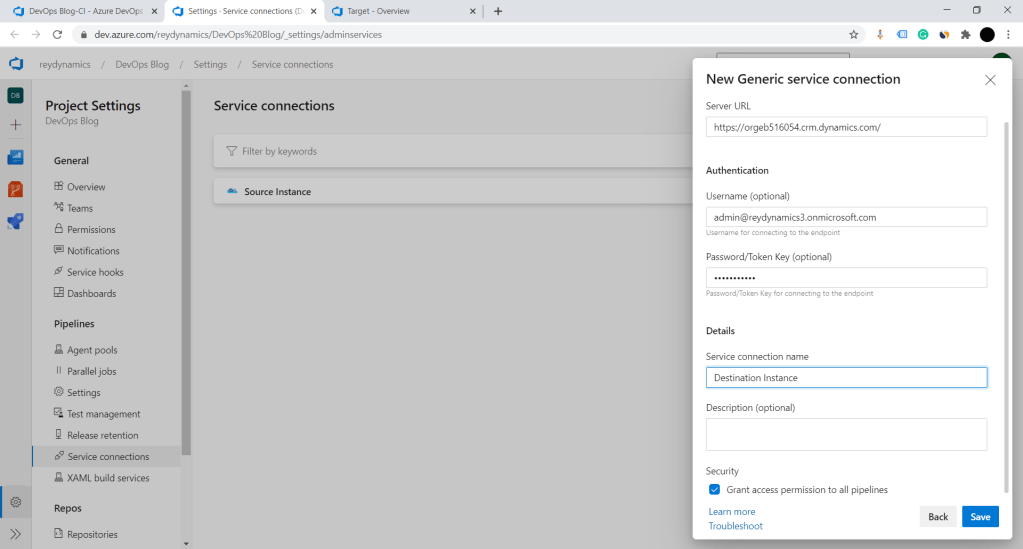
7. Configure Powerapps export solution . We need to add connection for our CRM instance. Click on manage in service connection , you will land on service connection page . Add new generic service connection.

create a generic connection
Fill in the details for generic connection

8. Please note to Grant access permission to all the pipelines and save the connection.
Lets create Destination connection also for the destination instance.

Create Generic connection for destination

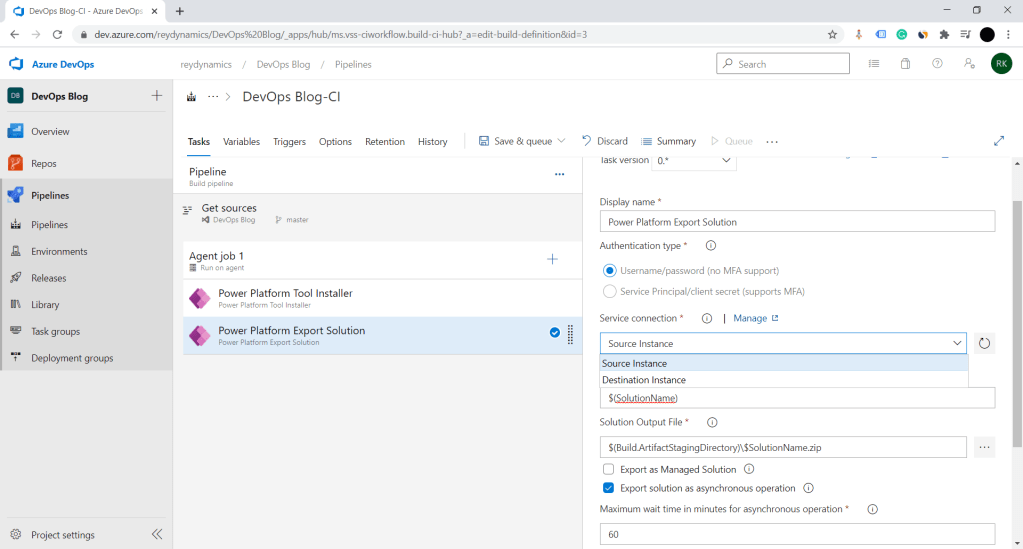
9. The above created connections will be available in the service connection dropdown. Select source connection for export solution component .

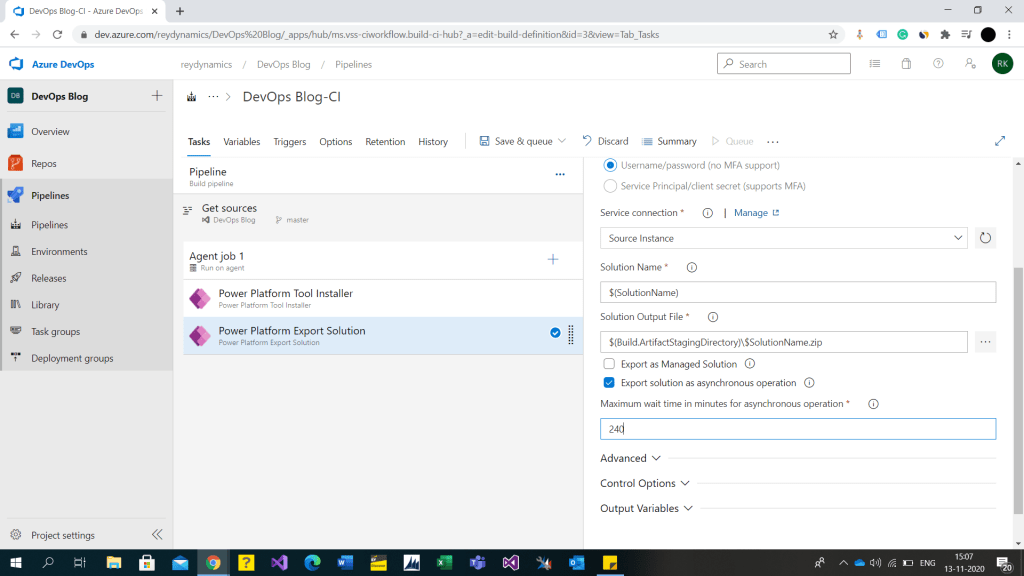
10. Fill in the other details as shown in above screen shot . $SolutionName will be our variable where we will configure the solution name to be exported. Solution output file $(Build.ArtifactStagingDirectory)\$SolutionName.zip will be the destination artifact where the solution will be stored after export.

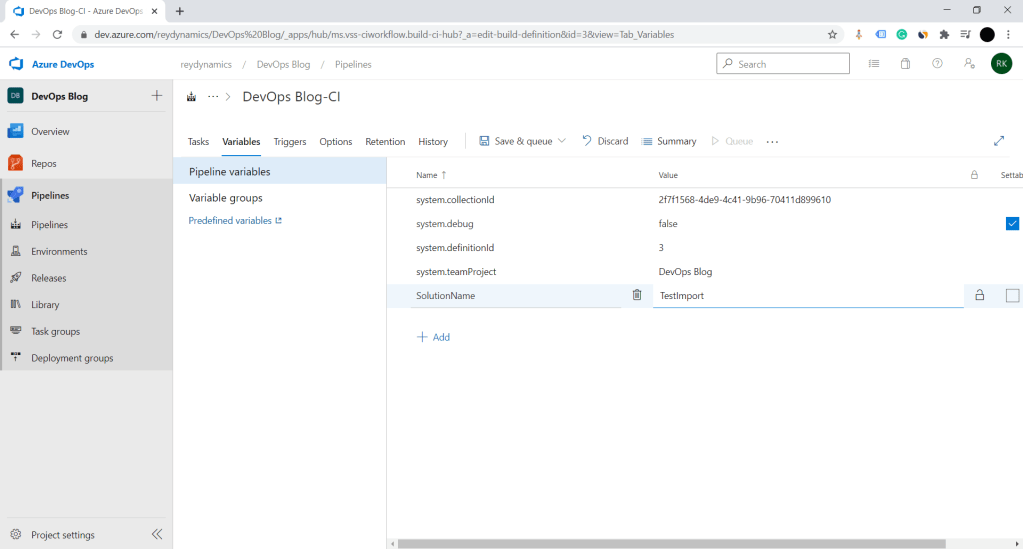
11. On the top menu bar select Variable > Add new variable as shown in below screen shot . Set the solution name as value for the variable . Increase the asynchronous wait time.

Set the solution name as testimport.

12. Add Power platform Import solution component to import the exported solution in the target instance.

13. Save the azure job . Please ensure solution name passed in variable is created in source instance . Below is the source solution .

Source solution instance

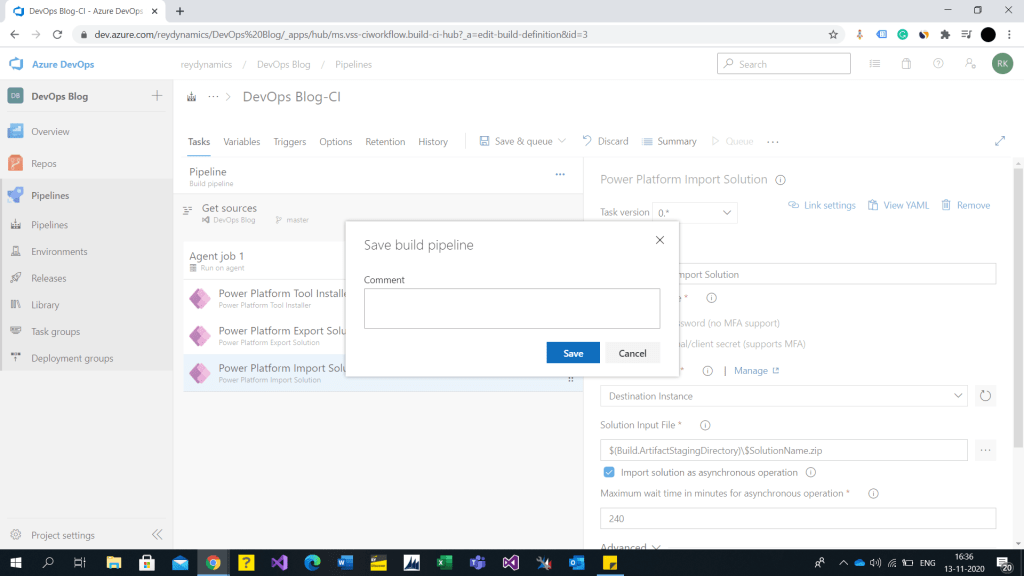
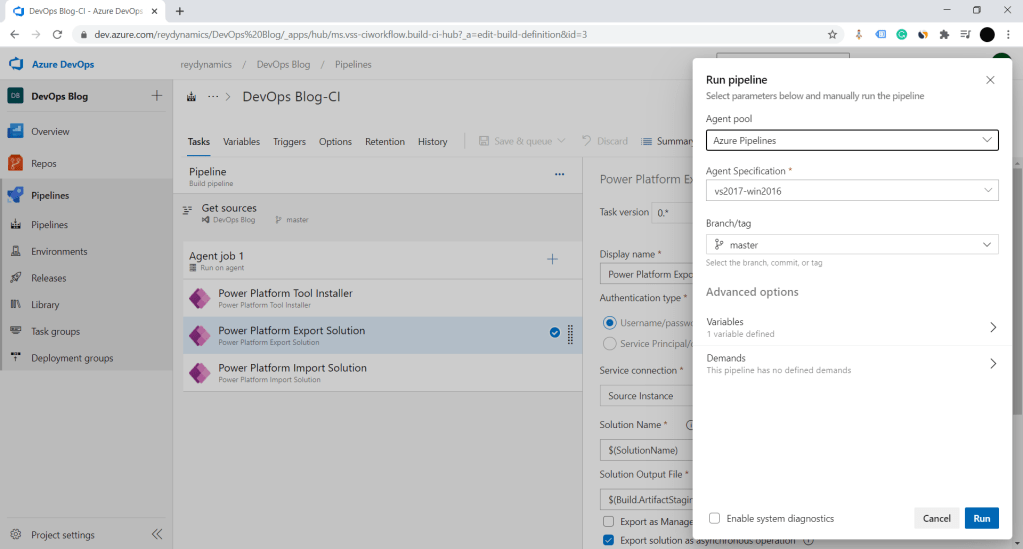
14. Below is the screenshot of destination instance. Lets execute this pipeline . Click on queue under azure pipeline. Note: you might face an error with respect to azure repository access . Please enable the respos for the project as shown below .

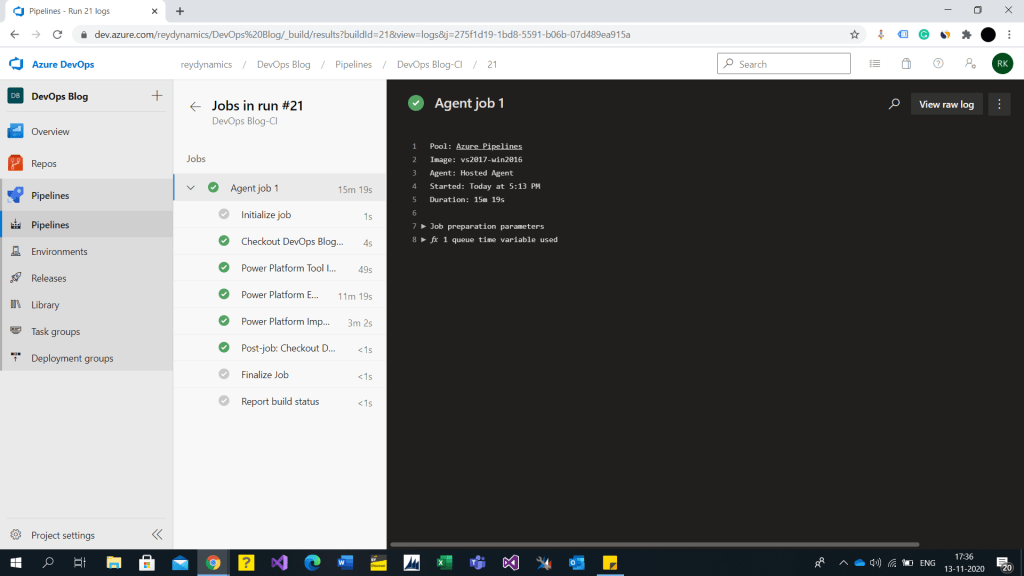
Azure agent run history
Solution Imported in target environment

Hope this helps….. Thanks for reading . Good Luck.

Follow me on my Linked In.

How to send Dynamics 365 Emails using Power automate/Flows ?

In this blog i will try to demonstrate how we can use power automate to send dynamics 365 emails. Before power automate you might have used workflows to send emails in dynamics 365 . As you all know microsoft is upgrading to Power Apps with low code no code development , you might have seen a message within a classic workflow saying “we recommend you to switch to flows instead of classic workflows”.

Power Automate provides the same send email concept . Although the setup and development of power automate is different .

Lets start with step by step guide to send dynamics 365 email :

  • Navigate to My flows and click on New > automated process.
  • Type flow name and select trigger for the flow, please ensure to select current environment CDS component.
  • Configure the CDS component based on your requirement. I will try to demonstrate on create of account record.
  • The above actions indicates the trigger of this power automate on create of Account.
  • Next step is to fetch the primary contact related to the account.
  • Get Owner record who has created the Account.
Fetch user ID of the owner for from context
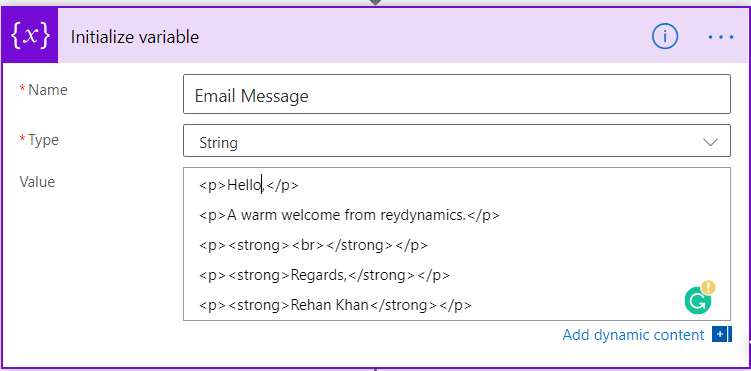
  • Next step is to initialize email message and email subject variable in power automate.
Set email message in a variable.
Set subject for email in a variable.
  • Now as we are ready with data to be used in email message lets create send create an email message using create a new record CDS component.
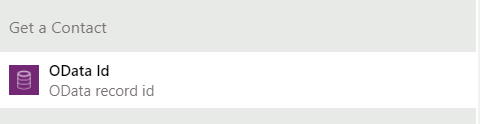
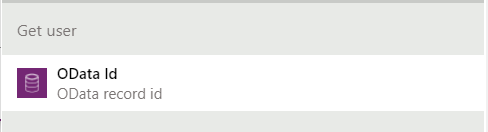
  • In the above create component I have selected the field “to” as odataid from Get contact component and “from” party as odataid Get user component.
Get contact odata id
Get User odata id
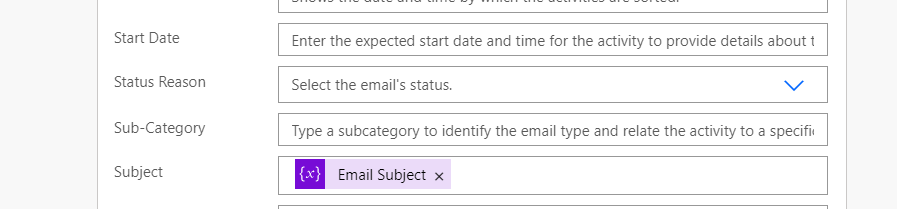
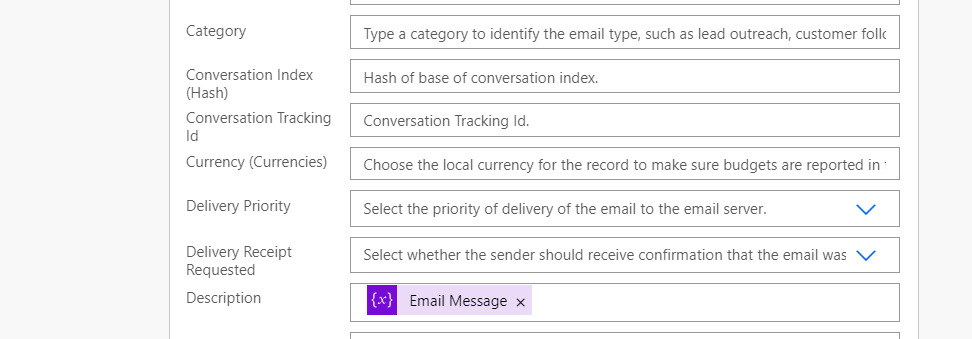
  • Click on show advanced option .Set subject and email message which we initialized above in respective variables as seen in below screen shot.
Set email subject
Set email message
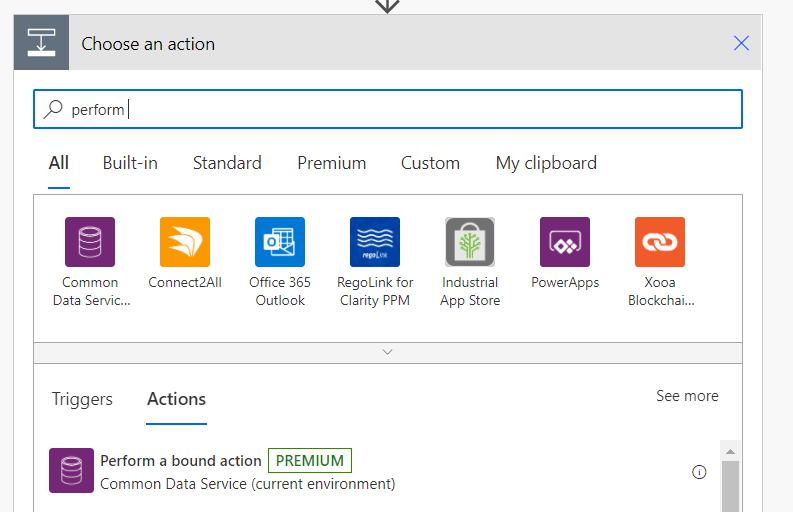
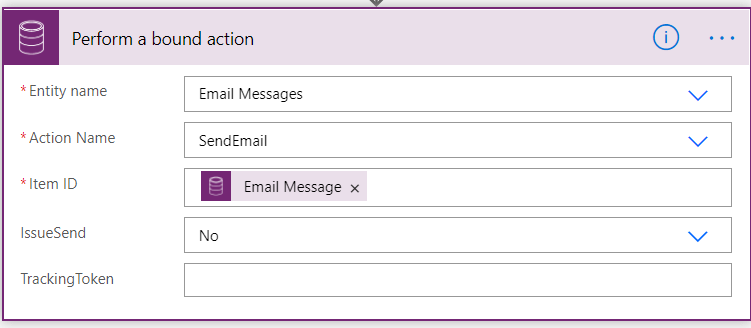
  • Add new step and select perform bound action.

This action has a few parts as follows,

  • Entity name – This is the entity that correlates to the same entity of the “create record” action. In that step we created an “Email Message” record.
  • Action name – There will be a drop-down list that corresponds to the “Entity name” chosen.Here we are selecting Send Email.
  • Item ID – This will be the GUID (unique ID) of the record to send. In this case, it will be the prior action of the “Email Message” record that was created.
  • IssueSend – This is a No/Yes option list. If this is set to “no”, the email will not send. It this is set to “Yes” email will be sent. I haven’t configured mailbox hence here i am keeping it no.

    Lets trigger the workflow once and execute the flow.
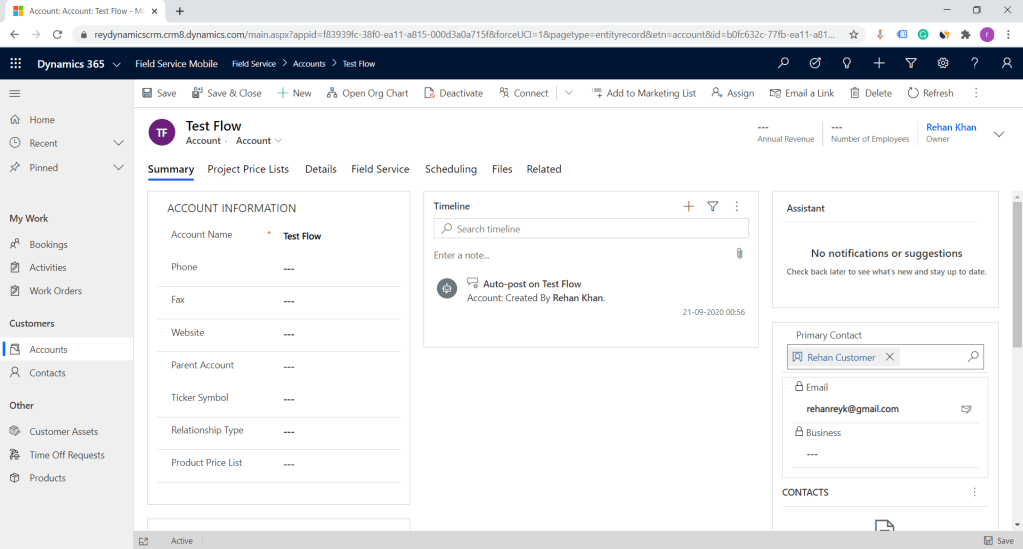
Create Account
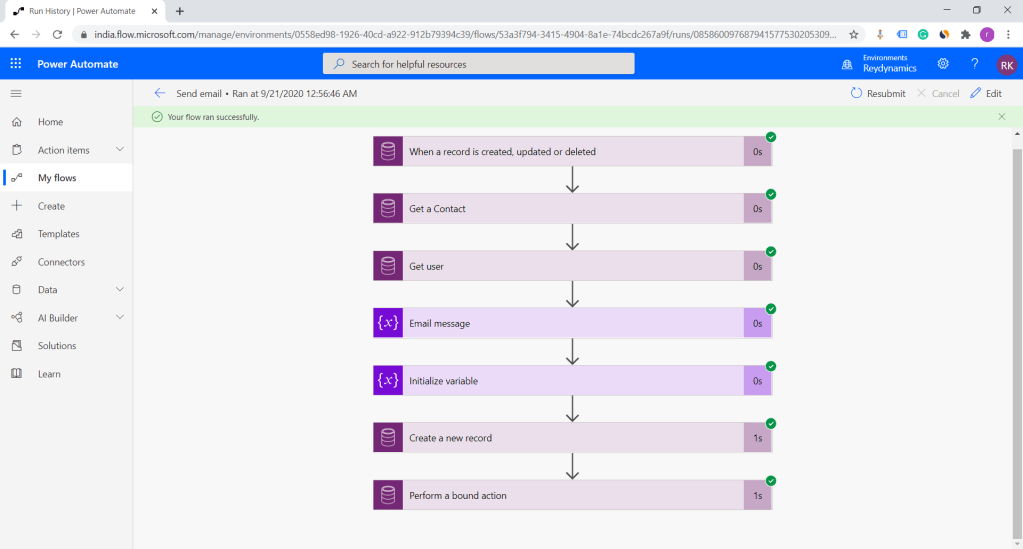
Flow executed on create of account.
New email record created.

Hope this helps….. Thanks for reading . Good Luck.

Follow me on my Linked In

Dynamics CRM SMS Integration with Twilio using Power Automate

In this blog, I will try to demonstrate how we can integrate Twilio for sending SMS from Dynamics CRM using Power Automate. SMS functionality is required by clients for many business use-cases.Some of them are listed below.

  • Lead creation
  • Customer Onboarding
  • Case creation

Let’s start with Twilio account creation in case you don’t have you can create a demo account for free without adding your credit card details here .

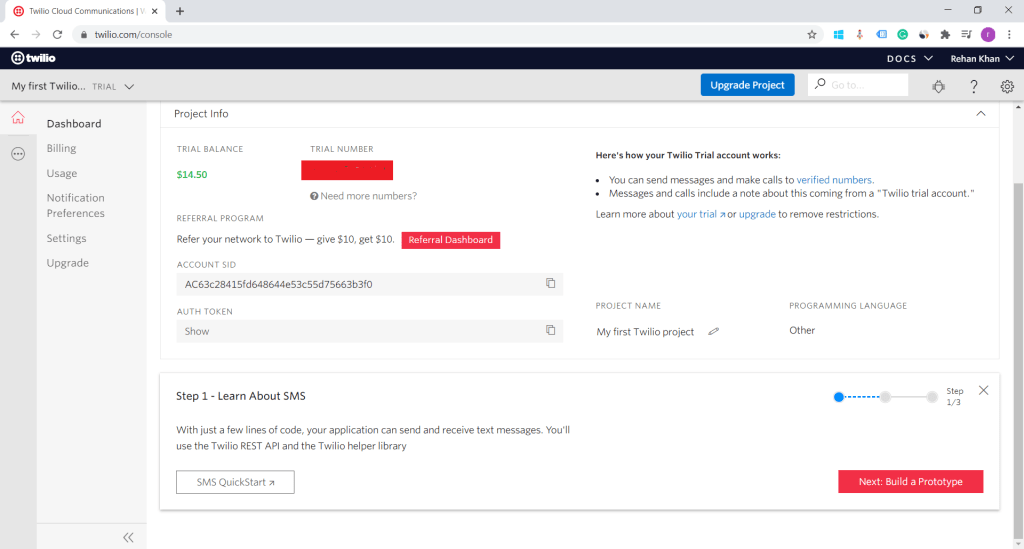
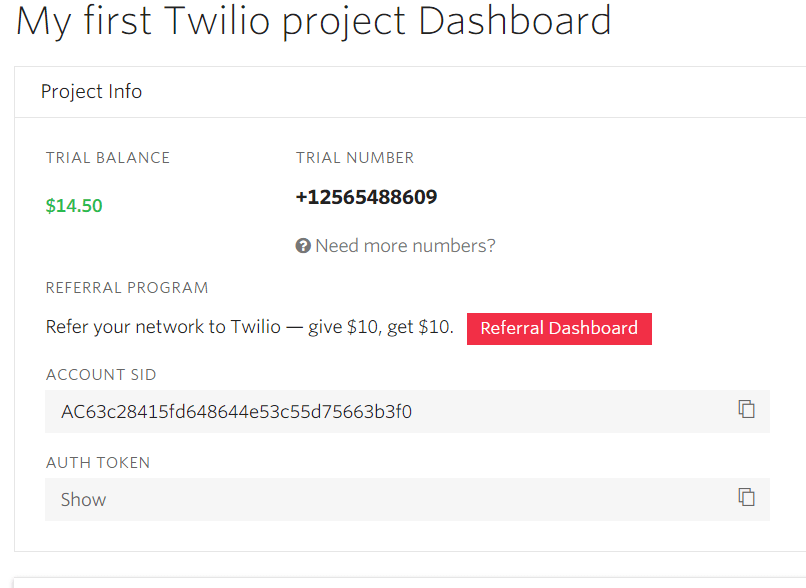
Once you register and verify your account via email and phone number you will be landing on your Twilio dashboard.

In the above screenshot, you can see the Twilio dashboard. Now you have to generate a Trial number by clicking on the button below trial number. Twilio will provide a random number for the trial account. Now we have Account sid, Auth token, and Phone number with us. We will use these three parameters to connect and process SMS in power automate.

Power Automate 

Log in to the power automate portal https://flow.microsoft.com .

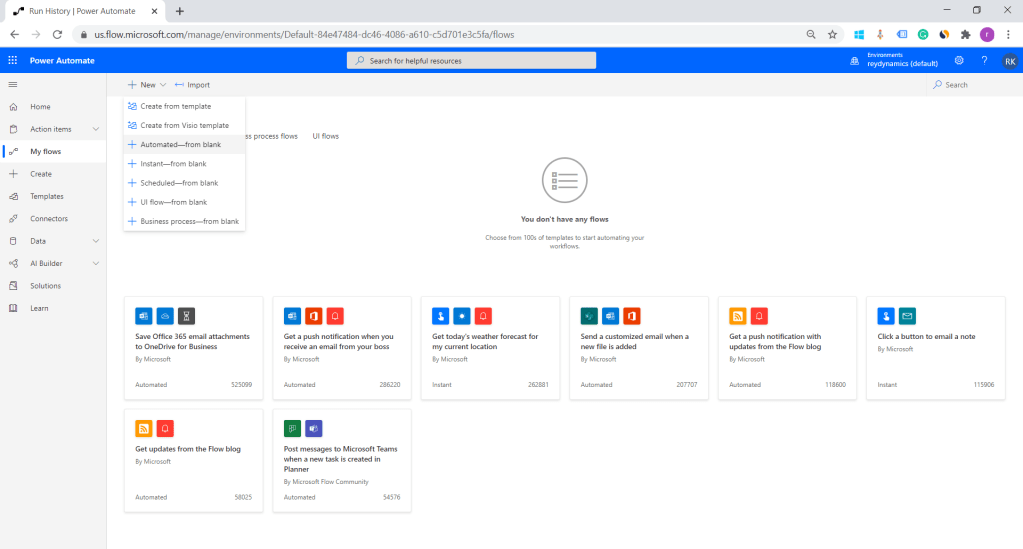
1. Select Automated blank flow.

Automate blank flow

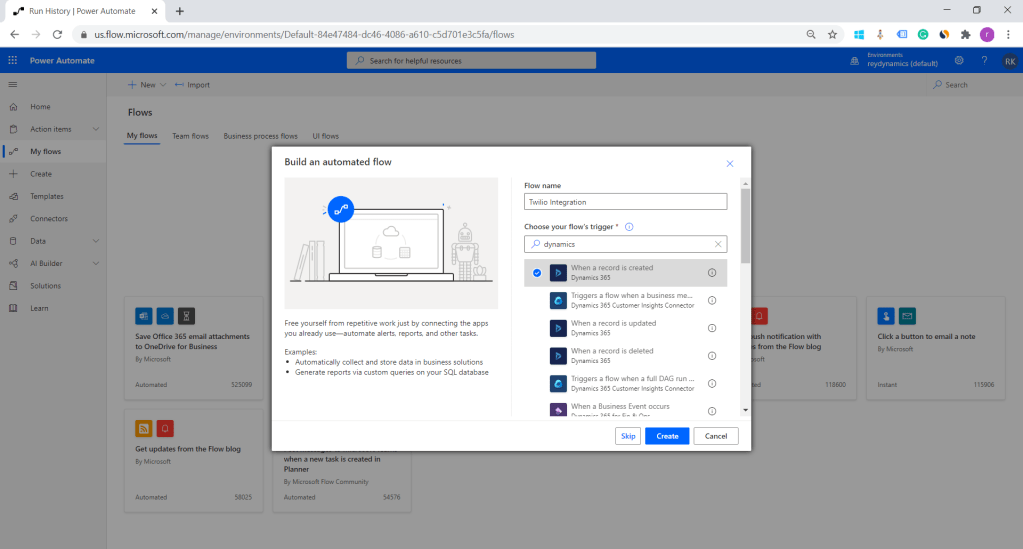
2. Provide a name to your flow and select dynamics 365 create of record trigger.

create a flow with dynamics 365 trigger

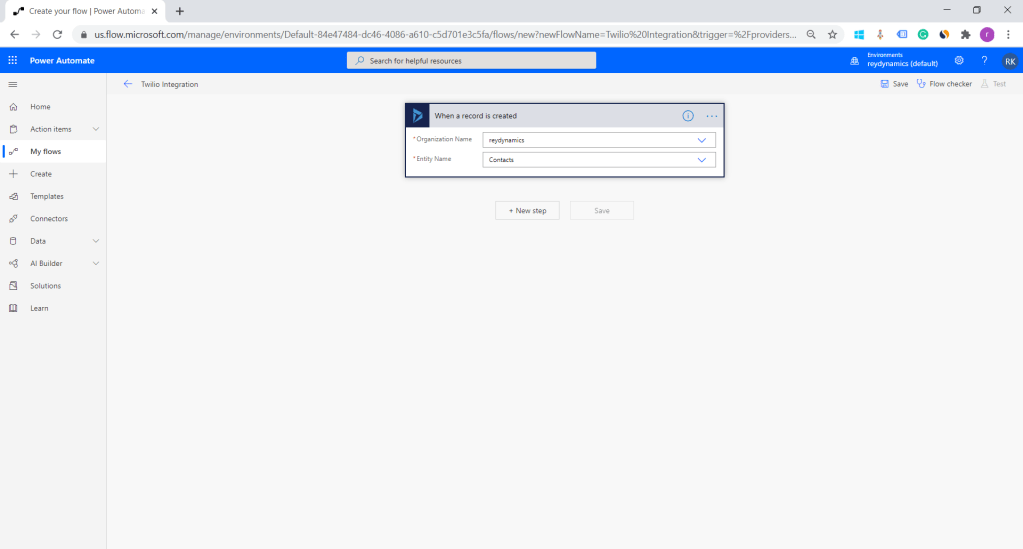
3.Select your organization and select the entity on which the flow will get triggered. Here I am demonstrating on create of contact.

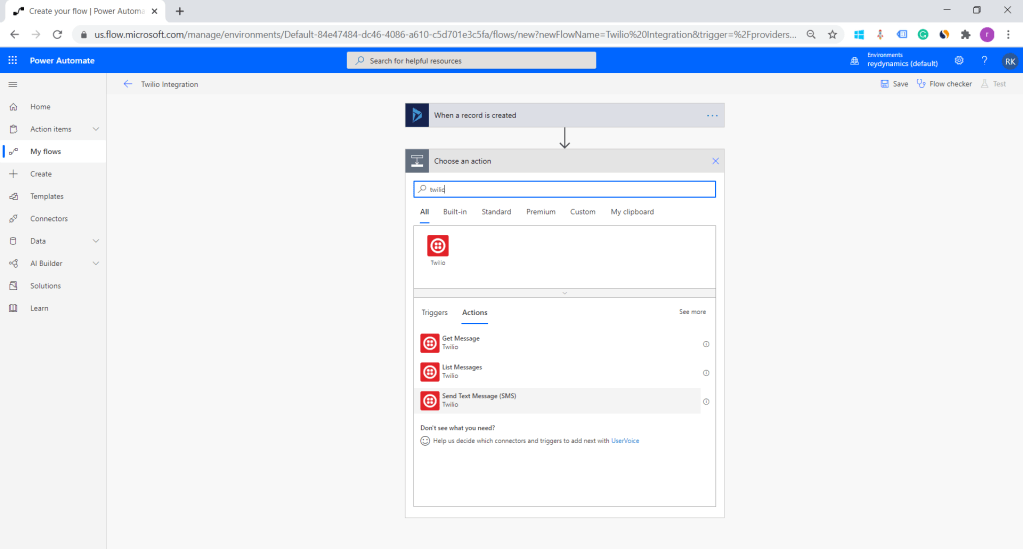
4.The next step is to add Twilio connector and select Send text message action.

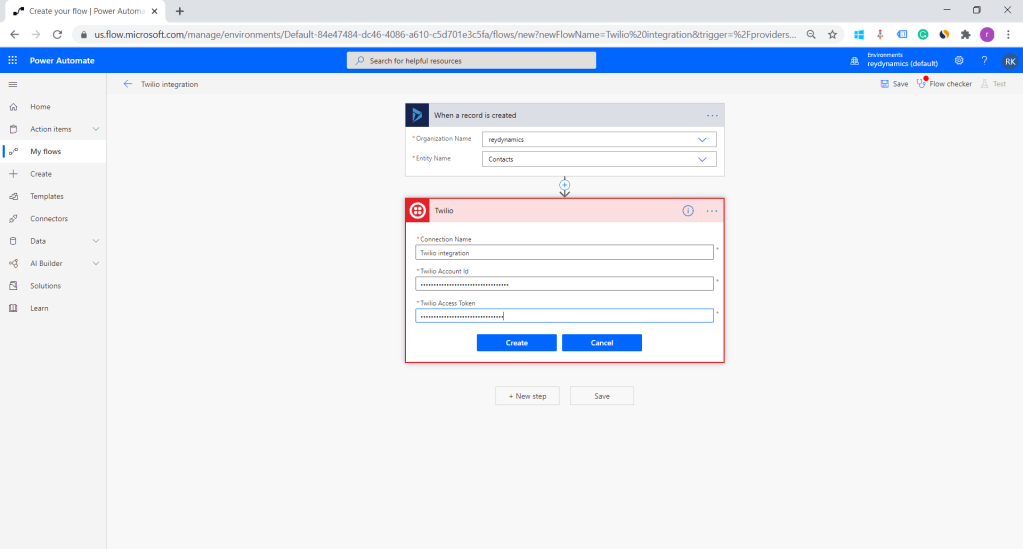
5.Type name for Twilio connection and copy Account ID, Auth token from Twilio dashboard. Once done click on create.

Copy twilio token and account details
Add twilio connection details

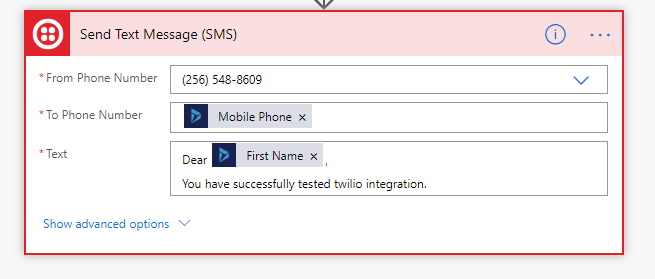
6.The next step is to add SMS details. Your number registered with Twilio will be populated in from the phone number field. I am adding a contact phone number as To phone number.
And the last one is the text message body which can be dynamic, you can include parameters from contact entity or any related entity as per your requirement.

Once you have performed the above steps Save and close the flow.
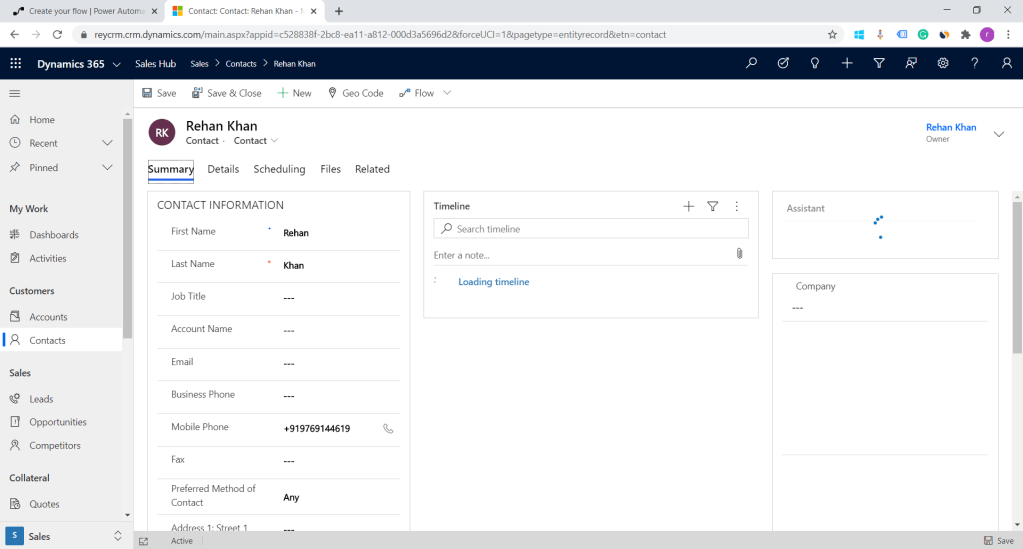
Let us try creating a contact record.

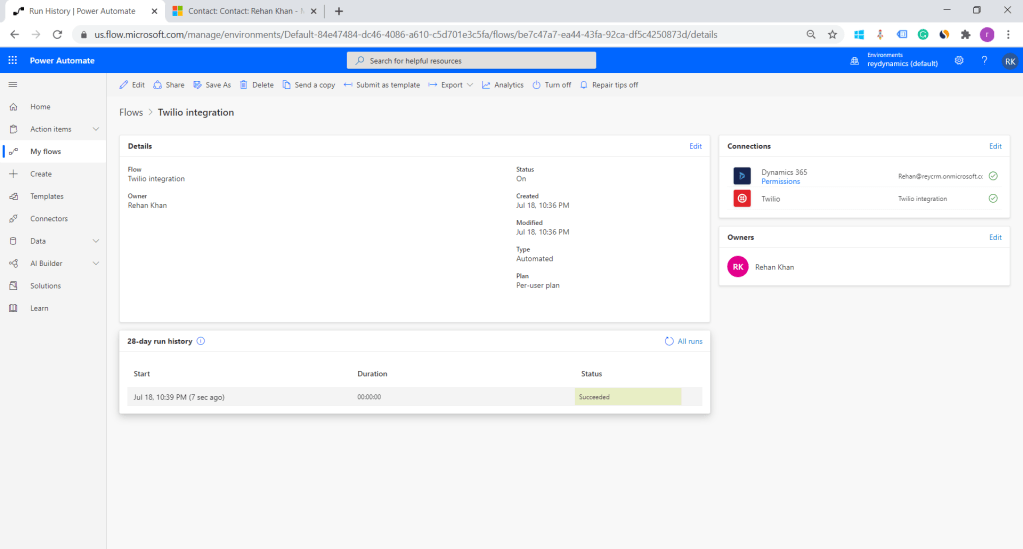
Now let’s check our power automate logs.
As you can see in the below screenshot flow is triggered successfully.

Flow executed succesfully
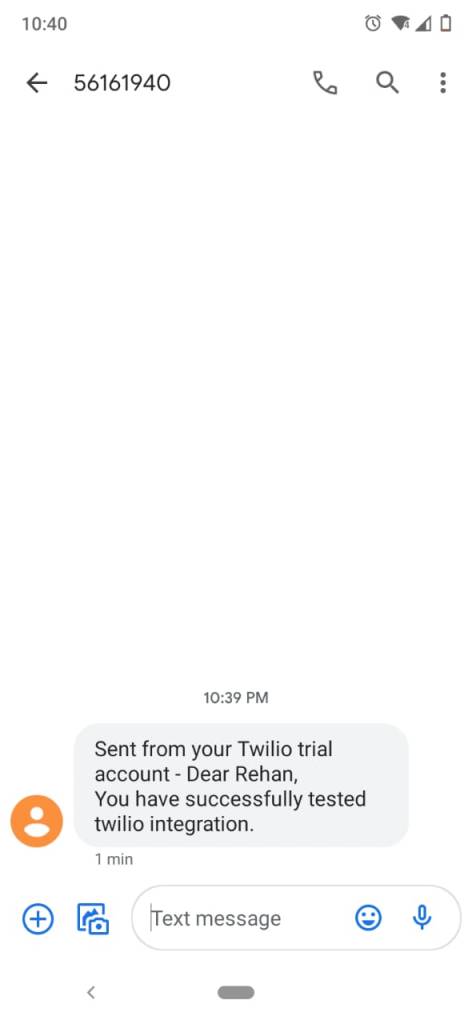
SMS recieved

As per the above screenshot, we can see that Flow executed successfully and I have received an SMS.
This shows a powerful way to integrate SMS with Low code No code strategy using power automated.
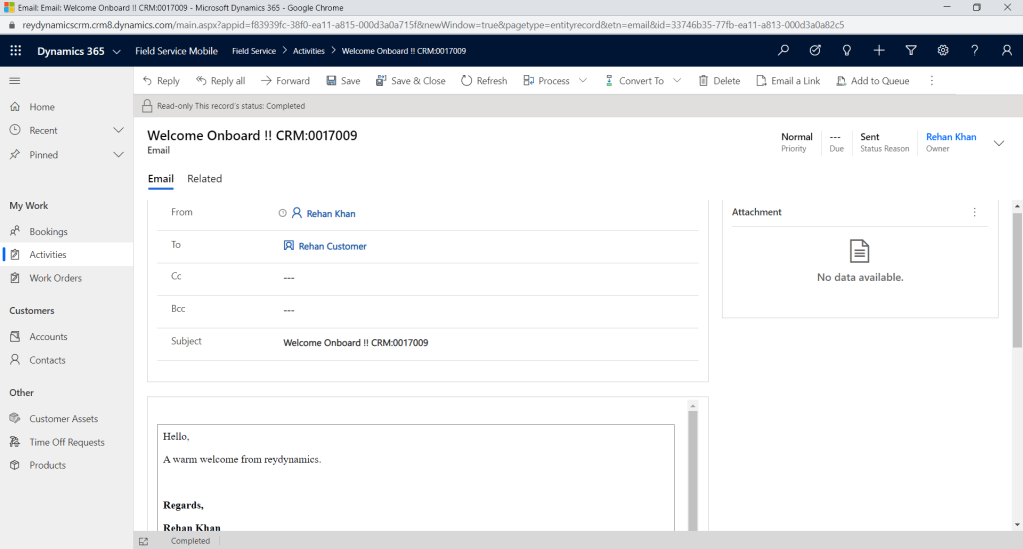
I will try to demonstrate SMS activity with Powerautomate to show communication on the contact timeline.

Hope this helps Thanks for reading ………. 🙂

Terminate Action in Power Automate/Flows

Hello Everyone,
In this blog, I am going to share how we can use terminate action effectively in powerautomate . There are many situations/conditions where we can use terminate action basis on designing of the flow/powerautomate.
So in one of my client’s requirements, I was using powerautomate/flow for API integration using HTTP action where I used terminate action.
I will try to demonstrate the same below.


In the above powerautomate I am calling a third party API when a record is created in Dynamics CRM. In this scenario, everything was looking fine but the problem was when the API didn’t respond with success the system admin was unable to track which flow trigger has failed as all the flow logs showed a successful message.
As a false response from API will be considered a successful flow trigger it becomes hard for flow admin to identify the failed flow and re-run it.
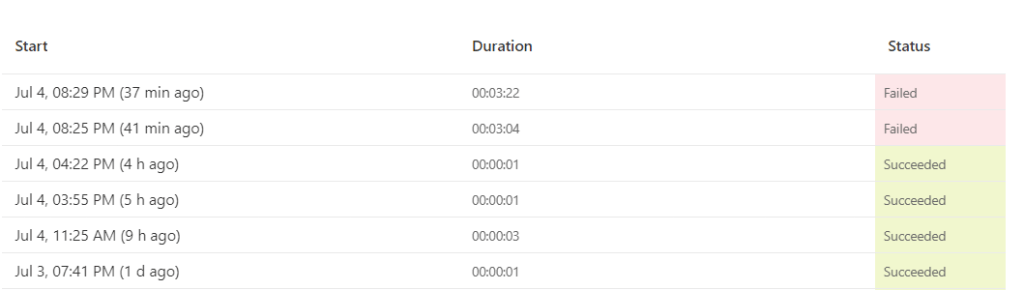
As seen in the below screenshot the logs show successful runs. In this case, if a flow needs to be re-triggered the admin has to manually check the time of trigger in CRM and match the same in flow logs.

Hence to overcome this problem where re-run of flow was manual by system admin( as per my client’s requirement), I have implemented terminate action in the flows.

In the above screenshot, I have added condition checking the desired success code from service and basis on that deciding whether the flow/powerautomate is getting failed or successful.For example, if the status returned from API is 400 the flow will go into No condition and terminate the flow. This will help the admin to determine between successful API operation and failed API operation. This flow can be redesigned basis on your client’s requirements as the success of API in my case was status code.

As seen in the below screenshot logs page looks easy to determine successful and failed API calls based on customer requirements.

Hope this helps & Thank You for reading.
You can follow me on Linkedin.

Using new modal dialog Ms Dynamics 365 Wave 1(2020)

In the latest release of microsoft Wave 1 for Dynamics 365 ,one of the many feature which we are going to discuss today is open Form using below command Xrm.Navigation.navigateTo(pageInput,navigationOptions).then(successCallback,errorCallback).
We can use the modal pop up to provide a better user experience where the client can navigate to another form without leaving the current form. We can populate entity list view, entity record forms as well as a web resource. Further details are provided for every page input as per Microsoft Docs below.

Types of Page Input

1.EntityList

  • pageType: String. Specify “entitylist”.
  • entityName: String. The logical name of the entity to load in the list control.
  • viewId: (Optional) String. The ID of the view to load. If you don’t specify it, navigates to the default main view for the entity.
  • viewType: (Optional) String. Type of view to load. Specify “savedquery” or “userquery”.

2.Entity record

  • pageType: String. Specify “entityrecord”.
  • entityName: String. Logical name of the entity to display the form for.
  • entityId: (Optional) String. ID of the entity record to display the form for. If you don’t specify this value, the form will be opened in create mode.
  • createFromEntity: (Optional) Lookup. Designates a record that will provide default values based on mapped attribute values. The lookup object has the following String properties: entityTypeid, and name (optional).
  • data: (Optional) Object. A dictionary object that passes extra parameters to the form. Invalid parameters will cause an error.
    For information about passing parameters to a form, see Set field values using parameters passed to a form and Configure a form to accept custom querystring parameters.
  • formId: (Optional) String. ID of the form instance to be displayed.
  • isCrossEntityNavigate: (Optional) Boolean. Indicates whether the form is navigated to from a different entity using cross-entity business process flow.
  • isOfflineSyncError: (Optional) Boolean. Indicates whether there are any offline sync errors.
  • processId: (Optional) String. ID of the business process to be displayed on the form.
  • processInstanceId: (Optional) String. ID of the business process instance to be displayed on the form.
  • relationship: (Optional) Object. Define a relationship object to display the related records on the form. The object has the following attributes.              

3.HTML web resource

  • pageType: String. Specify “webresource”.
  • webresourceName: String. The name of the web resource to load.
  • data: (Optional) String. The data to pass to the web resource.

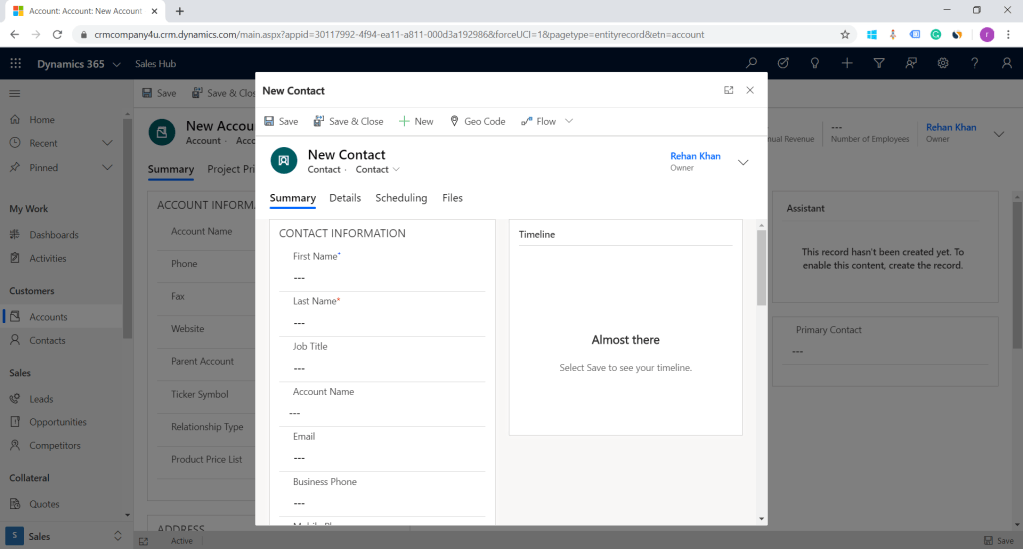
To demonstrate this command i am adding a new button on Accounts form ribbon called new contact as seen in below image.

Create form of contact
Xrm.Navigation.navigateTo({
pageType:"entityrecord",
 entityName:"contact",
 formType:2},

{target: 2, 
position: 1,
 width: {value: 50, unit:"%"}
});

In the above example i have demonstrated page type entity record.

target: Number. Specify 1 to open the page inline; 2 to open the page in a dialog. Also, rest of the attributes (widthheight, and position) are valid only if you have specified 2 in this attribute (open page in a dialog).
position: (Optional) Number. Specify 1 to open the dialog in center; 2 to open the dialog on the side. Default is 1 (center).
width: (Optional) Number or Object. The width of dialog. To specify the width in pixels, just type a numeric value. To specify the width in percentage, specify an object of type SizeValue 

height: (Optional) Number or Object. The height of dialog. To specify the height in pixels, just type a numeric value. To specify the width in percentage, specify an object of type SizeValue with the following properties for height and width:

value: Number. The numerical value.

unit: String. The unit of measurement. Specify “%” or “px”. Default value is “px”.

This feature will surely be used by many of our clients ,to enhance user experience .
I Hope this helps.
Thanks for reading Good Luck…………. 🙂
You can connect me on LinkedIn.


3 Powerful ways to build conditions in Power automate.

Introduction

Microsoft is working at its best to automate not only the process for the end-users but also for developers. Power automate has some remarkable features which enhance development with low use or no use of code.Microsoft Power automate is the next versatile thing for Microsoft. It helps the business to boost the automated process. Power automates integrates with many applications and services including Dynamics 365, Sharepoint, Twitter, etc. Microsoft power automate has many pre-built connectors to integrate with multiple applications or services.

Important Update


undefined
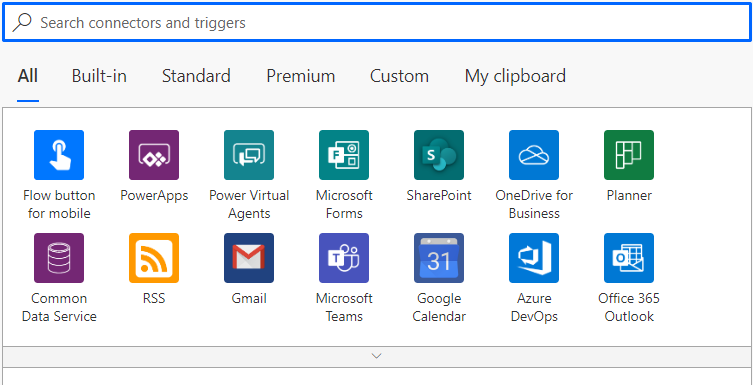
As seen in above pictures we can see list of all the connectors with which microsoft

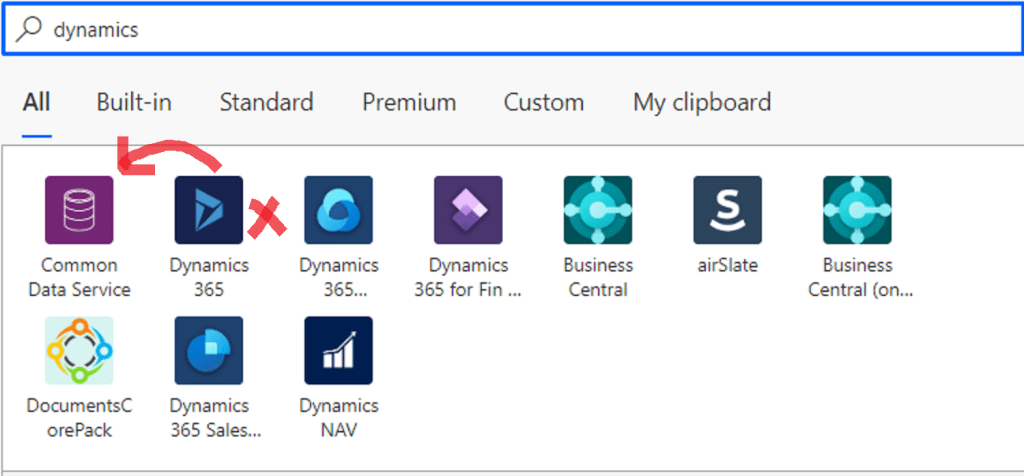
As seen in the above pictures we can see a list of all the connectors with which Microsoft power automates integrates. In the recent release, Microsoft has mentioned Dynamics 365 connector as Deprecated. The Dynamics 365 connector provides duplicate functionality to the Common Data Service connector since all Dynamics 365 Customer Engagement data is now stored in Common Data Service(CDS).

You can check the history of the connectors here.

Let’s start with conditions in Power automate.

  1. NESTED CONDITION CONTROL
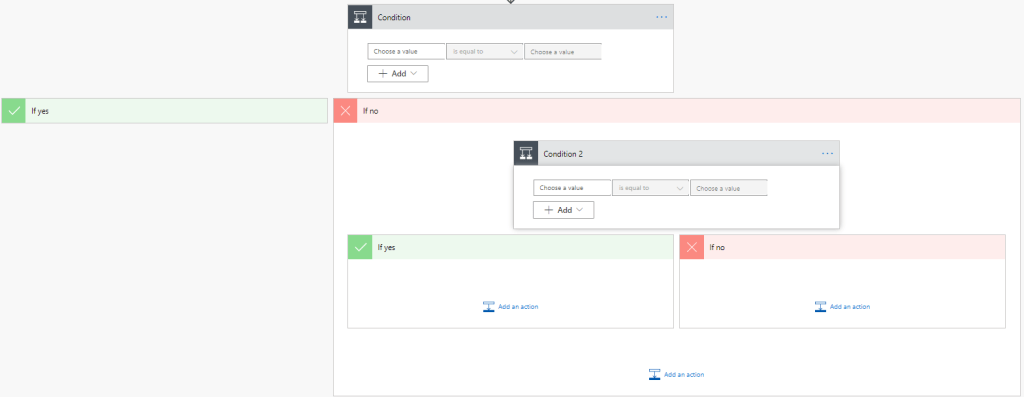
    This condition is familiar for all the developers, relatable to if-else condition. In this, we build nested conditions using basic condition control of Power automate. The below image shows the nested condition using condition control in power automate.
Condition control in powerautomate
Nested Condition

Condition control is easy to use and quite similar to if-else condition and hence easy to understand.
Nested conditions used simultaneously will make flow visually complex.
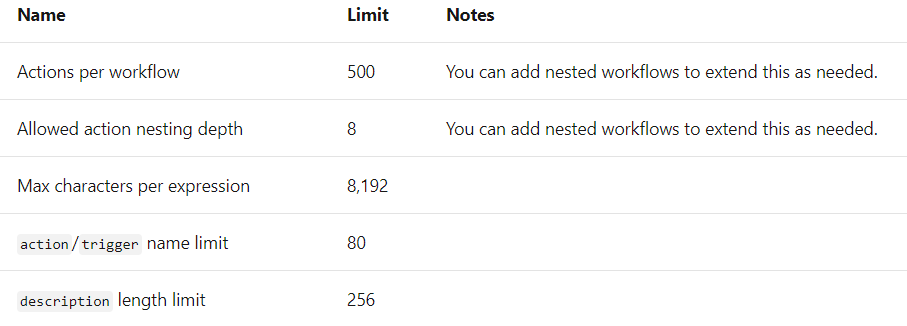
Although it is easy using nested conditions there is a limitation as of now we can only have 8 nested levels of conditions in a Flow.

2.SWITCH CASE CONTROL
To build multiple conditions more reliably and professionally power automate provides us with switch case condition control. It is similar to option 1 where we can set more conditions using a single power automate control. The below image shows switch case-control in power automate.

Switch case condition is easy to understand.
It does not have any limitation on the number of conditions.
It is easy to visualize on screen.

It accepts only strings and integer to compare values, to use date field or any other type you have to use variable and set it to be an integer or string.

3.MULTIPLE CONDITIONS WITHIN THE SAME CONDITION CONTROL.
This condition is used under option 1 that is the same condition control but in a different way. It is basically applicable when you have multiple conditions with the same outcome. For example, if condition A, B, C has the same outcome /action this condition can be used. Below pic depicts multiple condition rows.

Multiple condition with same output

Multiple conditions are easy to implement like Option 1.
This can eliminate nested conditions and used to build complex conditions
.

It can only be implemented if group of conditions have same output.


Hope this helps .
Thanks for reading Good Luck…………. 🙂
You can connect me on LinkedIn.

Lookup filter based on security role MS Dynamics CRM

In this blog i will demonstrate how we can design a solution to filter Lookup records based on security role.This was one of my clients requirement, where the logged in user can view products on Lead based on their security role.Lets get an overview of the solution to be implemented.

  • Create a mapping entity – We will create a new entity called security role wise products , and add 2 lookup fields on this entity that will be product lookup and security role lookup.
  • Filter lookup – On load of the lead form we will generate a custom filter based on the records available in our custom entity.

Lets start with creation of entity.

I will create a new solution Lookup filter . Navigate to Settings > Solutions>New.

Create A new solution to add the components

Create an entity for mapping of product and leads

Create a lookup field for product (lookup of the entity master you want to filter in this example product).

Create a lookup field for the master entity you want to filter

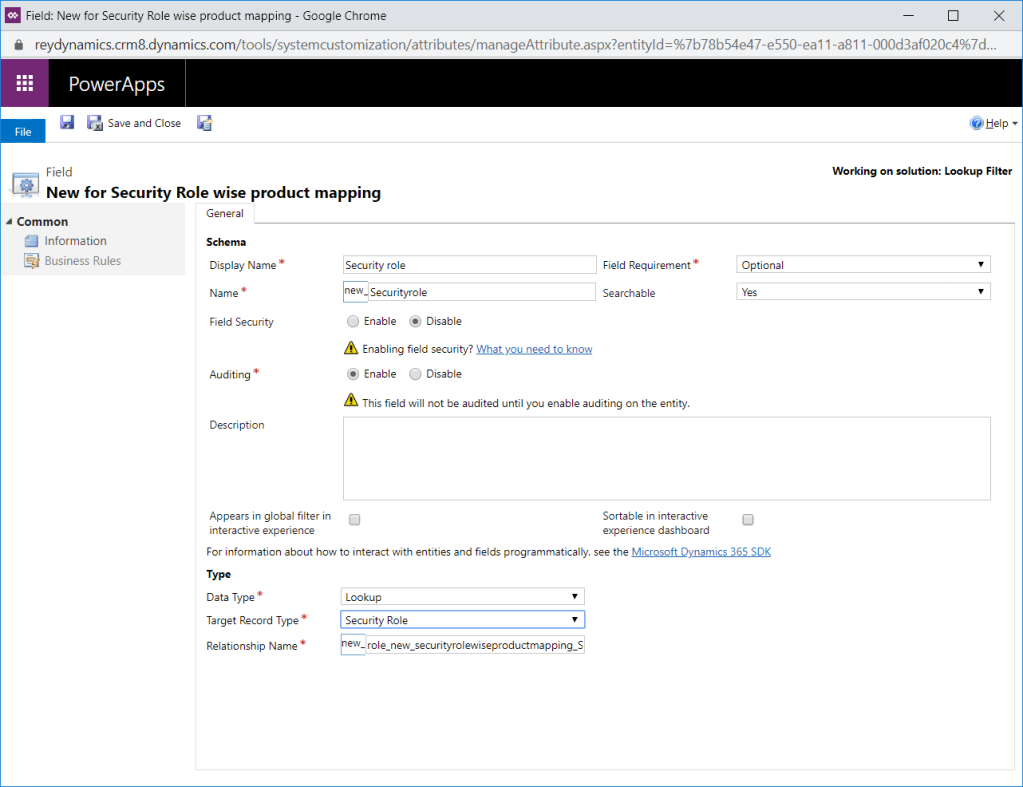
Create a lookup field for security role to tag the corresponding security role .

create a lookup field for security role

Add these 2 fields on the main form.Save and publish the form.

Add both the fields on the form

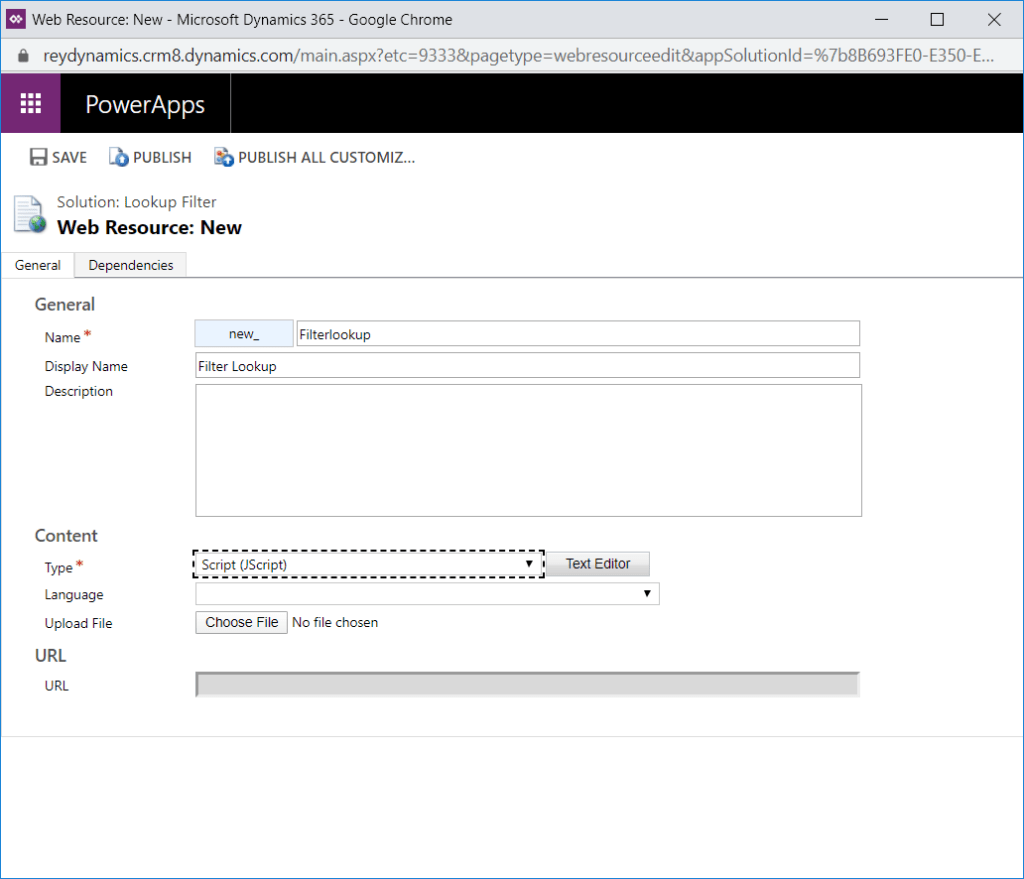
Lets move to our script component.Add a javascript component with the below function in it.Create a new web resource Filter lookup.

Add below java script code in the filter lookup js file.

// JavaScript source code

//******** On Load Function ****************
function Onload(executionContext) {
    debugger;
    var formContext = executionContext.getFormContext(); // Passing execution Context as var

    // Below function adds a presearch function to the attribute defined.
    formContext.getControl("new_product").addPreSearch(
        function (executionContext) {
            filterproduct(executionContext);
        });
}


function filterproduct(executionContext) {
    var formContext = executionContext.getFormContext(); // Passing execution Context as var

    var query = "<filter type='and'>" +
        "<condition attribute='productid' operator='in'>";

    var customquery = "";
    var selectquery = "";
    var userrole = formContext.context.getUserRoles();
    //debugger;
    for (var i = 0; i <= userrole.length; i++) {
        if (userrole.length - 1 === i) {
            selectquery = selectquery + "_new_securityrole_value eq " + userrole[i];
        }

        else if (i < userrole.length - 1) {
            selectquery = selectquery + "_new_securityrole_value eq " + userrole[i] + " or ";
        }
    }
    var filterquery = "new_securityrolewiseproductmappings?$select=_new_product_value,_new_securityrole_value&$filter= " +
        selectquery;
    debugger;
    var results = getdata(formContext, filterquery, false);
    for (var i = 0; i < results.value.length; i++) {
        if (results.value[i]["_new_product_value"] != null) {
            var _new_product_value = results.value[i]["_new_product_value"];
            customquery = customquery + "<value uitype='productid'>{" + _new_product_value + "}</value>";
            customquery = customquery;
        }
    }
    customquery = query + customquery + " </condition> </filter>";
    if (results.value.length > 0) {
        formContext.getControl("new_product").addCustomFilter(customquery);

    }
}


// General function for Get query
function getdata(formContext, query, SyncMode) {
    
    try {
            
        var result = null;
        $.ajax({
            type: "GET",
            contentType: "application/json; charset=utf-8",
            datatype: "json",
            url: formContext.context.getClientUrl() + "/api/data/v9.1/" + query,
            beforeSend: function (XMLHttpRequest) {
                XMLHttpRequest.setRequestHeader("OData-MaxVersion", "4.0");
                XMLHttpRequest.setRequestHeader("OData-Version", "4.0");
                XMLHttpRequest.setRequestHeader("Accept", "application/json");
                XMLHttpRequest.setRequestHeader("Prefer", "odata.include-annotations=\"*\"");
            },
            async: SyncMode,
            success: function (data, textStatus, xhr) {
                result = data;
            },
            error: function (xhr, textStatus, errorThrown) {
                Xrm.Utility.alertDialog(textStatus + " " + errorThrown);
            }
        });

        return result;
    } catch (e) {
       Xrm.Utility.alertDialog(" Error: " + (e.description || e.message));
    }
}

The above Javascript contains 3 functions .
1.Onload – This function add a presearch filter on the lookup field defined.

formContext.getControl("Your Lookup Attribute").addPreSearch(
        function (executionContext) {
            filterproduct(executionContext); //Function to add custom filter
        });

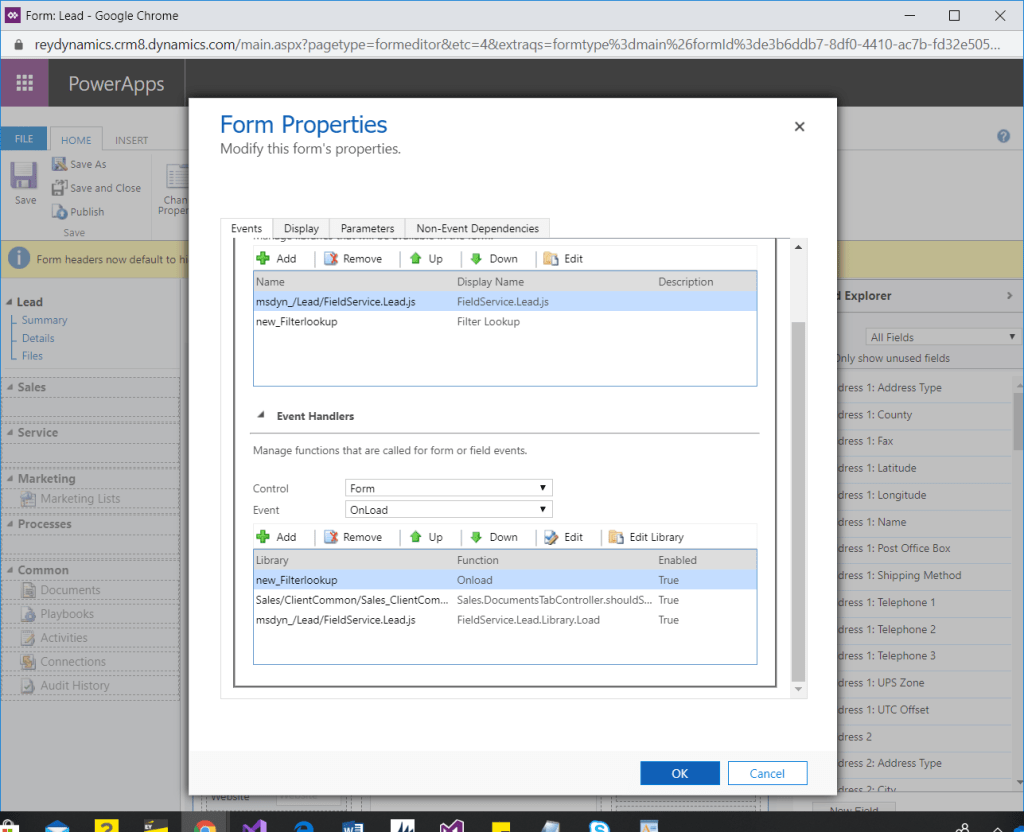
The above function is registered on load as seen in below screenshot.

The above onload function adds filterproduct function as the presearch function for the attribute defined.Lets discuss filterproduct function below.

function filterproduct(executionContext) {
    var formContext = executionContext.getFormContext(); // Passing execution Context as var

    var query = "<filter type='and'>" +
        "<condition attribute='productid' operator='in'>"; //uniqueid of the lookup master table 

    var customquery = "";
    var selectquery = "";
    var userrole = formContext.context.getUserRoles(); //fetching all the user roles for logged in user
    //debugger;
    for (var i = 0; i <= userrole.length; i++) {
    if (userrole.length - 1 === i) {
//replace the attribute as per the attribute name of the field security role created in mapping entity

    selectquery = selectquery + "_new_securityrole_value eq " + userrole[i];
        }

        else if (i < userrole.length - 1) {
//replace the attribute as per the attribute name of the field security role created in mapping entity
     selectquery = selectquery + "_new_securityrole_value eq " + userrole[i] + " or ";
        }
    }
    var filterquery = "new_securityrolewiseproductmappings?$select=_new_product_value,_new_securityrole_value&$filter= " +
        selectquery;
    debugger;
    var results = getdata(formContext, filterquery, false);
    for (var i = 0; i < results.value.length; i++) {
//Replace the attribute name as per the mapping entity created here i am using product field
        if (results.value[i]["_new_product_value"] != null) {
            var _new_product_value = results.value[i]["_new_product_value"];
//replace the attribute name
            customquery = customquery + "<value uitype='productid'>{" + _new_product_value + "}</value>";
            customquery = customquery;
        }
    }
    customquery = query + customquery + " </condition> </filter>";
    if (results.value.length > 0) {
        formContext.getControl("new_product").addCustomFilter(customquery);

    }
}

Please add jquery file on the form on which you are adding these javascript.
You can download the jquery file from here.

In the above given javascript replace the attribute name as per your attributes as required in the dynamic fetchxml query.So i have added the above javascript file in my test environment.Lets add a record in mapping entity and check the same.

As seen in above example all the products are visible in lookup , Lets add a record in source to role mapping i order to filter lookup.

I have added System adminitrator role corresponding to Armband product and created a record in our mapping entity security role wise product mapping.This will enable user with systemadmin role to acess only Armband product on Lead.

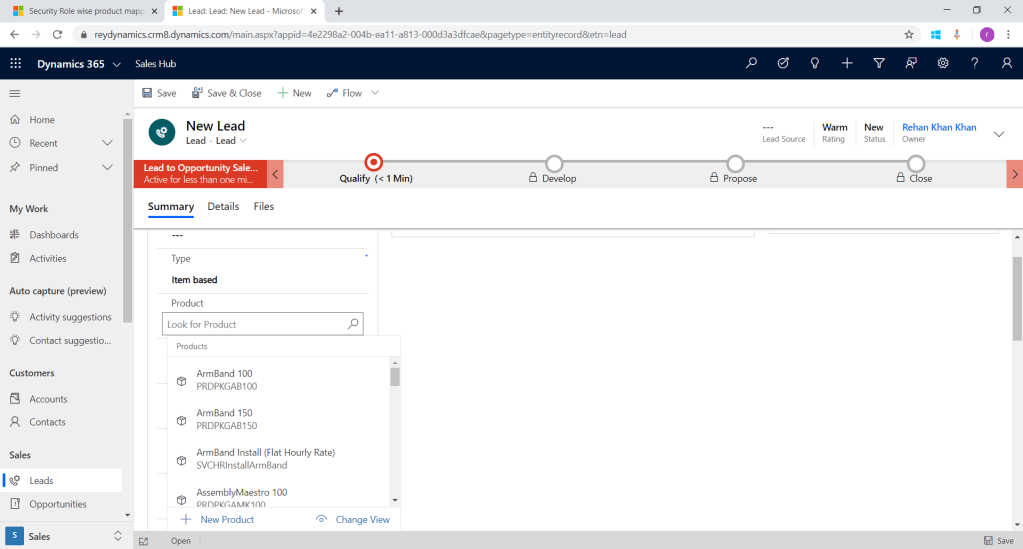
As seen in above screen shot the lookup is getting filtered based on configuration mapping added in the entity.
Note– In order for the filter to work please add atleast one record for each security role .
This is how we can achieve dynamic lookup filter which is configurable by admin without any technical knowledge.Hope this will work for you and help.
Thanks for reading Good Luck…………. 🙂
You can connect me on LinkedIn.